
It seems like your browser didn't download the required fonts. Please revise your security settings and try again.
Barracuda MSP App

You are currently viewing the legacy Barracuda Campus portal

Due to ongoing compatibility requirements during the migration, some users are still being redirected here. All content is being transitioned to the new Campus Training Portal and Campus Documentation Portal, and this legacy portal will be fully retired once the migration is complete.

Please visit https://campus.barracuda.com for more information.

Unassigning Products & Services from Subpartners

  • Last updated on

To unassign Products & Services, perform the following steps.

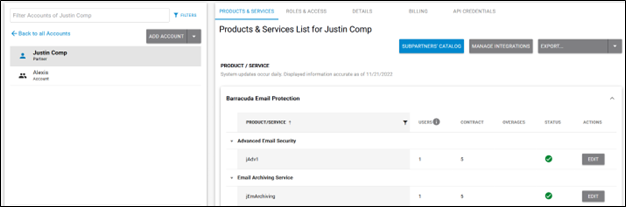
  1. At the Partner Products & Services list, select the product or service for which you want to unassign products or services.
    campus sub catalog page.png

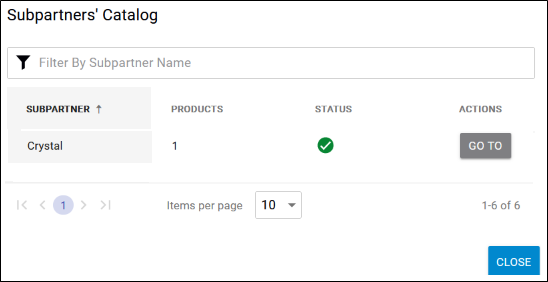
    The Subpartners' Catalog is displayed.
    campus assignsub.png

  2. At the subpartners listing, select a subpartner, and then click the Go To button.
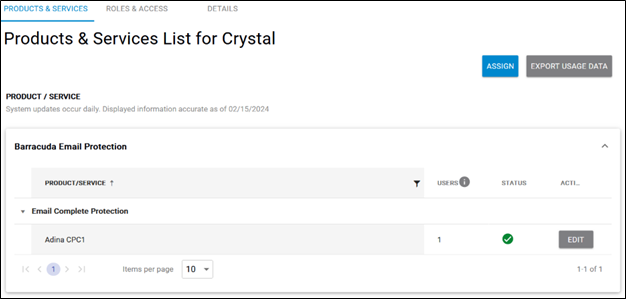
    The Subpartner Product & Services List is displayed.
    campus assign sub.png

  3. At the Product or Service, click the Edit button.
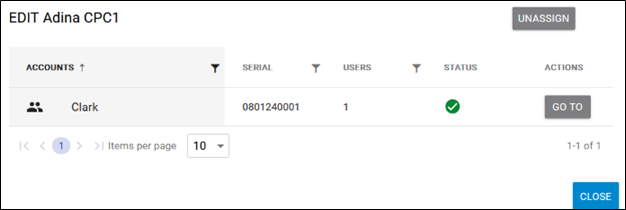
    The Unassign pop-up is displayed.
    campus unassign adina.png

  4. Click the Unassign button.
    The Unassign confirmation pop-up is displayed.
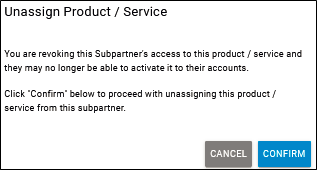
    image2022-7-27 15:57:48.png

  5. Click Confirm.