




Note: A device must be added before this option is displayed.
To generating a one-time use token, perform the following steps.
- At the ECHOplatform ribbon, click Preferences, Manage Portal Timeout/Users as shown below.
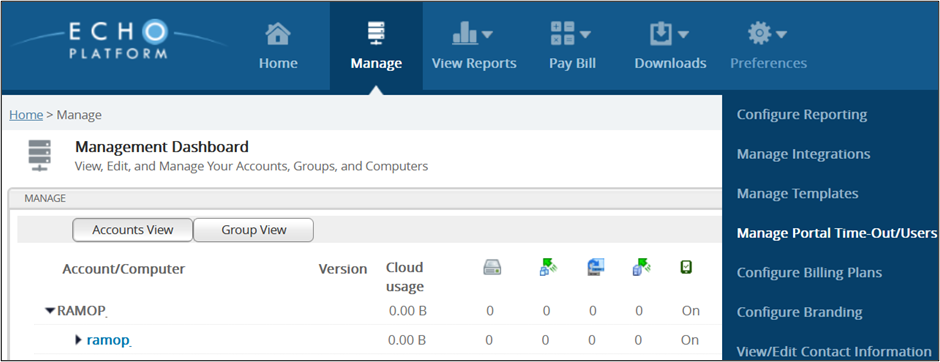
The Contact Information page is displayed.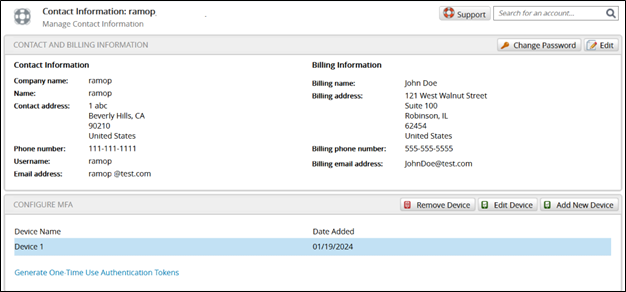
- At the Configure MFA section, click the link Generate One-Time Use Authentication Token.
The Generate page is displayed.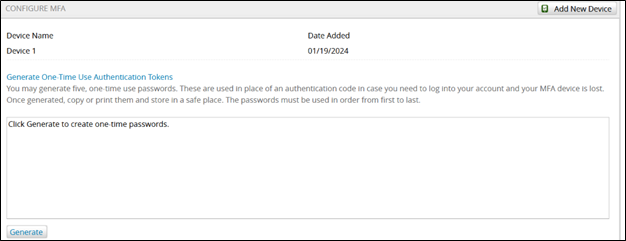
- Click the Generate button to create one-time tokens.
The Generate one-time use authentication token confirmation pop-up is displayed.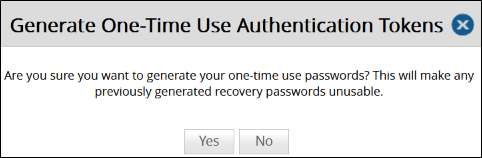
- Click Yes to generate one-time use token.
The tokens are displayed.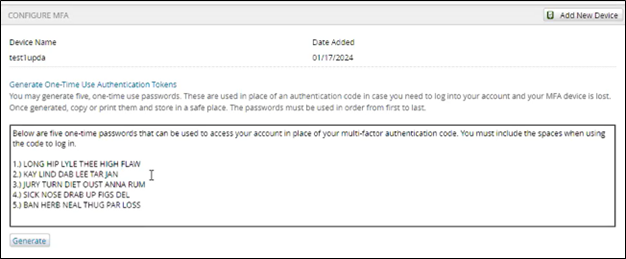
Note: The tokens displayed must be used in the order presented. - Select the token in order presented and then click Generate.