




Prerequisite: A product or service must be linked to the partner or assigned to the Subpartner before you can activate it. See Assigning Products & Services.
To activate Products & Services, perform the following steps.
At the account under the partner or Subpartner to which you assigned the product or service, select Product & Services.
The Account Product & Services List is displayed.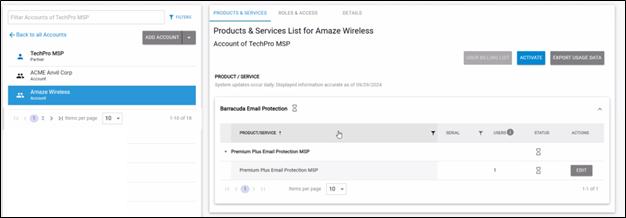
Click the Activate button.
The Activate Product/Service pop-up is displayed.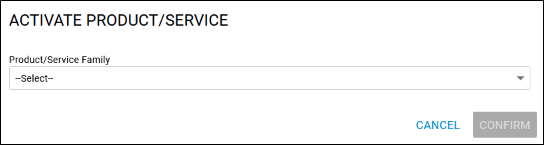
Click the Product/Service Family down arrow.
The families available are displayed.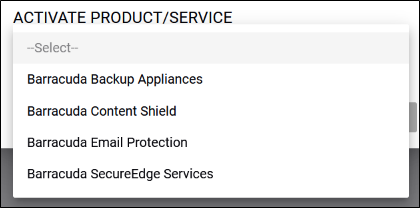
Note: If a product/service that you want to activate is not displayed then contact your Partner Support Manager.
Select the Product/Service Family you want to activate.
The Product/Service field is displayed.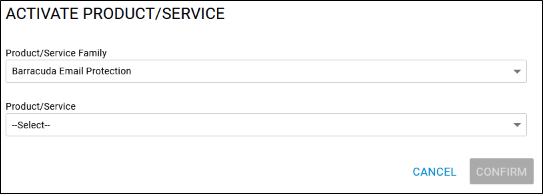
Click the Product/Service down arrow.
The Product/Service options are displayed.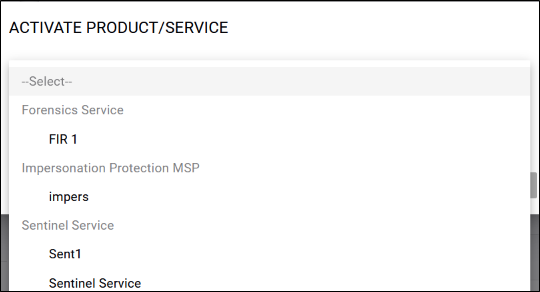
Select the Product/Service option you want to activate .
The Confirm button is enabled.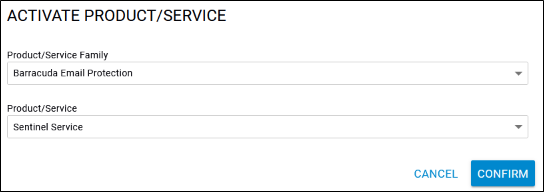
Click the Confirm button.
The service is displayed on the Products & Services page with a pending status icon.
It may take several minutes to activate.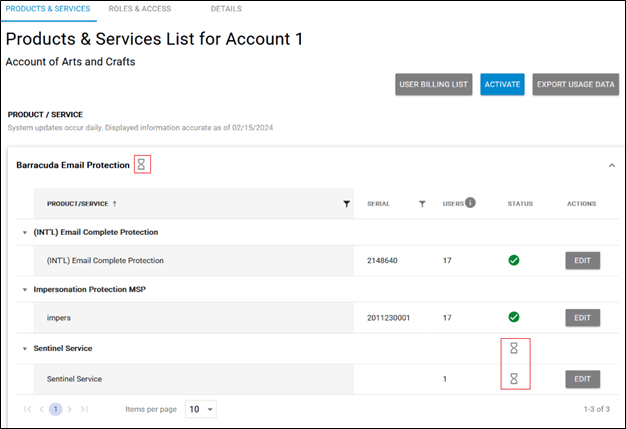
If the activation fails, the Product & Services page displays a failed status icon, as shown below.
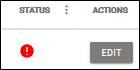
To retry activation, click the Edit button.
The following pop-up is displayed.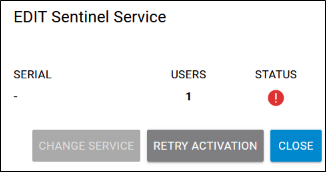
Click the Retry Activation button.
After successful activation, the service is displayed on the Products & Services List page with a green check mark.