It seems like your browser didn't download the required fonts. Please revise your security settings and try again.
Barracuda MSP App

Barracuda Campus is getting an upgrade!

We are excited to announce that Barracuda Campus will migrate to a new platform around mid-January 2026. Please see the announcement on the Campus Dashboard to find out more.

Deleting Credit Cards

  • Last updated on

To delete a credit card, perform the following steps.

  1. At the Billing page, click the Manage Credit Card button.

    image2022-7-28 7:25:2.png
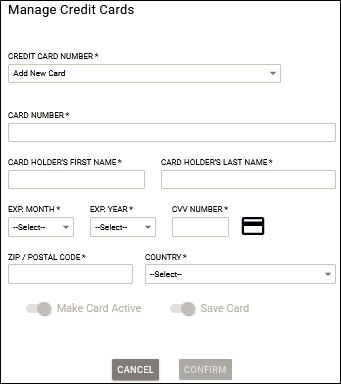
    The Credit Card pop-up is displayed.

    image2022-7-28 7:25:43.png
  2. Click the Credit Card number down arrow to display existing credit card numbers.
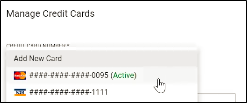
    image2022-7-28 7:26:17.png
  3. Select the non-active credit card number (with the line crossing through it).
    The inactive card number is displayed with the Delete button.
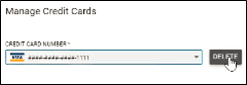
    image2022-7-28 7:30:47.png
  4. Click the Delete button.
    The Delete pop-up is displayed.
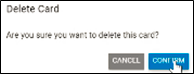
    image2022-7-28 7:31:9.png
  5. Click Confirm.
    The credit card number is deleted.