




Barracuda SecureEdge allows you to promote an existing Site to a Private Edge Service. When creating a Private Edge Service, you can either create a new Edge Service from scratch or promote an existing Site to an Edge Service.
Before You Begin
You need an ISP with a static public IP version 4 address.
High availability is recommended. For more information, see High Availability.
Promote an Existing Site to a Private Edge Service Configuration
Go to https://se.barracudanetworks.com and log in with your existing Barracuda Cloud Control account.
The chosen Tenant/Workspace is displayed in the top menu bar.
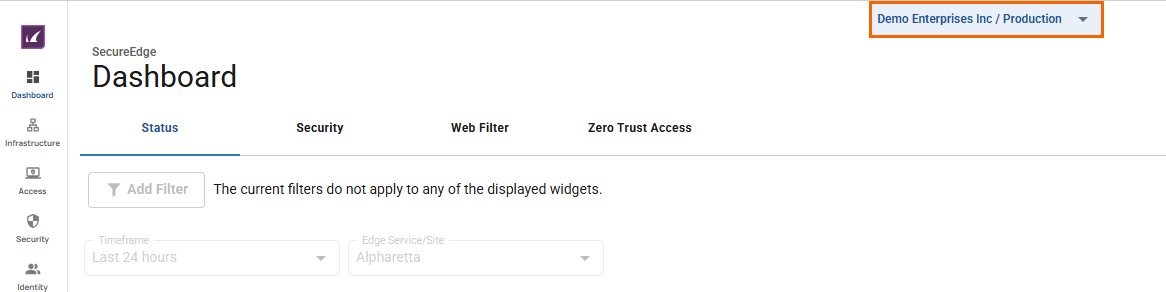
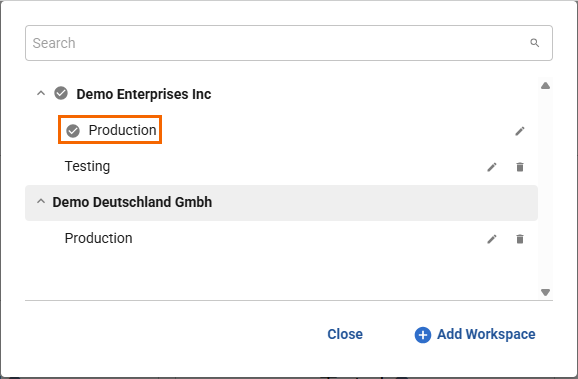
From the drop-down menu, select the workspace your Private Edge Service should be assigned to.
Go to Infrastructure > Edge Services.
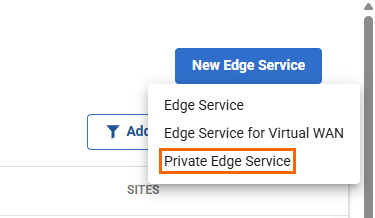
The Edge Services page opens. In the top-right corner of the window, click New Edge Service.
From the drop-down menu, select Private Edge Service. The New Private Edge Service blade opens.
The New Private Edge Service window opens and you are provided with two options. You can choose either New Edge Service from scratch or Promote existing site to Edge Service.
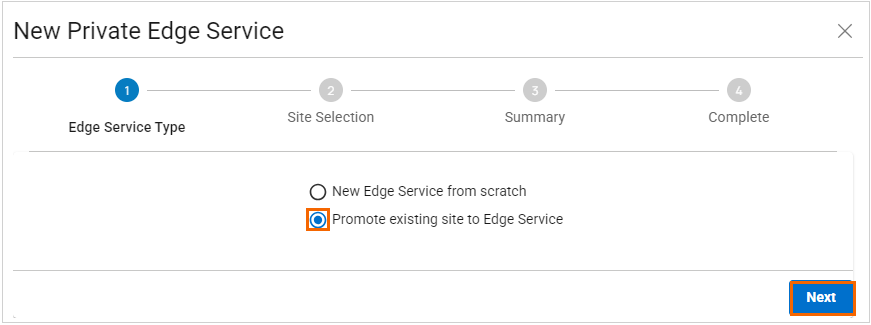
Select Promote existing site to Edge Service.
Click Next. The Site Selection blade opens.
Enter values for the following:
Site – Select the site you wish to promote to a private edge from the drop-down menu.
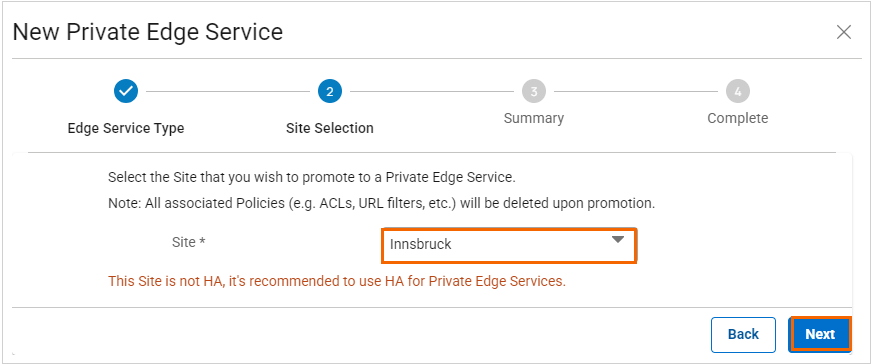
Click Next. The Summary blade opens.
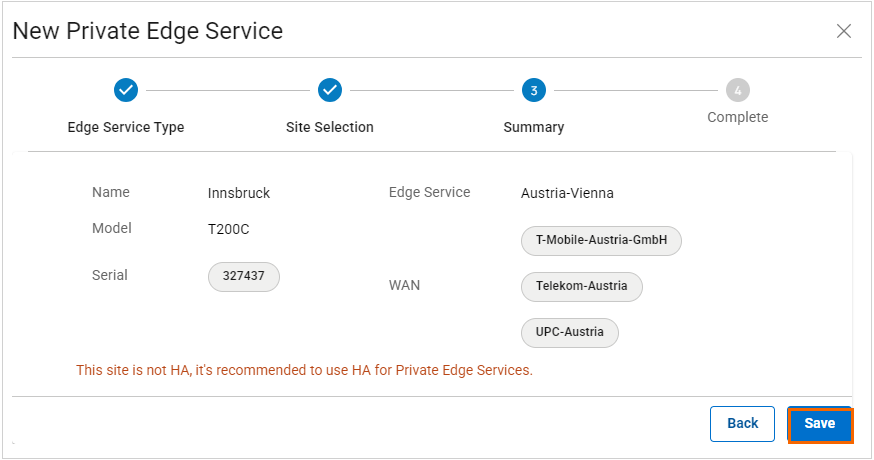
Review your specifications. If everything is correct, click Save.
Verify that your Private Edge configuration has been created successfully and click Finish.
The selected site is removed from the Sites page and gets appended to the Edge Services page instead. The promoted site connections should be unaffected. In other words, sites with Edge Service connections are preserved.