To authenticate users connected to Ruckus access points, you must stream the syslog containing the authentication data to the Barracuda CloudGen Firewall F-Series.
Reference Devices/Versions:
ZoneDirector 1100 (ZD1106) Version 9.10.0.0 build 21
ZoneFlex zf7321-u Access Point) :
Step 1. Enable Client Association on the Ruckus Wireless AP
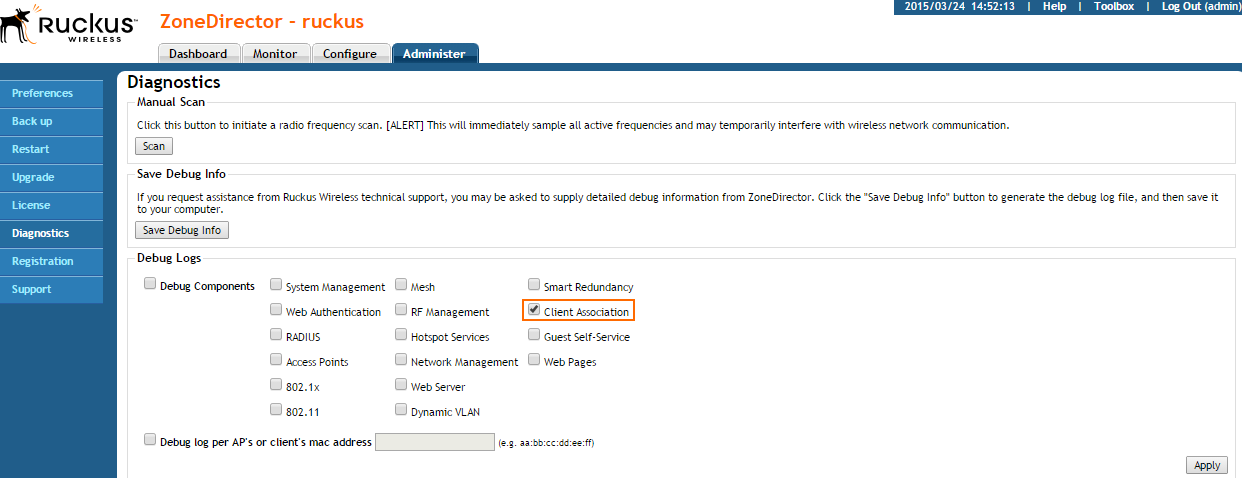
Enable client association in the debug log settings.
Go to Administer > Diagnostics.
- In the Debug Logs section, enable Client Association.
- Click Apply.
Step 2. Enable Syslog Streaming on the Ruckus Wireless AP
- Go to Configure > System Log Settings.
- Enable the Remote Syslog.
- Enter the IP address of the Barracuda CloudGen Firewall F-Series.

- Click Apply.
Verify that the Firewall is Receiving the Syslog Data
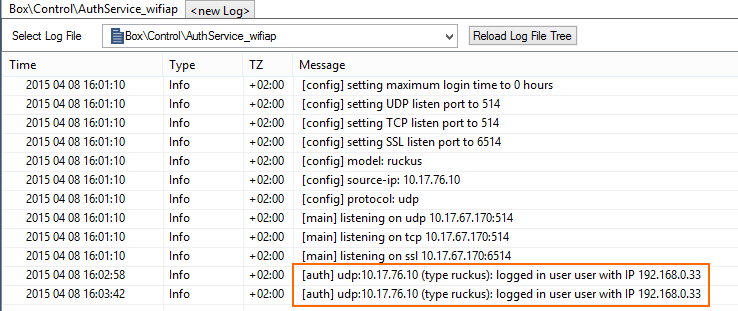
On the Barracuda CloudGen Firewall F-Series, go to LOGS and open the Box > Control > AuthService_Wi-Fiap.log . After a successful authentication, you will see a logged in user <username> with IP <IP address> line in the log.