




Selecting a timeframe for the Audit Log filters the audit log entries displayed.
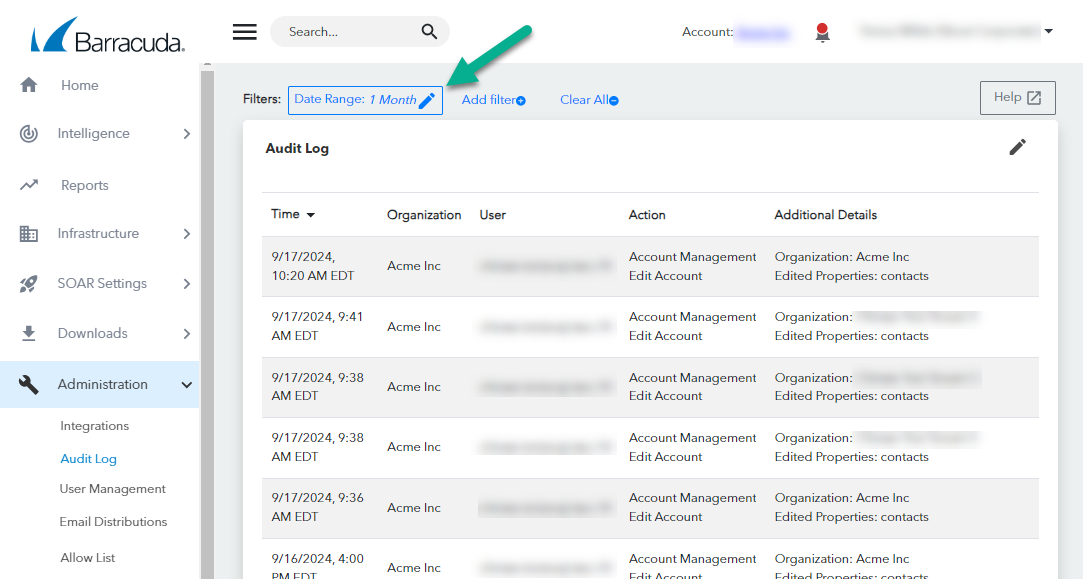
By default, the date range for the Audit Log is 1 Month. If you select another date range and then click Clear All, the date range returns to 1 Month.
Only one date range filter can be active at a time.
If you use the Negate this condition option when selecting a date range, all dates in the past are displayed except the chosen date range. For example, if you select a date range of 1 Week and check the Negate this condition box, entries older than seven days are displayed.
The date ranges you can select are:
12 Hours - Displays the previous 12 hours.
24 Hours - Displays the previous 24 hours.
1 Week - Displays the previous 7 days, including today. For example, if you select this option on May 8 at 11:00 am, the data from May 1 11:00 am to May 8 11:00 am is displayed.
2 Weeks - Displays the previous 14 days, including today. For example, if you select this option on May 15 at 11:00 am, the data from May 1 11:00 am to May 15 11:00 am is displayed.
1 Month - Displays the previous month, including today. For example, if you select this option on May 8 at 11:00 am, the data from April 8 11:00 am to May 8 11:00 am is displayed.
2 Months - Displays the previous two months, including today. For example, if you select this option on May 8 at 11:00 am, the data from March 8 11:00 am to May 8 11:00 am is displayed.
3 Months - Displays the previous three months, including today. For example, if you select this option on May 8 at 11:00 am, the data from February 8 11:00 am to May 8 11:00 am is displayed.
6 Months - Displays the previous six months, including today. For example, if you select this option on May 8 at 11:00 am, the data from November 8 11:00 am to May 8 11:00 am is displayed.
1 Year - Displays the previous year, including today. For example, if you select this option on May 8, 2025 at 11:00 am, the data from May 8, 2024 11:00 to May 8, 2025 at 11:00 am is displayed.
2 Year - Displays the previous two years, including today. For example, if you select this option on May 8, 2025 at 11:00 am, the data from May 8, 2023 11:00 to May 8, 2025 at 11:00 am is displayed.
The Audit Log doesn't refresh on a regular basis. To refresh the Audit Log, select the timeframe again.
To change the timeframe displayed on the Security Overview
In Barracuda XDR Dashboard, click Administration > Audit Log.
Click Date Range button in the top left corner of the window.
Select one of the following options:
12 Hours
24 Hours
1 Week
2 Weeks
1 Month
2 Months
3 Months
6 Months
1 Year
2 Year
Click Apply Changes.
The Audit Log refreshes, displaying the timeframe.