




Before you can run a macOS Premium Remote Control session, you must do the following.
Install the Premium Remote Control application. See Installing Premium Remote Control in the latest version of the Barracuda RMM help.
Set the permissions below.
Before connecting for the First time
Setting the permissions
Open System Settings (Apple Icon -> System Settings)
Navigate to Privacy and Security
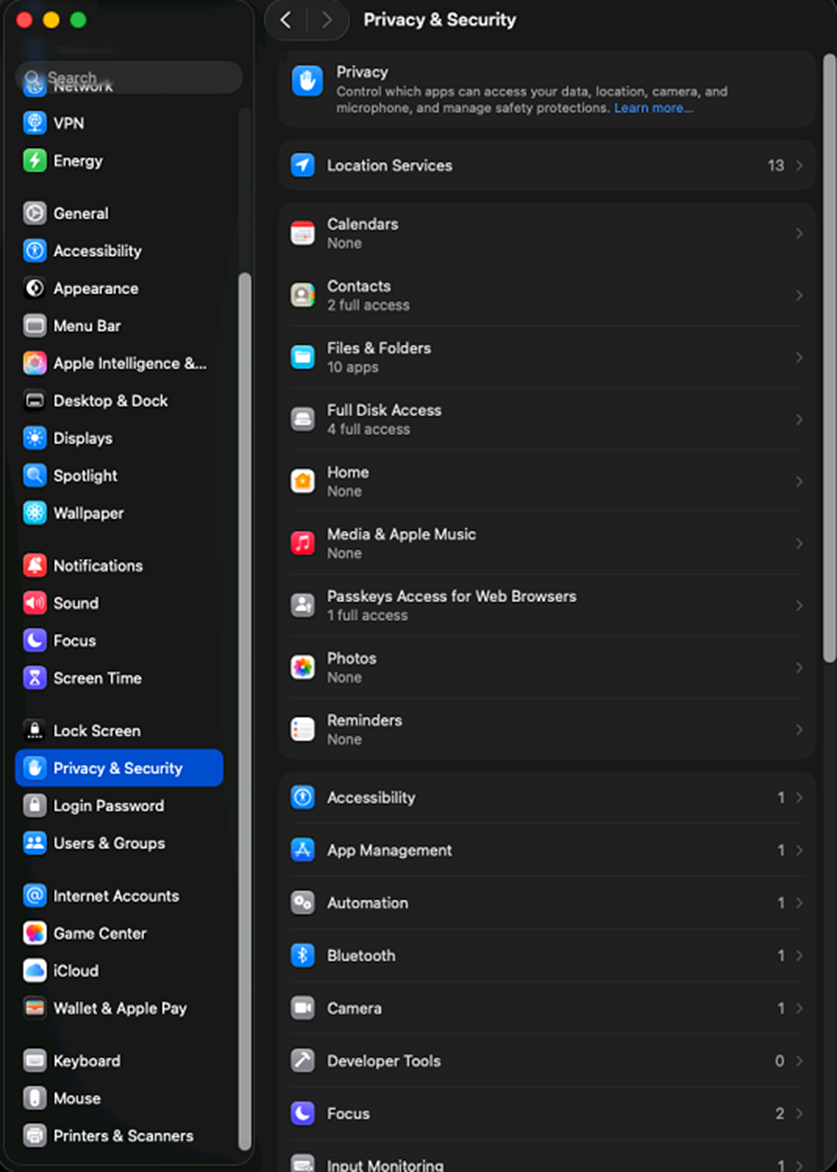
Open Accessibility and Click the +
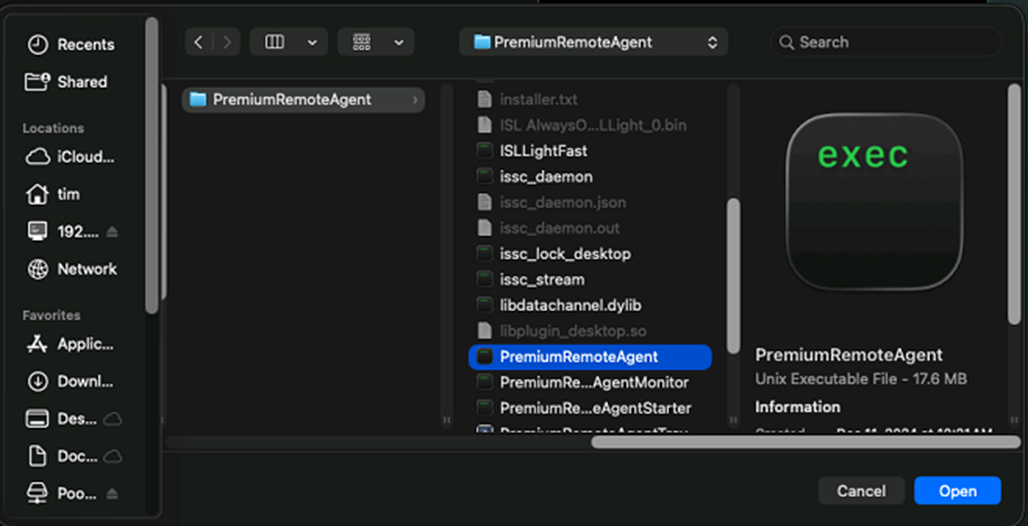
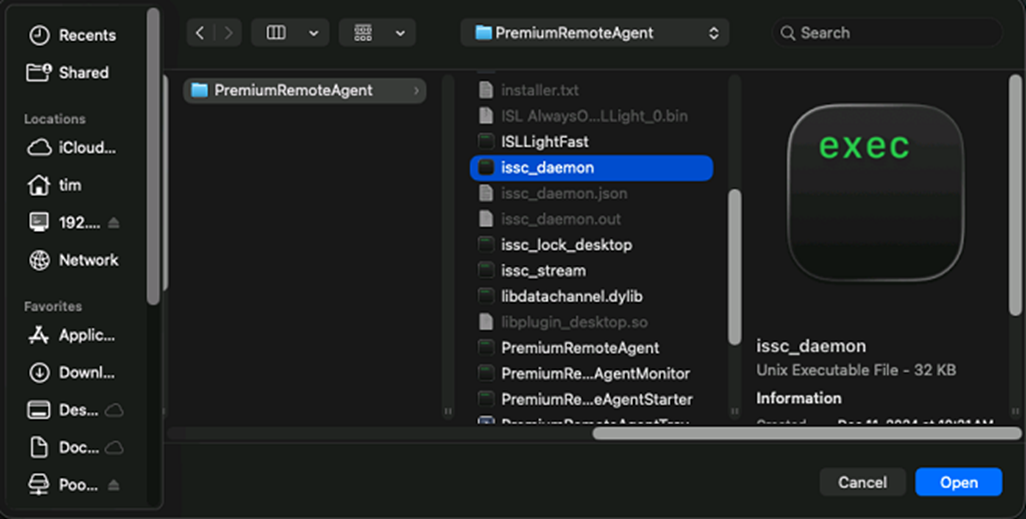
Navigate to /Library/Application Support/BarracudaRMM/PremiumRemoteAgent
Add both issc_daemon and PremiumRemoteAgent from the files
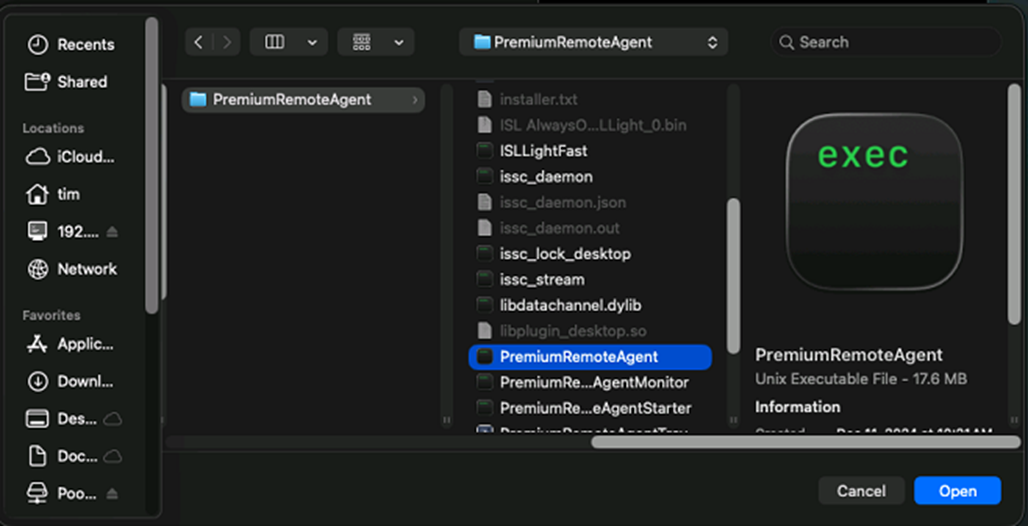
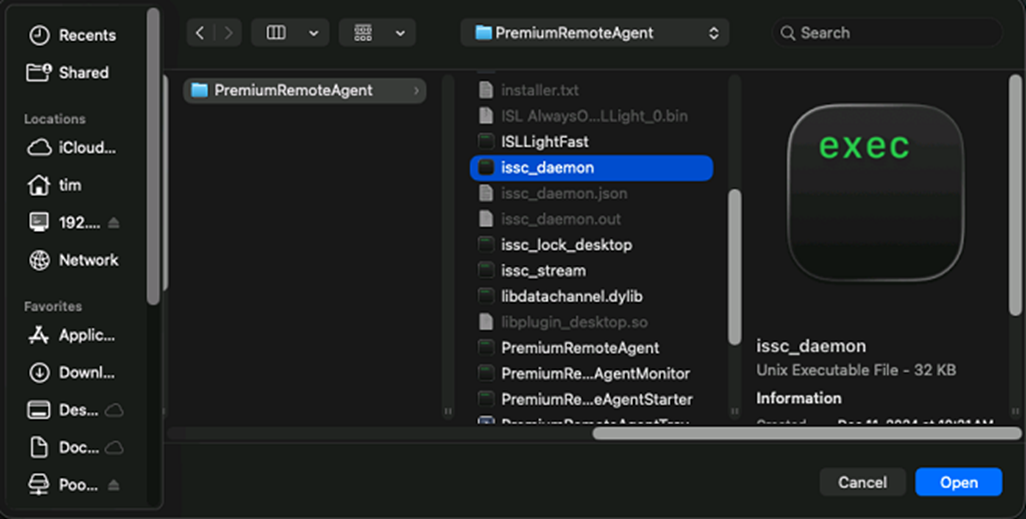
Navigate to System Settings Privacy and Security -> Screen & System Audio Recording (Older versions of macOS only have the Screen Recording option)
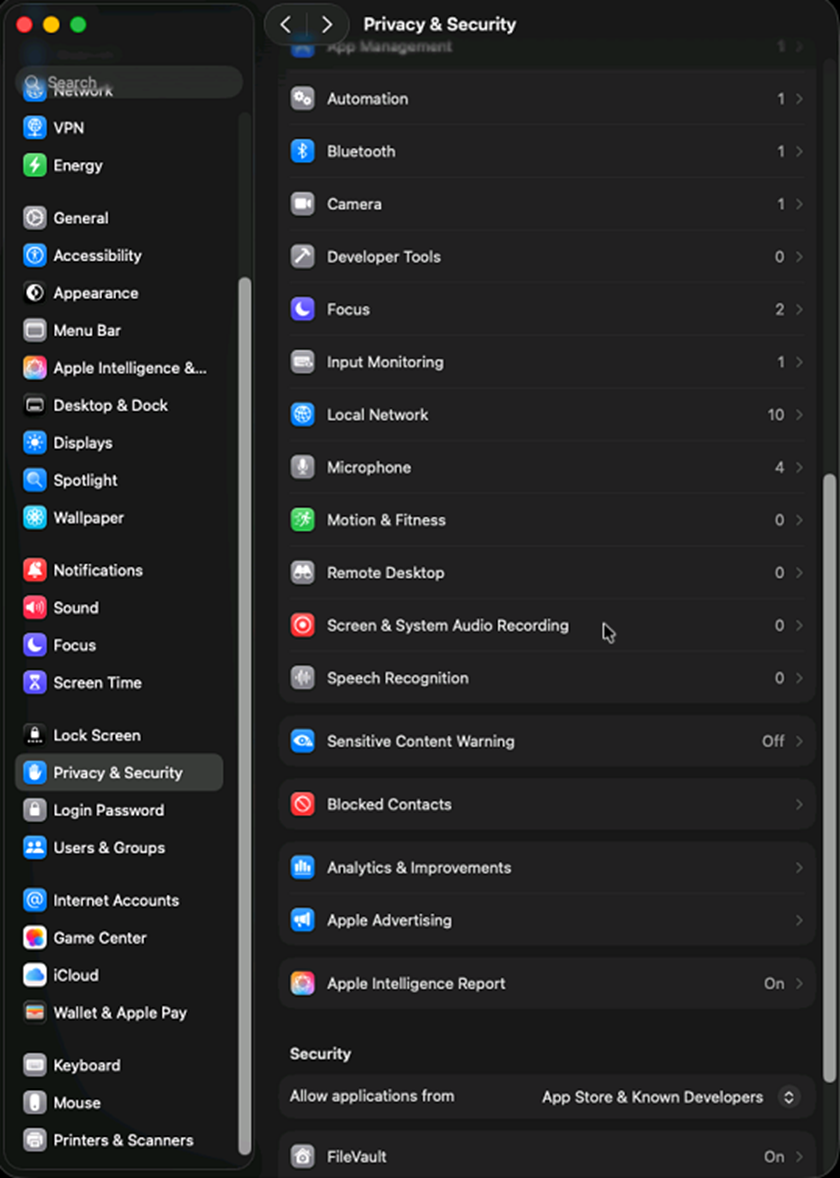
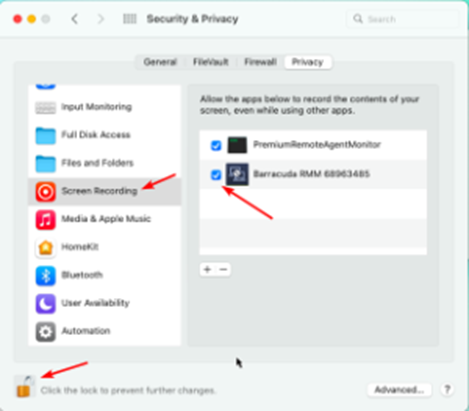
Click the + to add a new entry
Navigate to /Library/Application Support/BarracudaRMM/PremiumRemoteAgent
Add both issc_daemon and PremiumRemoteAgent from the files listed
Please note
These may not appear in the list under Accessibility and Screen & System Audio Recording on macOS 26 Tahoe after being added in the UI, but are in fact added. This can be verified by running sudo sqlite3 -json /Library/Application\ Support/com.apple.TCC/TCC.db "SELECT * FROM access Where Client like '%PremiumRemoteAgent' OR Client like '%issc_daemon'" in Terminal (If there is a permissions denied error Full disk access will need to be given to Terminal as well)
