




Barracuda SecureEdge allows administrators to enroll users via the SecureEdge Enrollment page. This article covers the local user enrollment process for SecureEdge Access for a quick setup.
Before You Begin
Create a Barracuda Cloud Control account. For more information, see Create a Barracuda Cloud Control Account.
Subscribe to Barracuda Networks for SecureEdge Access. Barracuda Networks offers a scalable, fully managed Software as a Service (SaaS) solution for SecureEdge Access, and provides globally distributed Points of Presence (PoPs) in various locations. For more information, see Understanding Points of Presence (PoPs) and Points of Entry (PoEs). You can enroll users, groups, or devices based on your chosen SecureEdge Access plan. The available plans include DNS Access, Internet Access, Private Access, and Premium Access.
To use the users or groups from user directories (such as Microsoft Entra ID, LDAP, Google Workspace, Okta, SCIM, and Barracuda Cloud Control) for SecureEdge Access, you must first connect your SecureEdge Identity Management in order to synchronize users and groups. For more information, see Identity Management. Note: To select users or groups from user directories such as BCC-linked Microsoft Entra ID or the BCC-linked LDAP directory in SecureEdge Access, you must first connect your directory with Barracuda Cloud Control in order to synchronize users and groups. For more information, see LDAP Active Directory and Microsoft Entra ID and How to Connect Microsoft Entra ID with Barracuda Cloud Control.
To demonstrate a quick enrollment setup, a local user has been created. However, you must configure the identity provider and user directories to use users or groups and to sync via the SecureEdge Manager.
Step 1. Connect with an Identity Provider
Go to https://se.barracudanetworks.com/ and log in with your existing Barracuda Cloud Control account.
The chosen Tenant/Workspace is displayed in the top menu bar.

From the drop-down menu, select the workspace you want to enroll in.
To get started quickly, add a local user by using authentication codes that are sent via email. For more information, see Identity Management.
To add an identity provider, go to Identity > Settings, click Add Identity Provider, and select Email.
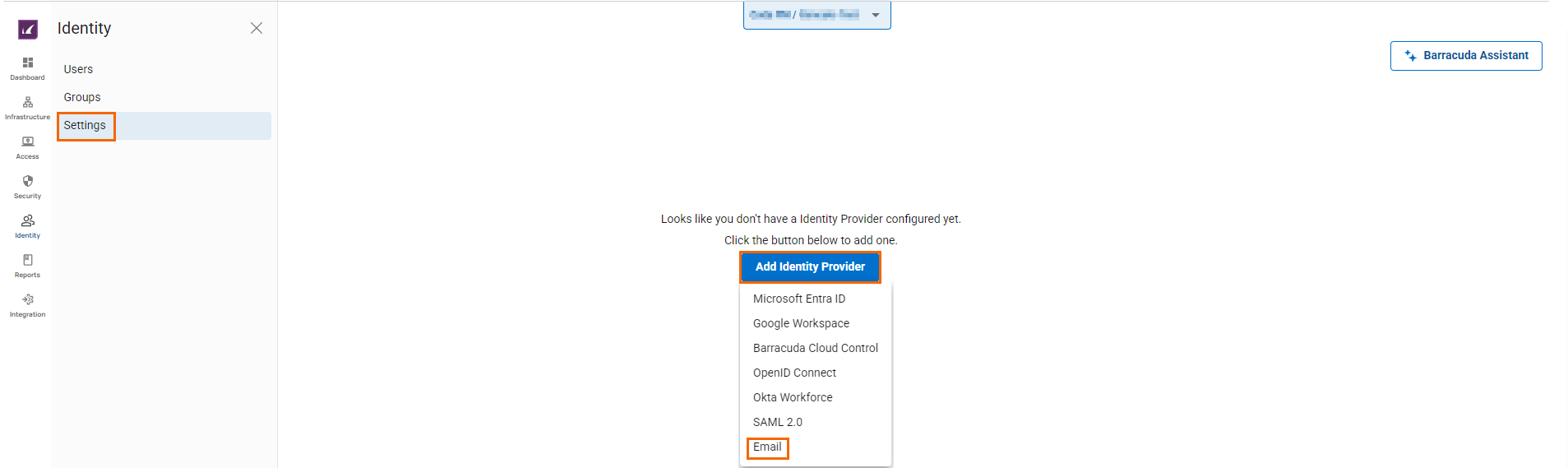
Verify the Identity Provider table to confirm the identity provider Email has been added.

To add a user, go to Identity > Users and click Create Local User. Note: You must add a user with the email address you want to use for logins. For more information on how to a create local user, see How to Create Local Users or Groups.
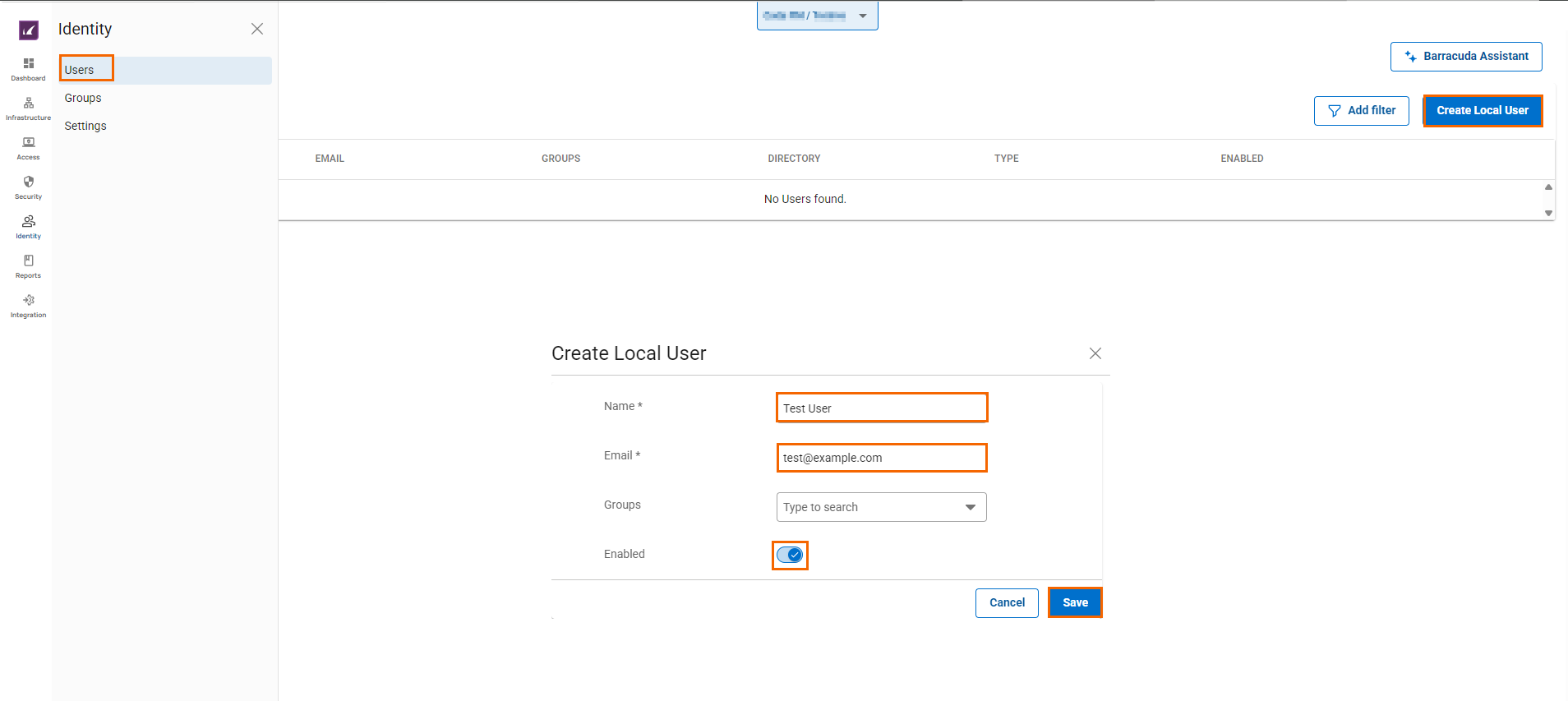
Verify that a new user appears on the Users page.

Step 2. Create User Enrollment Invitation
In the left menu, click Access and select Enrollments.
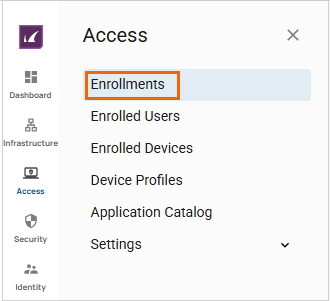
The Enrollments page opens. Note: You must first verify the availability of seats for your SecureEdge Access account at the top-right corner of the Enrollments page and then add users accordingly.
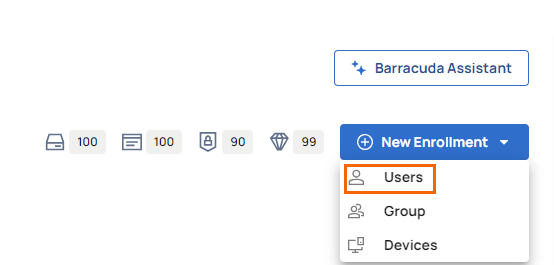
To enroll a new user, group, or device, click New Enrollment. You can choose between Users, Group, and Devices.

From the drop-down menu, select Users.
The New Enrollment window opens. Specify values for the following:
Enrollment type – Enrollment type selected as Users.
License and seats – Select the license type with available seats. You can choose between the following: DNS Access, Internet Access, Private Access, or Premium Access.
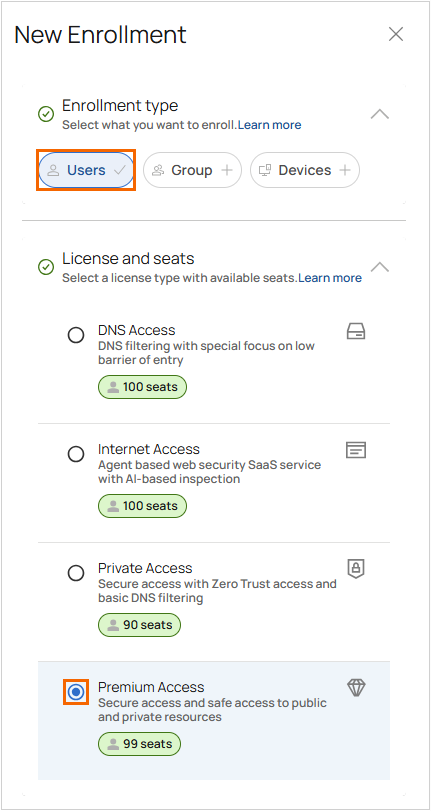
Enrollment profile – Select security level for enrolled devices. You can choose between the following: Managed, Unmanaged, and 3rd Party. Note: The IT administrator manages and customizes all these profile types as needed. Managed is the most restrictive, Unmanaged offers some flexibility, and 3rd Party is the least restrictive for BYOD scenarios.
Enrollment invitation – You can search for users or select them from the drop-down menu to invite for enrollment. You can add multiple users, with each user appearing in a separate row.
Invitation and enrollment settings – Select how to invite users. Specify values for the following:
Use user names as enrollment names – Click to enable/disable.
Send email to the users – Click to enable/disable.
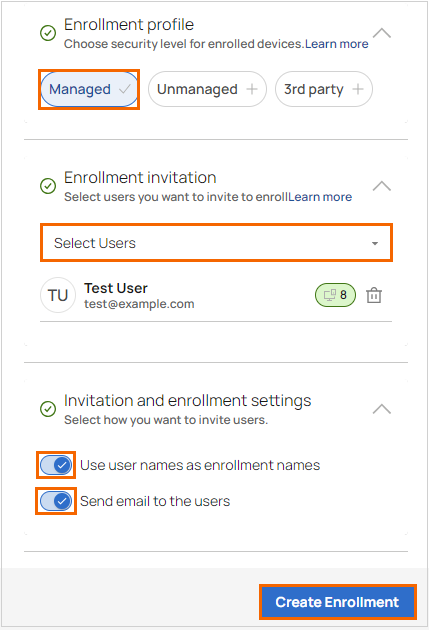
Click Create Enrollment.
The Enrollment Created window opens. Click Copy.
You can choose a preferred option:
Copy <managed> link – Send this link directly to enroll your users.
Copy <managed> token – Use this token for access with your MDM solution.
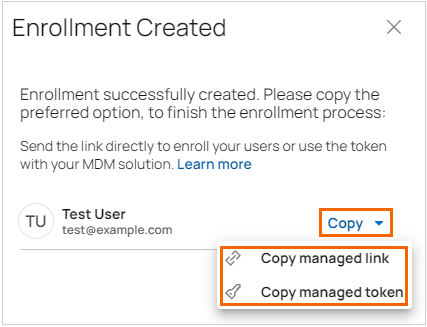
Paste the enrollment link or token in a text file. Note: You will require this link in Step 3.
Click Close.
After creating the user enrollment invitation, the user appears in the Enrollments table, enabling the end user to enroll. The Enrollments page displays the managed invitations created by the IT administrator to allow enrollment. Enrolled users appear on the Enrolled Users and Enrolled Devices pages.
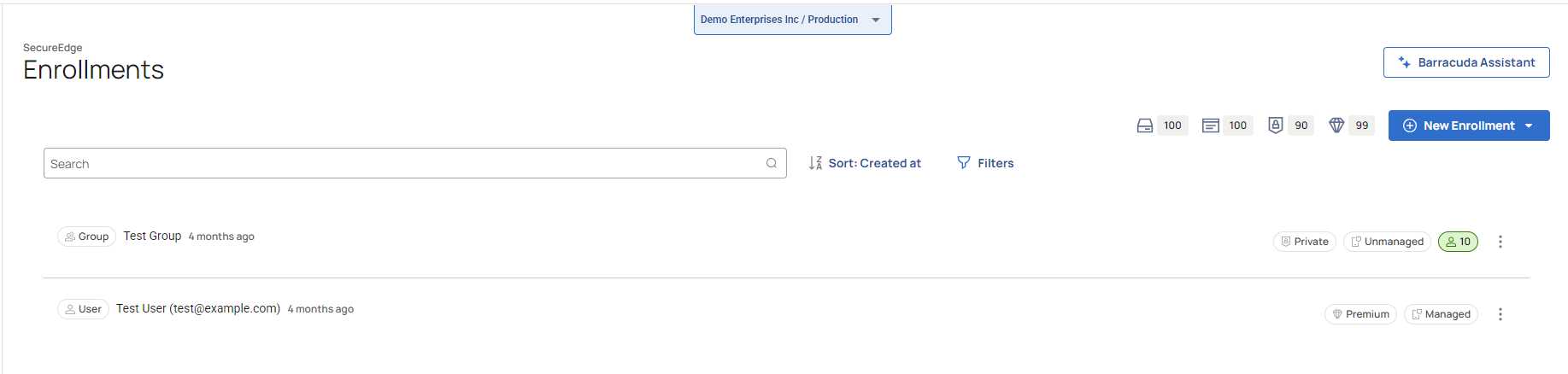
(Optional) Copy the Link or Copy the Token
To copy the enrollment link or token, proceed with the following steps:
On the Enrollments page, click the icon of three vertical dots to copy the enrollment link or token.

You have two options:
Copy <Managed> link – To copy the enrollment link, select Copy <Managed> link.
Copy <Managed > token – To copy the token, select Copy <Managed> token.
Step 3. Connect a Barracuda SecureEdge Access Agent
Download and install the Barracuda SecureEdge Access Agent.
You will receive an email with the subject “You have been invited to SecureEdge”. Click Enroll now.
Click Enroll. Note: To download the SecureEdge Access Agent, click Download now.
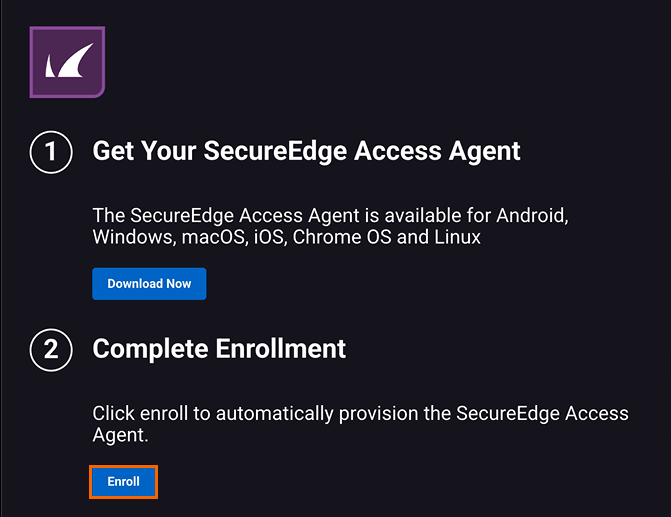
Click Open SecureEdge.
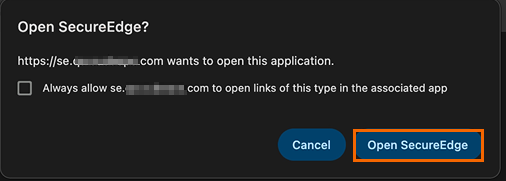
The Barracuda SecureEdge Access Agent displays, and the Enterprise Enrollment page opens.
Click Accept.

The AUTHENTICATE page opens. Click Authenticate to verify your user identity.
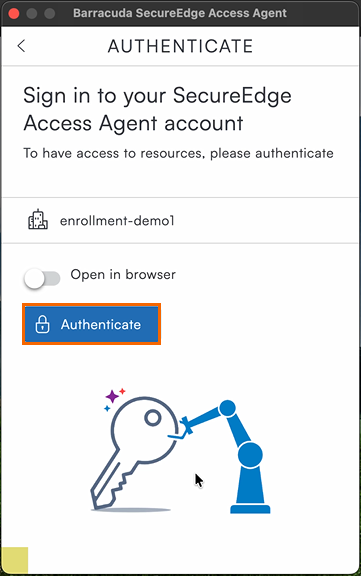
Enter the email address used for enrollment and click Continue. You will receive an email with a verification code from Barracuda Customer Services. Note: The email verification code is sent only if users select Email as the identity provider.
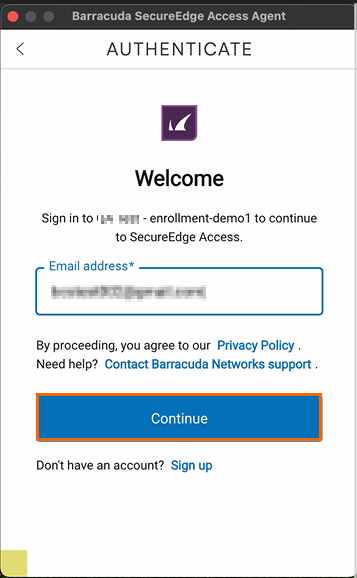
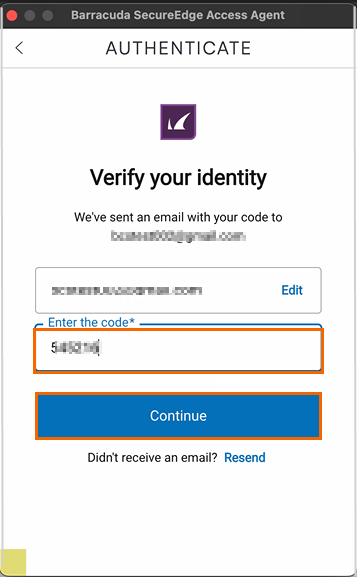
To verify your identity, enter the code. Click Continue.
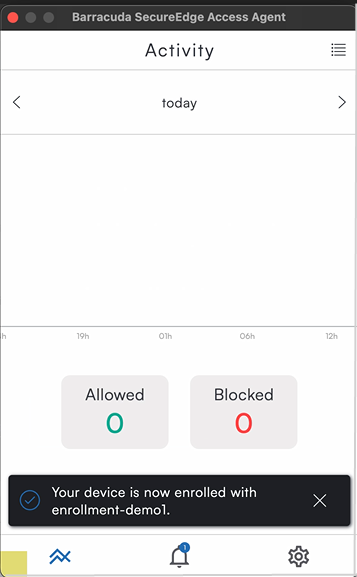
The Activity page opens and shows the status of your device. You can see SecureEdge Access Agent is enrolled on your device. In addition, you can verify the device entry on the respective Access > Enrolled Devices and Access > Enrolled Users > Settings pages in the SecureEdge Manager.
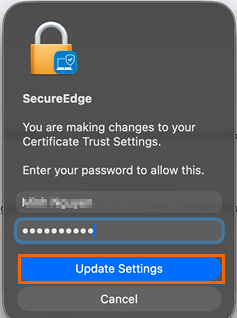
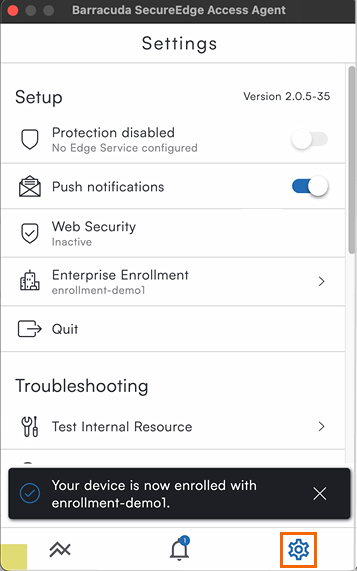
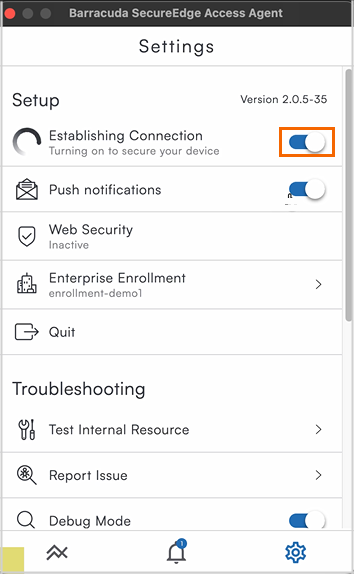
Click the Settings icon to enable protection. Note: Edge Service is not yet configured.
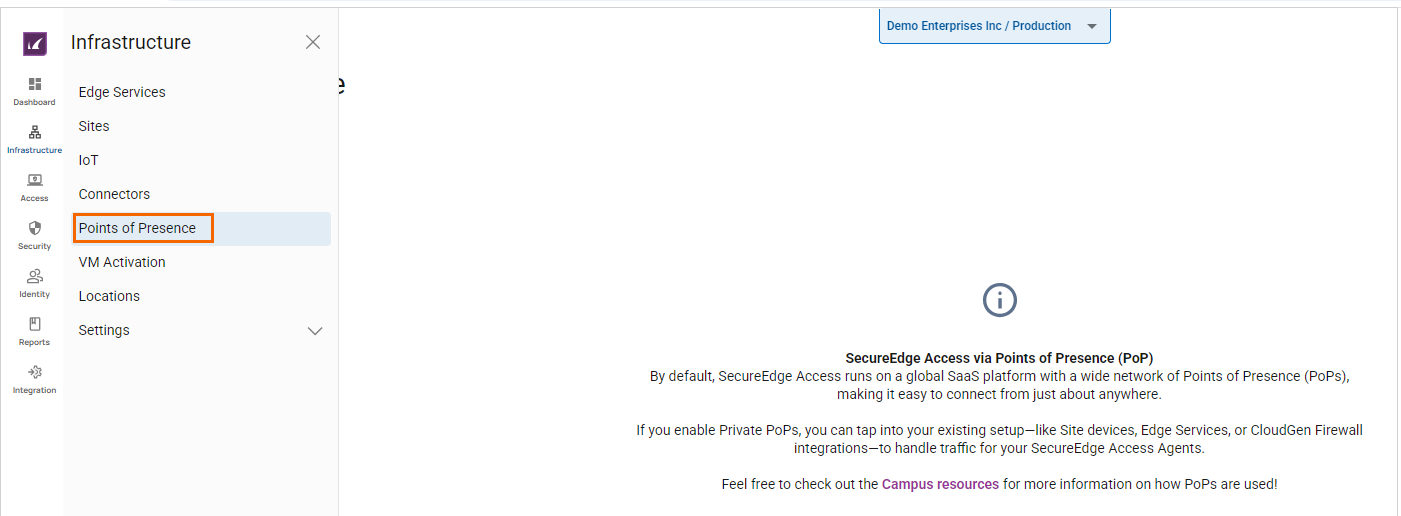
Go to Infrastructure > Points of Presence and click Enable SecureEdge Access PoP.
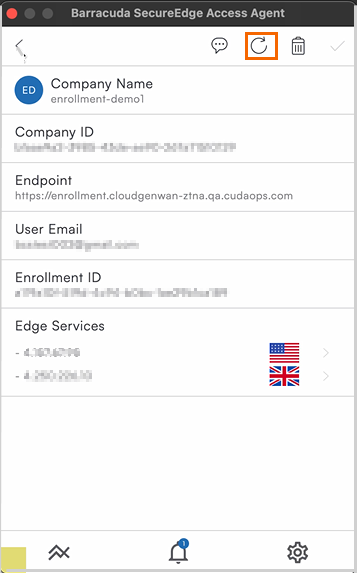
Click Enterprise Enrollment to open the Enterprise window.

You will see details about your company name, company ID, endpoint, user email, enrollment ID, and Edge Services. Click the Refresh icon and verify the Edge Service configuration.
Enable Protection disabled. This establishes a connection, and the status changes to green. Verify that your device protection is enabled.
Edit a User Enrollment Invitation
Go to Access > Enrollments.
The Enrollments page opens. All enrollment invitations for your selected workspace are displayed.
Click the icon of three vertical dots next to the user you want to edit the invitation for.
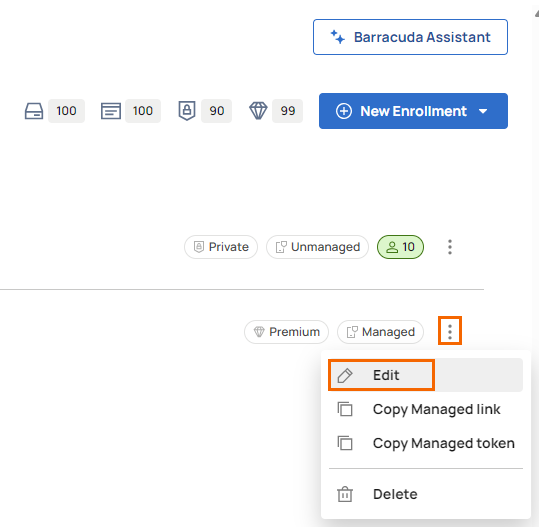
Click Edit.
The Edit Enrollment window opens. Edit the value you are interested in.
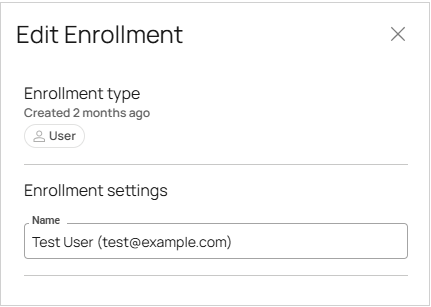
Click Save.
Remove a User Enrollment Invitation
Go to Access > Enrollments.
The Enrollments page opens. All enrollment invitations for your selected workspace are displayed.
Click the icon of three vertical dots next to the user you want to remove the invitation for.
Click Delete
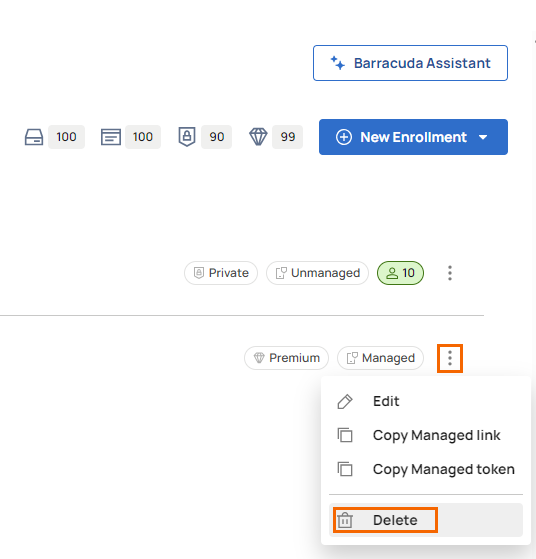
The Delete Enrollment window opens.
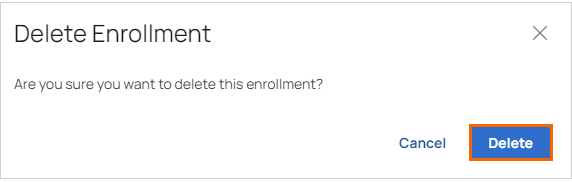
Click Delete.
(Optional) Filtering and Sorting Features
You can add filters to view specific users, groups, or devices on the page.
Click Filters.

The Filters window opens. Specify the values for the following:
Created timeframe – Select the desired time frame from the drop-down list. You can choose between Last 24 hours, 3 days, 7 days, Last 30 days, Last 3 months, Last 6 months, or Last year.
Select the criteria you wish to search for. Click Apply.
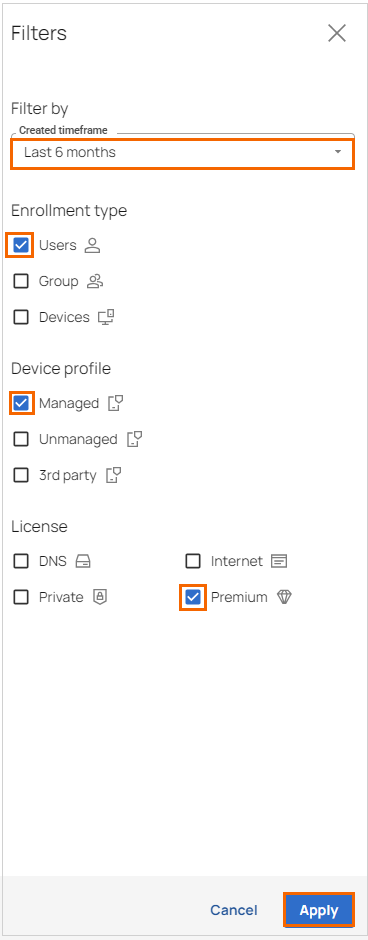
View the filtered enrollment records. To reset, click Clear all.
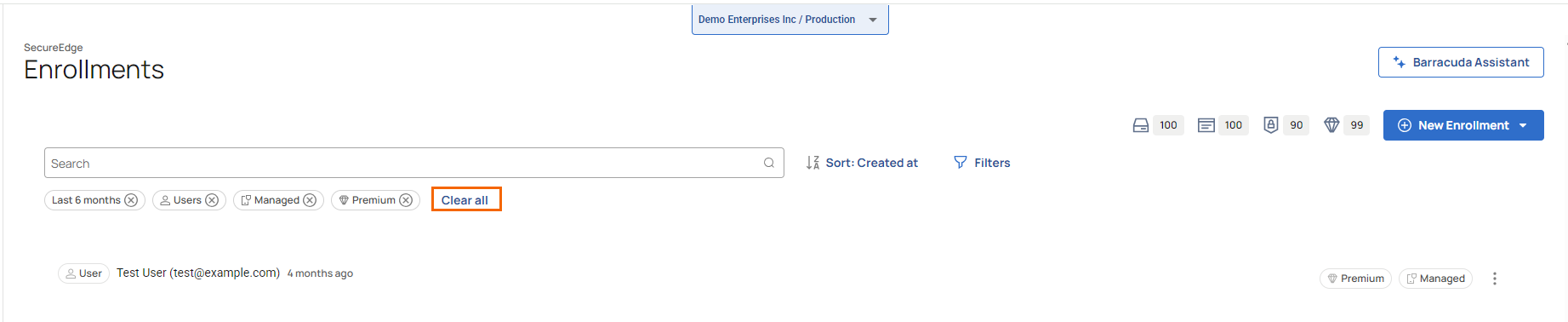
You can filter and sort to view specific users, groups, or devices on the Enrollments page. To sort the Enrollments table:
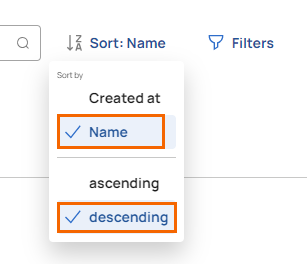
Click Sort: Created at.

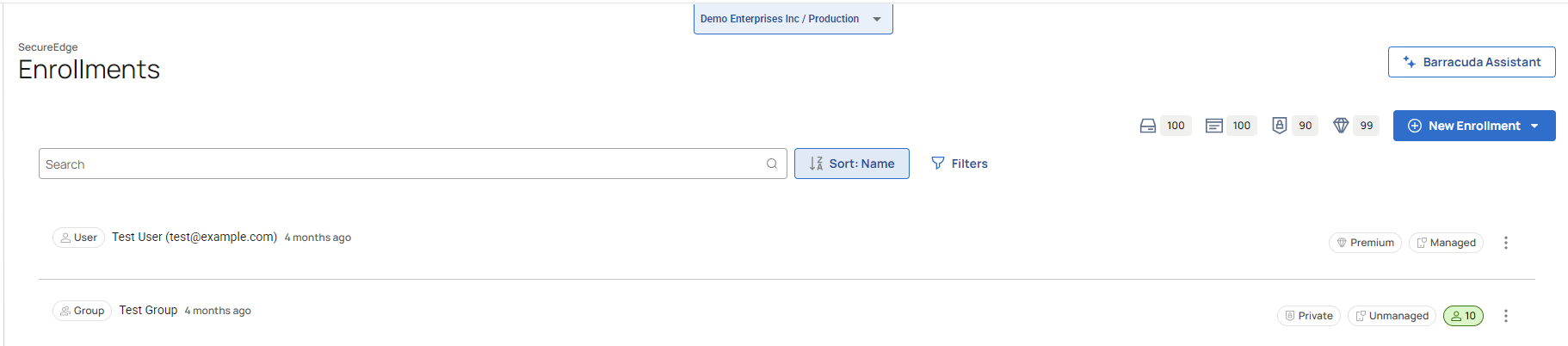
Select the criteria you wish to sort for. For example, in this case, select Name and descending.
The Enrollments table is sorted according to your preferred criteria.
Next Steps
Set up the Zero Trust Access Policy that specifies the access requirements associated with the various resources that the Barracuda SecureEdge Access Agent can connect to.