Device Profiles allows you to manage different categories of devices within your organization. The IT administrator manages and customizes all profile types as needed. This page allows you to edit profiles, view details, and set security settings for the selected profile.
Configure Security Settings
Go to https://se.barracudanetworks.com/ and log in with your existing Barracuda Cloud Control account.
The chosen Tenant/Workspace is displayed in the top menu bar.
From the drop-down menu, select the workspace you want to configure a device profile for.
In the left menu, click Access and select Device Profiles.
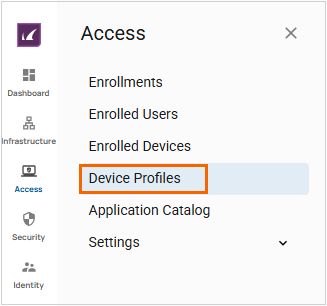
The Device Profiles page opens.
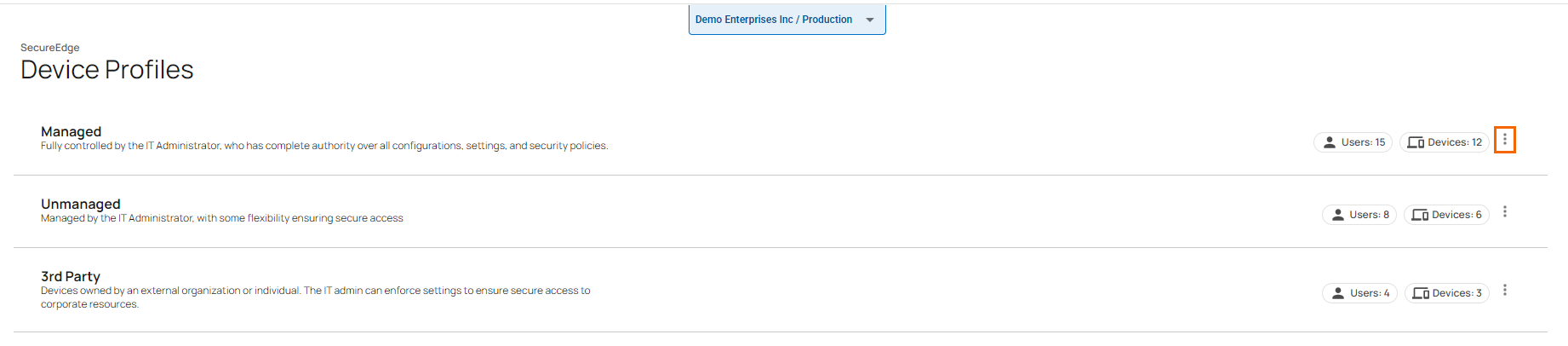
On the Device Profiles page, click the icon of three vertical dots next to the selected device profile.
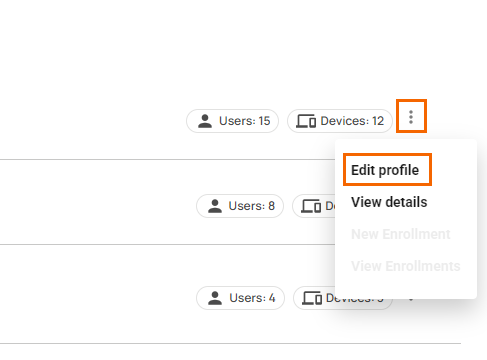
To edit the security settings for the selected profile, click Edit profile.
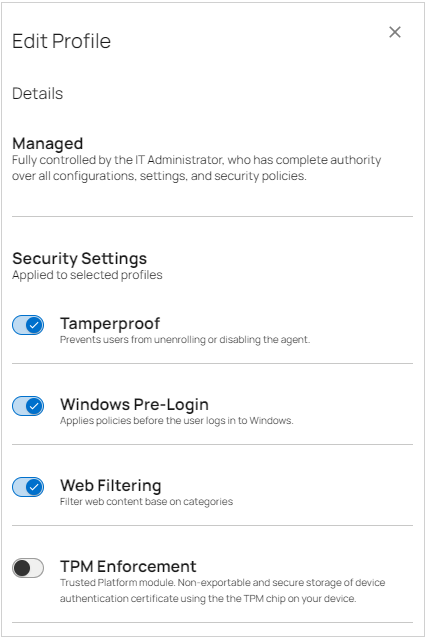
The Edit Profile window opens. In the Security Settings section, edit the value you are interested in. Note: Security settings updates apply to the selected profiles.
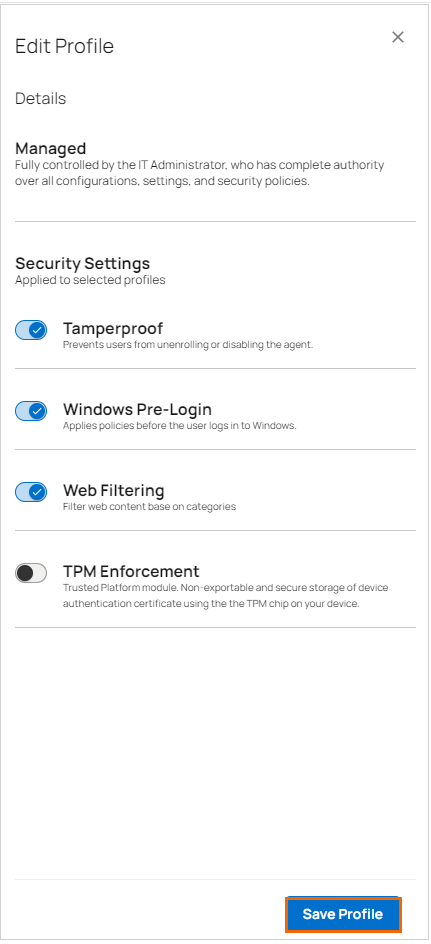
Click Save Profile.
The Edit Managed Profile page opens.
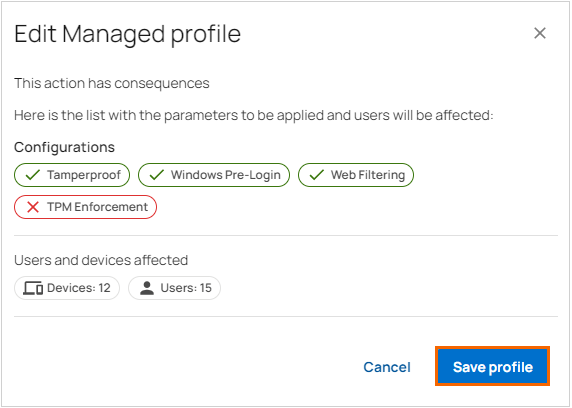
Click Save profile.
The security settings updates apply to the selected <Managed> profiles, affecting 15 users and 12 devices. You can view these changes in the SecureEdge Access Agent.
(Optional) View Details
On the Device Profiles page, click the icon of three vertical dots next to the enrollment profile.
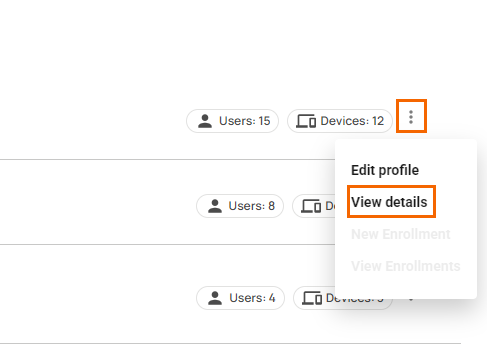
Click View details.
The Edit Profile window displays the security settings for the selected profile.