




The SecureEdge Manager displays all enrolled users in the selected workspace. After the SecureEdge Access enrollment process is complete, the user appears in the Cloud UI's Enrolled Users table. The single user can enroll multiple devices on the same token, and a separate row is provided for each device. An un-enrolled user cannot use their existing enrollment link to re-enroll.
Verify Enrolled Users
Go to https://se.barracudanetworks.com/ and log in with your existing Barracuda Cloud Control account.
Select the workspace your user is enrolled in.
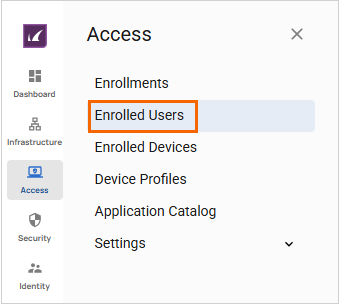
In the left menu, click the Access icon and select Enrolled Users.
The Enrolled Users page opens. You can see that your user is enrolled. For example, in this case, a Test User is enrolled.
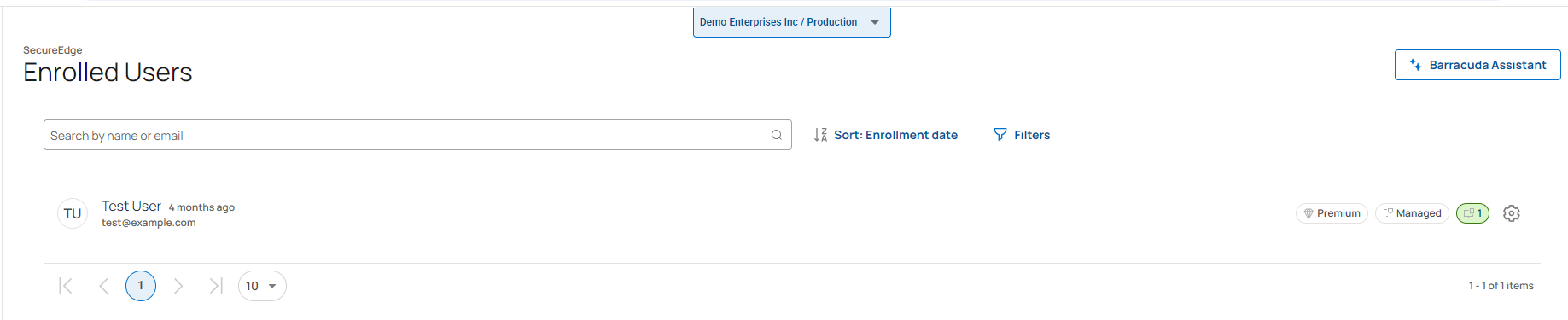
The Enrollment Users page displays the following information:
All users enrolled in the selected workspace.
Details of enrolled users, including their license type, enrollment profile, and remaining licenses.
You can modify the license and device profile for an enrolled user. For more information, see Configuring Device Settings for an Enrolled User. You can also override SecureEdge ZTNA settings and create user-level configurations. For more information, see Configuring Access Settings for an Enrolled User.
(Optional) Filtering and Sorting Features
Add Filters
You can search or add filters to view specific users on the Enrolled User page.
Click Filters.

The Filters window opens. Specify the values for the following:
Enrollment timeframe – Select the desired time frame from the drop-down list. You can choose between Last 24 hours, 3 days, 7 days, Last 30 days, Last 3 months, Last 6 months, or Last year.
Select the criteria you wish to search for.
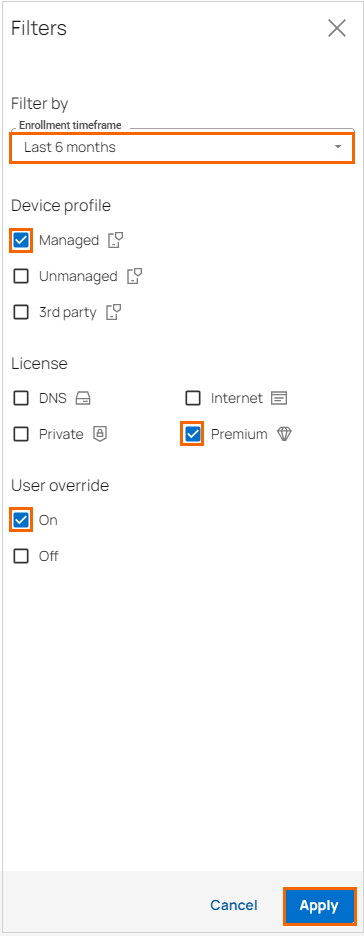
Click Apply.
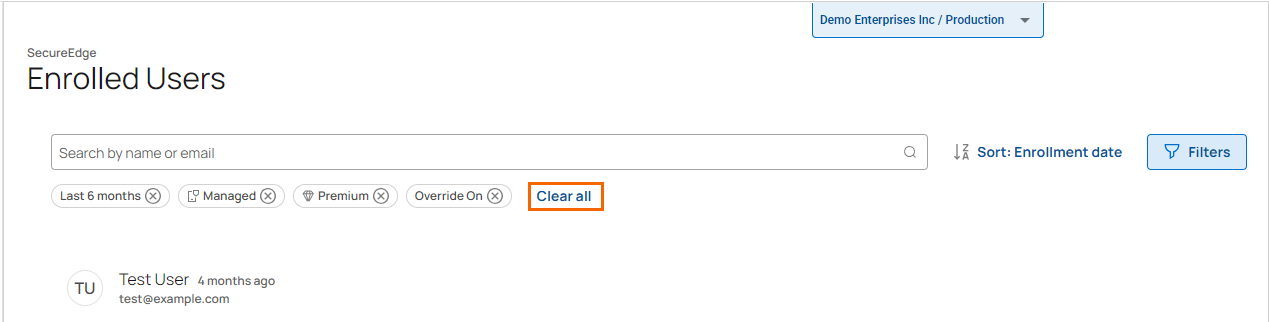
To reset the filter, click Clear all.
Sorting Features
You can filter and sort users on the Enrolled Users page to view specific entries. To sort the Enrolled Users table:
Click Sort: Enrollment date.
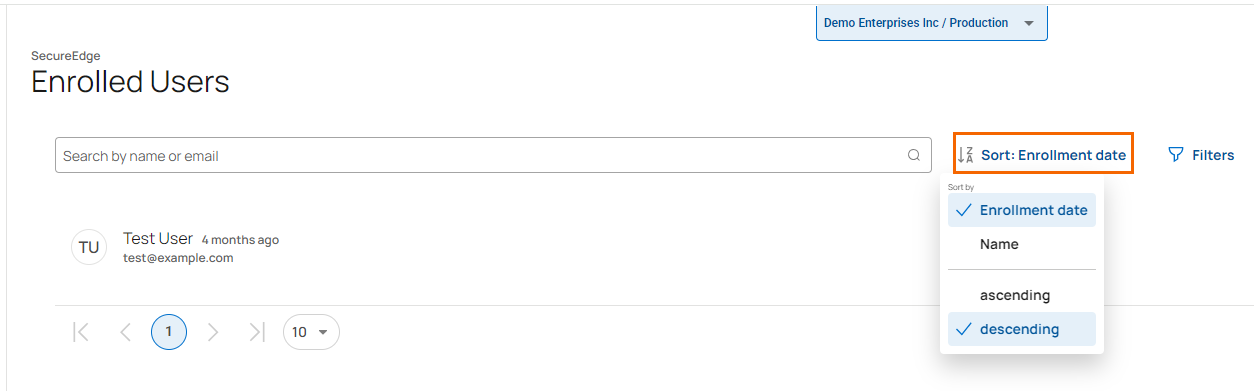
Select the criteria you wish to sort for. For example, in this case, select Name and ascending.
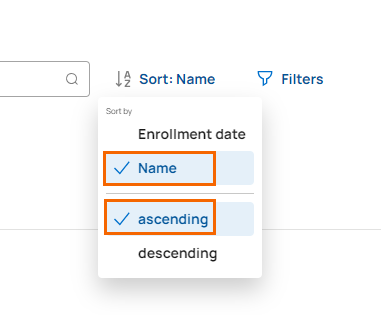
The Enrolled Users table is sorted according to your preferred criteria.
(Optional) Verify Enrolled Users in Barracuda Firewall Admin
Open the Barracuda Firewall Admin application.
Select Firewall in the login window.
Provide Management IP, Username, and Password.
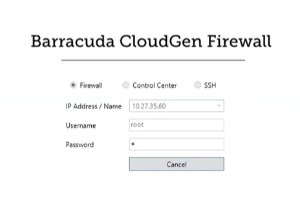
Go to Firewall > Live. You can see the user and application context.
