




The SecureEdge Manager displays all enrolled devices in the selected workspace. After the device enrollment process is complete, the device automatically appears in the Cloud UI. A separate row is provided for each device enrollment. An un-enrolled device cannot use their existing enrollment link to re-enroll. After a device with the SecureEdge Access Agent installed connects to the system, it will appear on the Enrolled Devices page. It displays devices that are associated with a user or a device. In addition, you can modify the device profiles.
Verify Enrolled Devices
Go to https://se.barracudanetworks.com/ and log in with your existing Barracuda Cloud Control account.
Select the workspace your device is enrolled in.
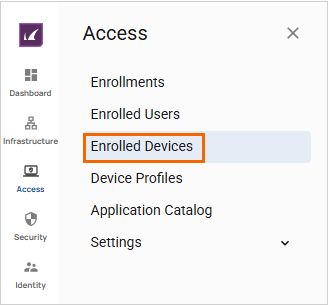
In the left menu, click the Access icon and select Enrolled Devices.
The Enrolled Devices page opens. You can see that your device is enrolled. For example, in this case, a Samsung device is enrolled, running on an SM-N986B.
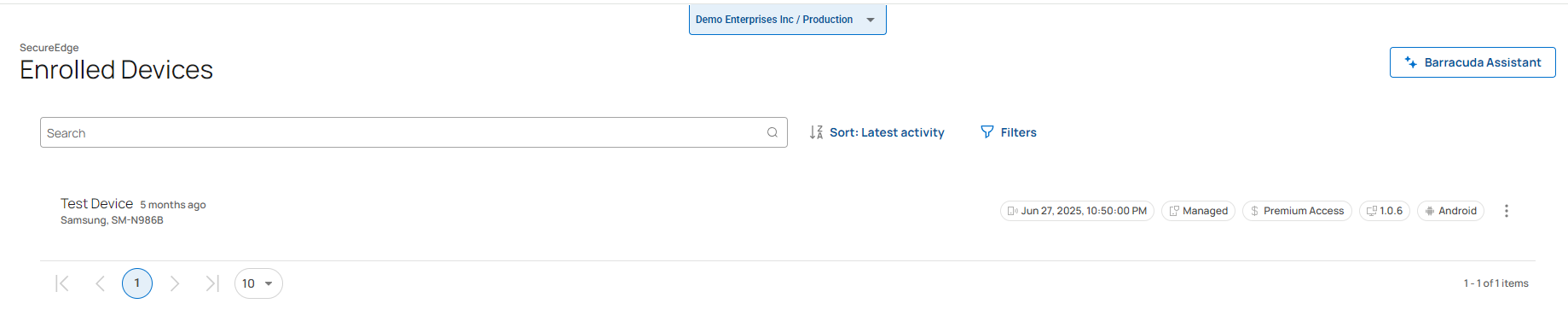
You can see the Enrolled Devices page displays the following information:
All devices enrolled in the selected workspace for SecureEdge Access.
Details of enrolled devices, including their date of enrollment, license type, enrollment profile, agent version, and device OS.
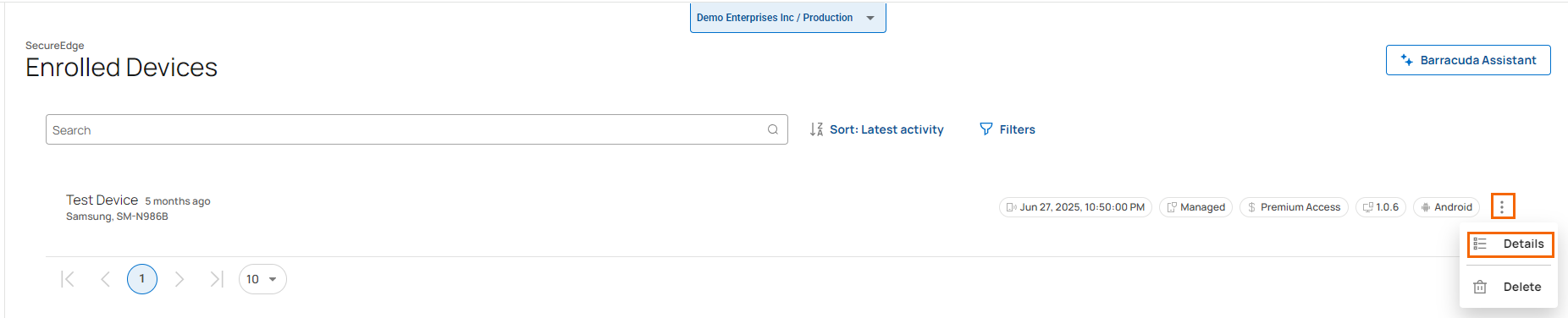
To get more detailed information about devices, click the icon of three vertical dots to either view details or delete device.
To view details about your device, click Details.
The Device Details page opens. You can verify your device details, including model, OS, agent, user, device profile, and license.
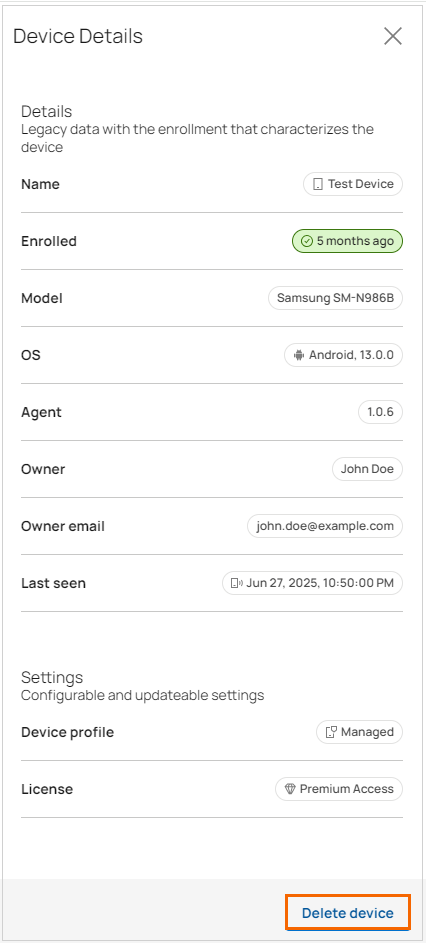
Click Delete device and Delete to remove enrolled device.
Remove an Existing Enrolled Device
Select the workspace your device is enrolled in.
Go to Access > Enrolled Devices.
The Enrolled Devices page opens. All devices enrolled in the selected workspace are displayed.
To remove an enrolled device, click the icon of three vertical dots next to the enrolled device.
Click Delete.
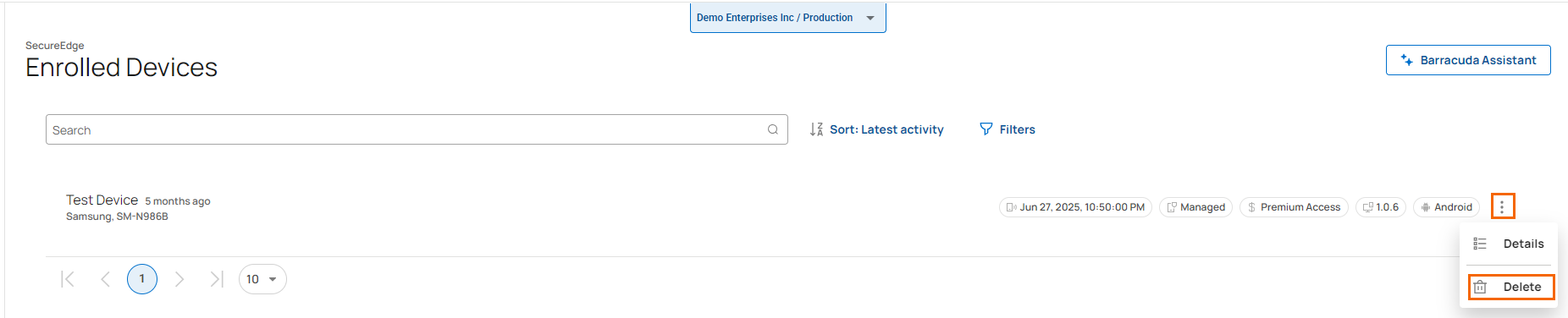
The Delete Device page opens.
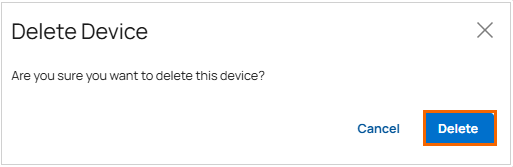
Click Delete.
(Optional) Filtering and Sorting Features
Add Filters
You can search or add filters to view specific users or devices on the Enrolled Devices page.

Click Filters.
The Filters window opens. Specify the values for the following:
Enrollment timeframe – Select the desired time frame from the drop-down list. You can choose between Last 24 hours, 3 days, 7 days, Last 30 days, Last 3 months, Last 6 months, or Last year.
Last seen – Select the option from the drop-down list. You can choose between Last 1 hour, Last 4 hours, Last 8 hour, Last 24 hour, Last 3 days, Last 7 days or Last 30 days.
Users – Select users.
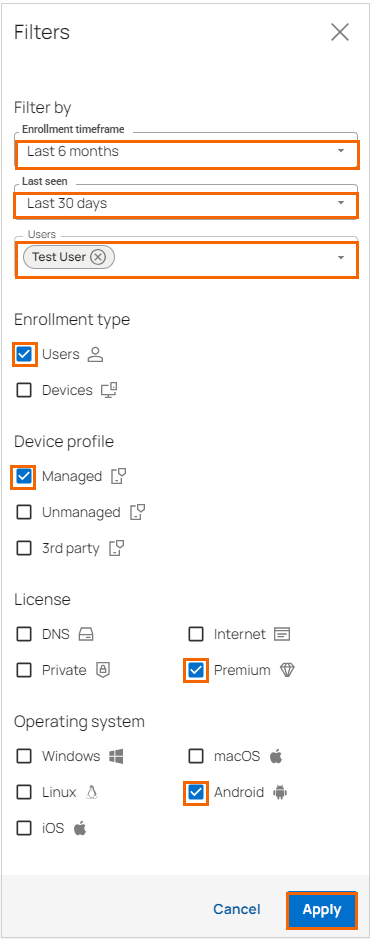
Click Apply. To reset the filter, click Clear all.
Sorting Features
You can filter and sort devices on the Enrolled Devices page to view specific entries. To sort the Enrolled Devices table:
Click Sort: Latest activity.

Select the criteria you wish to sort for. For example, in this case, select Device name and ascending.
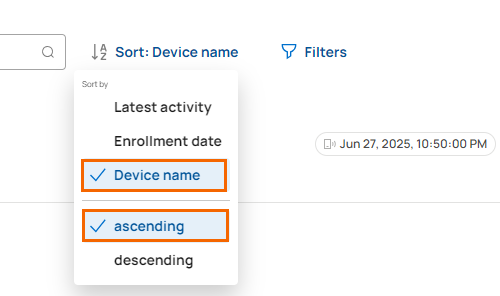
The Enrolled Devices table is sorted according to your preferred criteria.