This article explains how to manage licenses and device profiles for enrolled users. Modifying the license and device profiles for an enrolled user is essential to ensure appropriate access to resources via SecureEdge Access. You can update the device profile to define which devices the user is permitted to use, and configure security settings in line with your organization’s policies.
Configure License and Device Profiles
Go to https://se.barracudanetworks.com/ and log in with your existing Barracuda Cloud Control account.
The chosen Tenant/Workspace is displayed in the top menu bar.
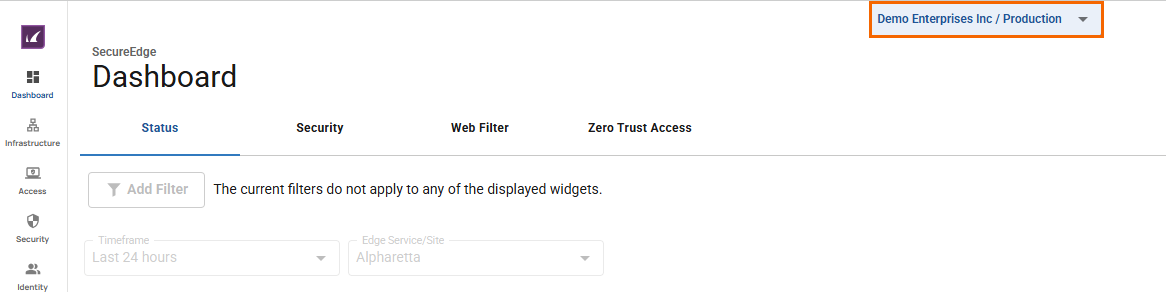
From the drop-down menu, select the workspace your user is enrolled in.
In the left menu, click the Access icon and select Enrolled Users.
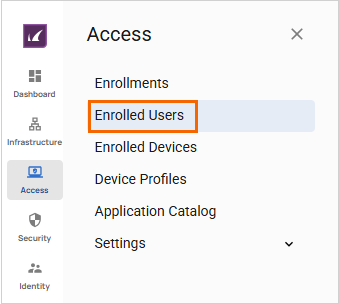
The Enrolled Users page opens.
All enrolled users deployed in the selected workspace are displayed. Select the user to modify the device profile for.
To change the license and device profile settings for a specific user, click on the Settings icon next to the enrolled user.
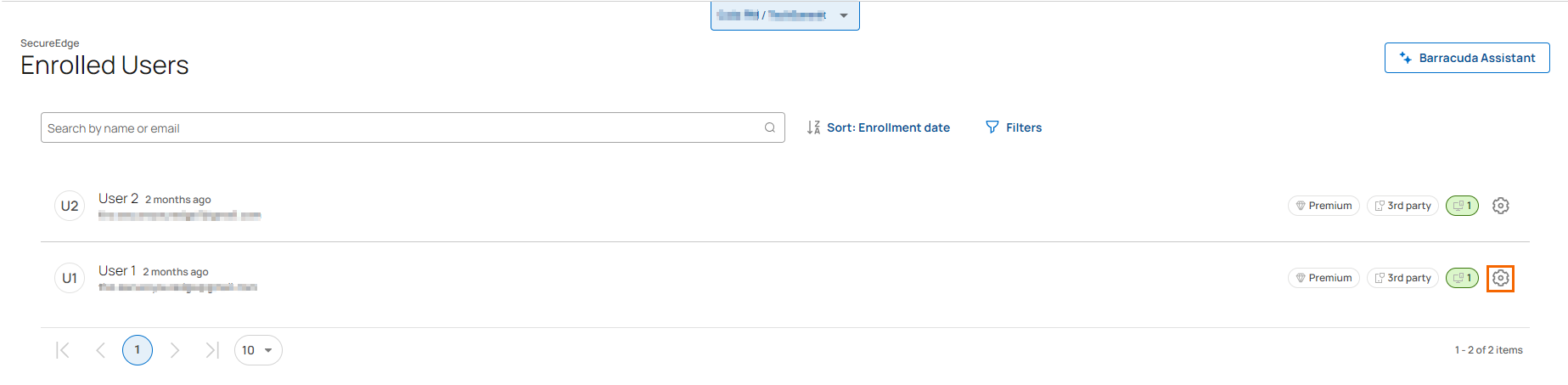
The Settings dashboard of the selected < Name of Enrolled User > page opens. View the list of user devices. Note: You can change the license and device profile for each device as needed.
To change device settings, go to the Devices section and specify the desired values:
License – Select a license type from the drop-down menu. You can choose between DNS, Private, Internet, and Premium.
Device Profile – Select a device profile from drop-down menu. You can choose between Managed, Unmanaged, and 3rd Party.
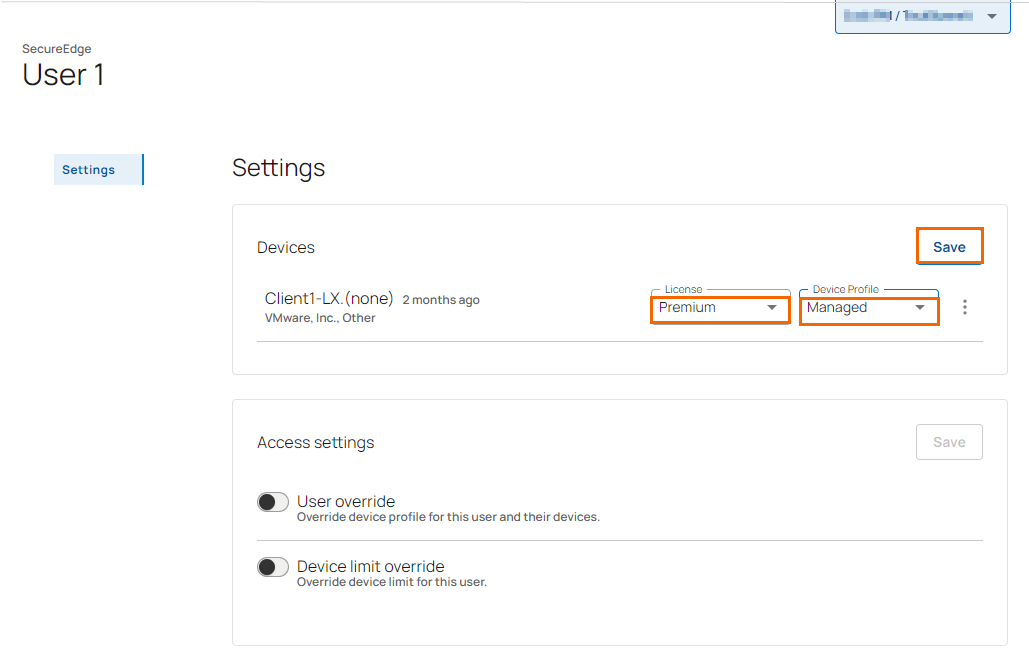
Click Save.
View Device Details and Remove an Existing Device
To view or delete a device for a specific user, follow these steps:
Select the workspace your user is enrolled in.
Go to Access > Enrolled Users.
The Enrolled Users page opens. Select the user to view device details.
Click on the Settings icon next to the enrolled user. The Settings dashboard of the selected < Name of Enrolled User > page opens.
In the Devices section, click the three vertical dots icon to view device details.
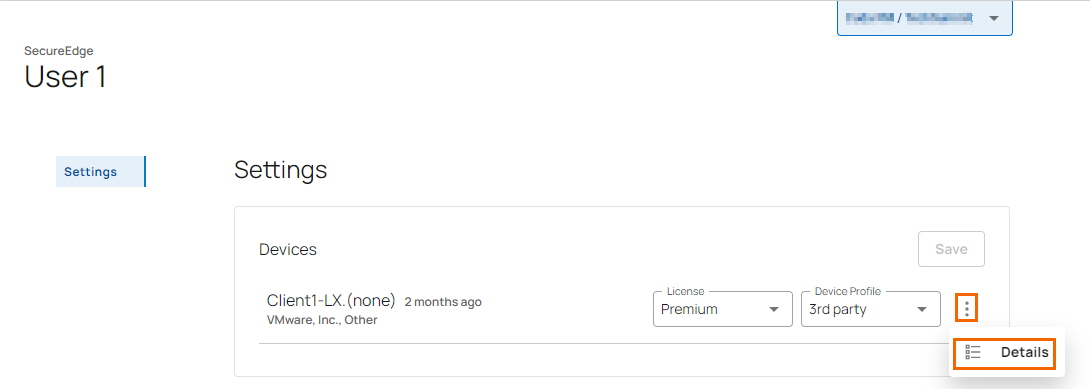
Click Details.
The Device Details page opens. Verify the details of your device.
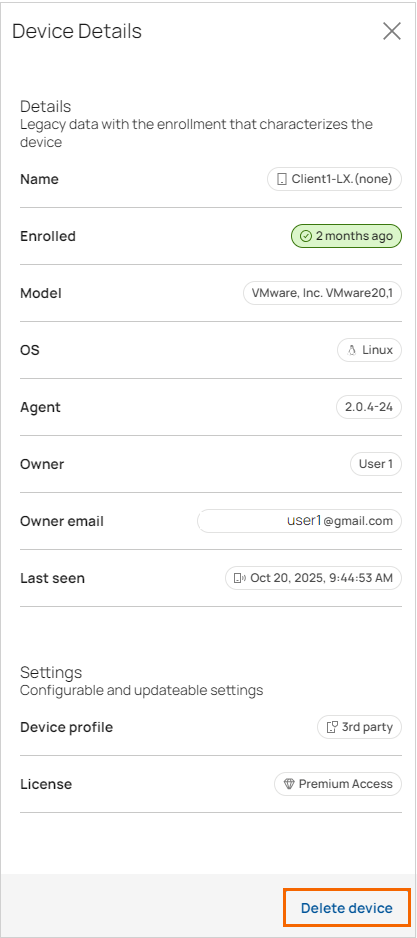
To delete an enrolled device, click Delete device.
The Delete Device page opens.
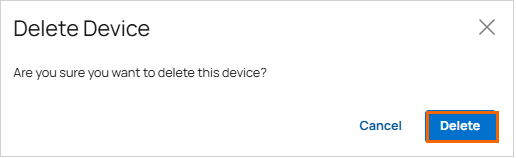
Click Delete.
After deleting the device, you can see that its entry is removed from the Devices table.
Additional Information
If you enroll for both Internet and private licenses, a warning will appear.
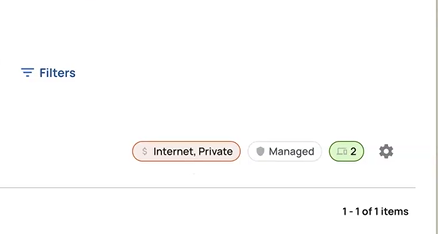
To unenroll a license:
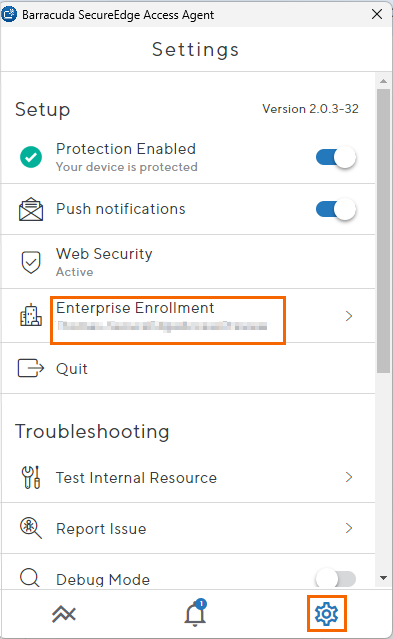
Open the Barracuda SecureEdge Access Agent.
Click the Settings icon at the bottom right of the agent and select Enterprise Enrollment.
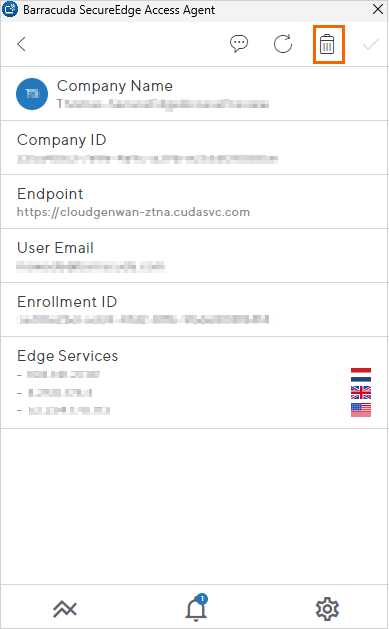
Click the trash can icon in the top-right corner of the agent.
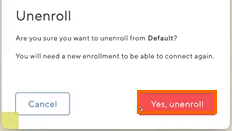
The Unenroll window opens. Click Yes, unenroll.
After successful unenrollment, this user will use only one license. There is no longer a warning because they are now using just one license.