




SecureEdge Access is a major release. It includes many new features and improvements to the core ZTNA solution. SecureEdge delivers cloud-based security and connectivity services, including SD-WAN, network and security policies, application detection, the Secure Web Gateway (SWG) and ZTNA. SecureEdge Access now delivers a complete Secure Service Edge (SSE) platform. This Barracuda-owned platform integrates security and connectivity to protects users, devices, and data globally, while offering customers seamless access to SecureEdge services.
Points of Presence (PoPs)
A Point of Presence is the key link for SecureEdge Access Agents to connect securely and efficiently to your network. Barracuda Networks offers a scalable, fully managed Software as a Service (SaaS) solution for SecureEdge Access, with PoPs deployed in various locations to enhance service and connectivity for users. Key features include:
A globally distributed PoP network ensuring optimal availability and performance for connections to resources and apps
Access to various resources or apps requiring no manual configuration
Greater security than Private PoPs. For more information, see Understanding Points of Presence (PoPs) and Points of Entry (PoEs).
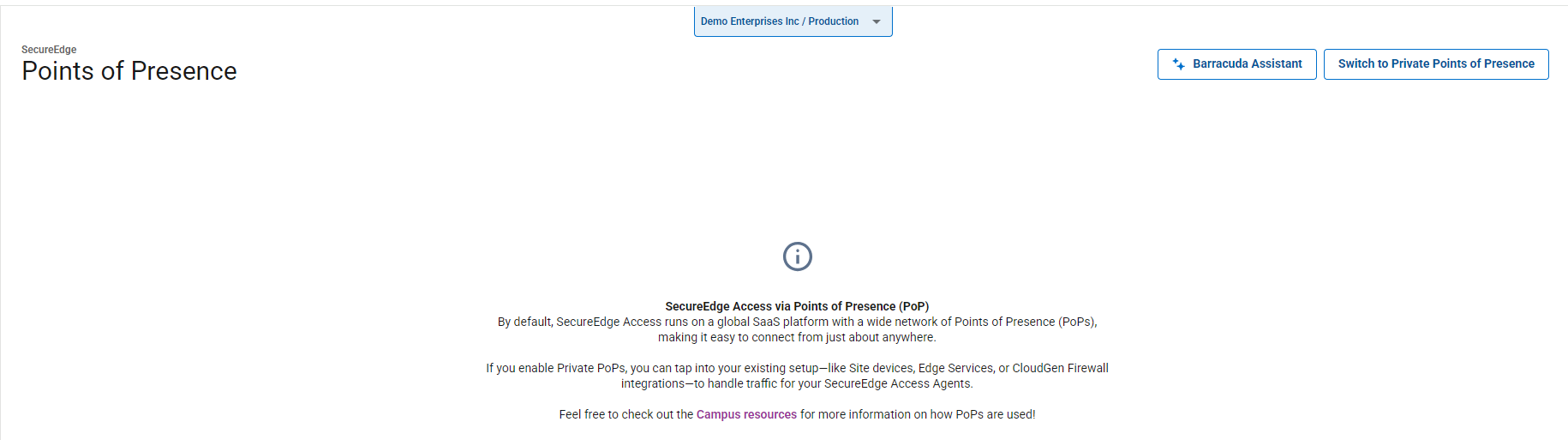
Alternatively, you can use your existing Private PoPs, including the SecureEdge infrastructure, Sites, Edge Services, and the CloudGen Firewall. For more information, see How to Configure Private Points of Presence (PoE).
SecureEdge Access via the Enrollment Service
Depending on license availability, you can now enroll users, groups, and devices. Key features of the new enrollment service include the following:
Barracuda SecureEdge Access offers four license types: SecureEdge DNS Access, SecureEdge Internet Access, SecureEdge Private Access, and SecureEdge Premium Access. Licenses are allocated to enrollments based on user selection, and Device Profiles are associated with enrollment links.
The Enrollments page allows you to create and view enrollments for users, groups, and devices.
You can select a device profile for users, groups, or devices as Managed, Unmanaged, or 3rd party. Based on the profile, you receive an enrollment link. In addition, there is a token-based enrollment for MDM solutions.
You can manage enrollment links independently of an enrolled user.
You can enable User Override to override device profiles for users and their devices.
You can add certificates and domains for unattended enrollments.
Device settings include User Device Limit and Global Breakout Domains.
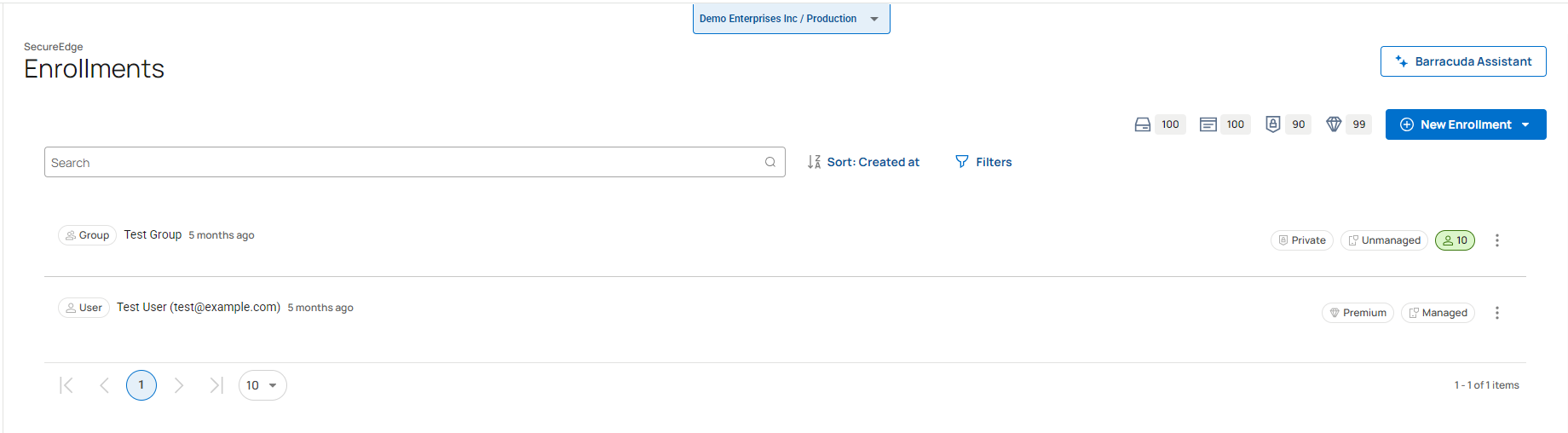
For more information, see How to Enroll Users, Groups, and Devices.
Enrolled Users
The Enrolled Users page displays all enrolled users for the selected workspace.
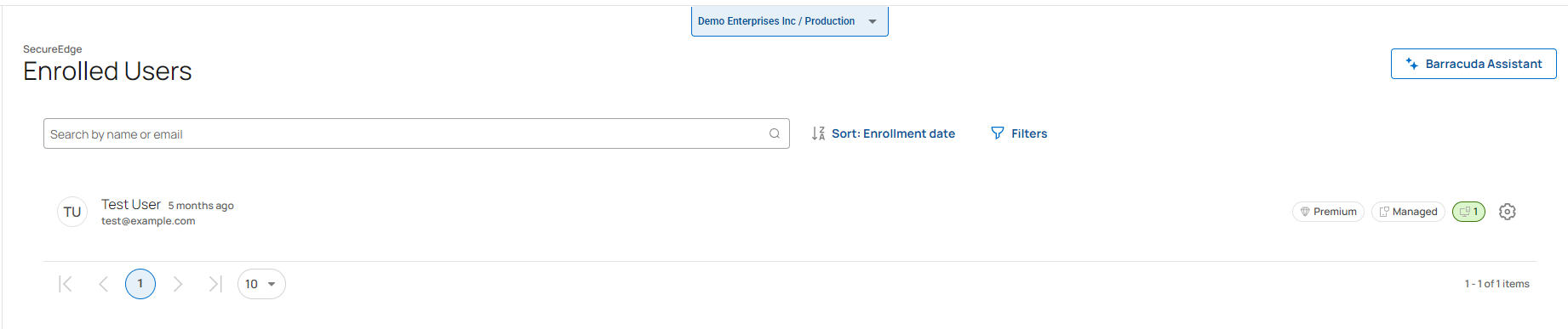
For more information, see How to Verify Enrolled Users.
Settings for an Enrolled User
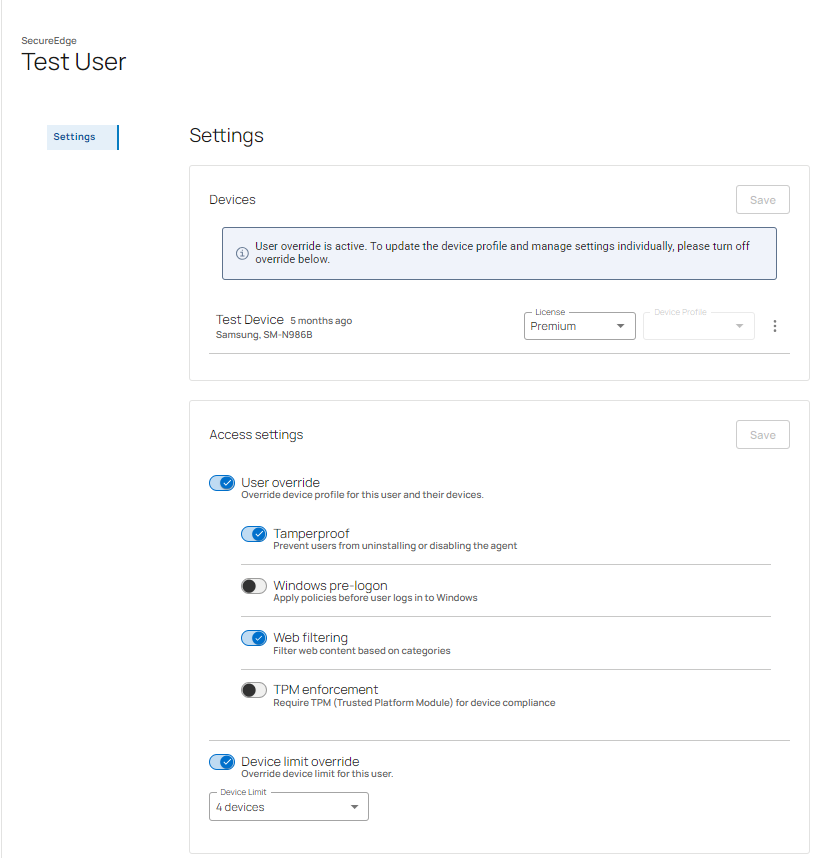
The Settings page for an enrolled user provides access and device setup options to do the following:
Change the license and device profile for the user. For more information, see Device Settings for an Enrolled User.
Override SecureEdge ZTNA settings and create user-level configurations. Enable User Override for a user before configuring Tamperproof, Windows Pre-Logon, Web Filtering, and Trusted Platform Module (TPM) Enforcement settings. For more information, see Access Settings for an Enrolled User.
Enrolled Devices
The Enrolled Devices page displays all devices that are associated with a user or a device for your selected workspace. It shows details such as enrollment date, license type, enrollment profile, agent version, and device OS.

For more information, see How to Verify Enrolled Devices.
Device Profiles
The Device Profiles page displays the number of users and devices under the selected profiles: Managed, Unmanaged, or 3rd Party. The IT administrator manages and customizes all profile types as needed. The Device Profiles page allows editing profiles and viewing details. You can set security settings for the selected profile.
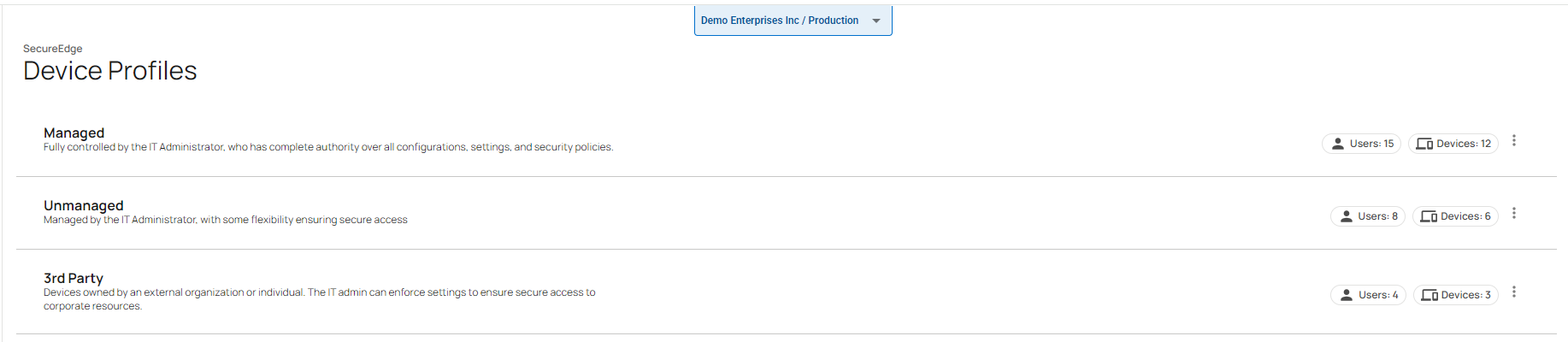
For more information, see How to Configure Device Profiles.
Enrollment Settings
The Enrollment Settings page includes device and unattended enrollment settings:
Device settings – Specifies the parameters User device limit and Global breakout domains.
Enrollment settings – Adds Certificates and the Domain for unattended enrollment.
 |  |
For more information, see Device Settings and Unattended Enrollment: Adding Certificates and Domain Configuration.
Enhanced Web Filter Policies
New Scopes: DNS Location and Agents
As of this release, four scope-based web filter policies are available under Security > Web Filter > Policies. You can now create scopes for DNS Location and Agents, in addition to the scopes Site/Edge Service and All Sources.
DNS Location – Applies Web Filter policies to one or all locations.
Agents – Evaluates web filtering rules for the SecureEdge Access Agent.
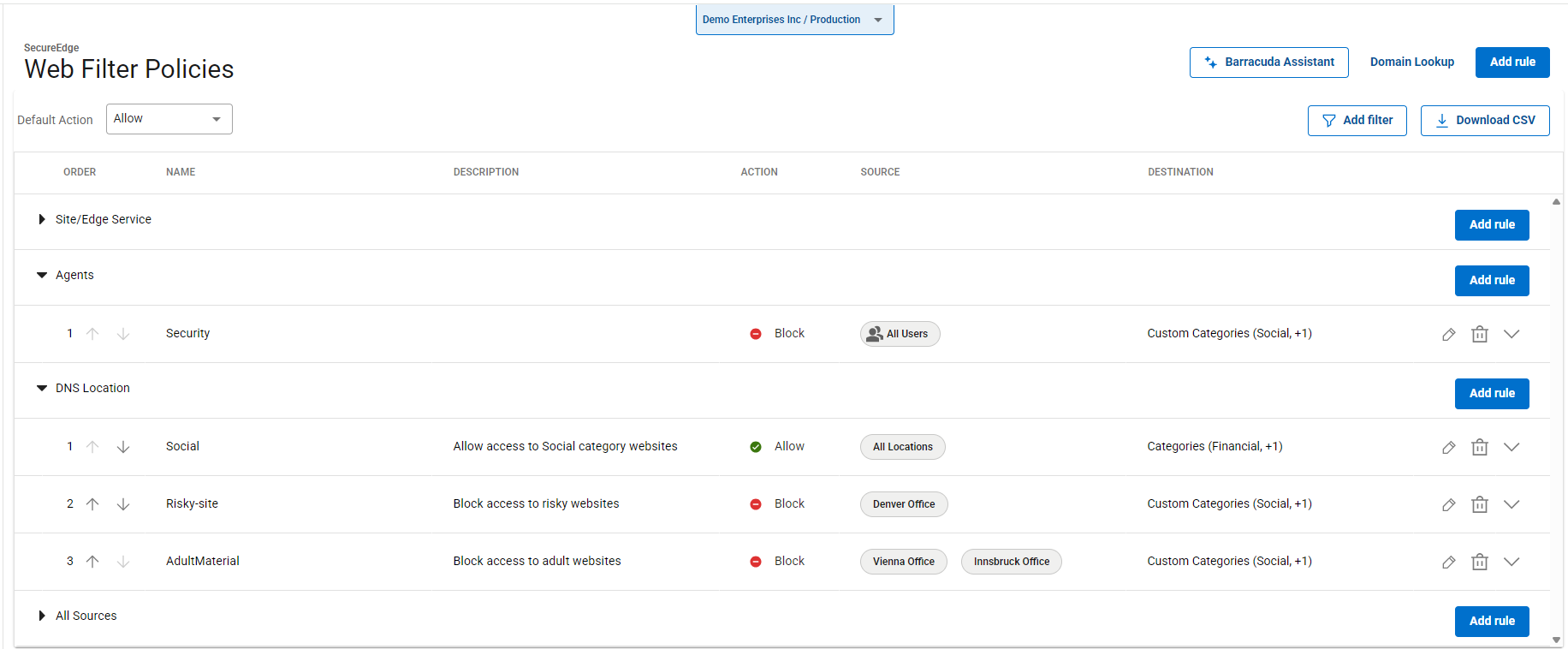
For more information, see How to Configure a Web Filter Policy.
AI Content Inspection for Web Filter
Configure AI-based content inspection for social media platforms such as Facebook, LinkedIn, and X. When AI Content Inspection is enabled, you can configure classifiers or applications for it.
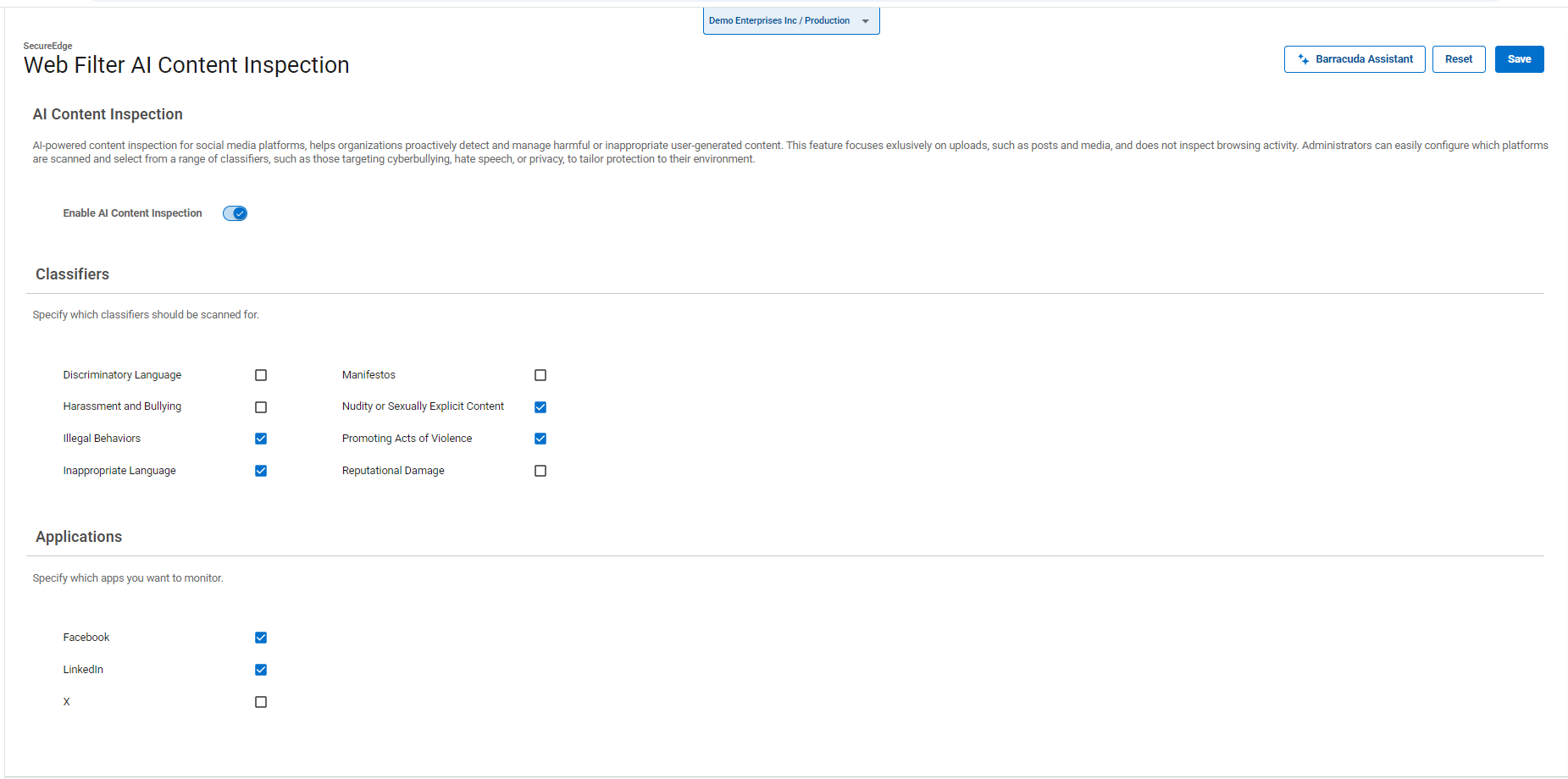
For more information, see How to Set Up AI Content Inspection for Web Filter
Agent Breakout for Web Filter
Configure Agent Breakout for the Web Filter to allow users to backhaul traffic selectively by categories, domains, or both.
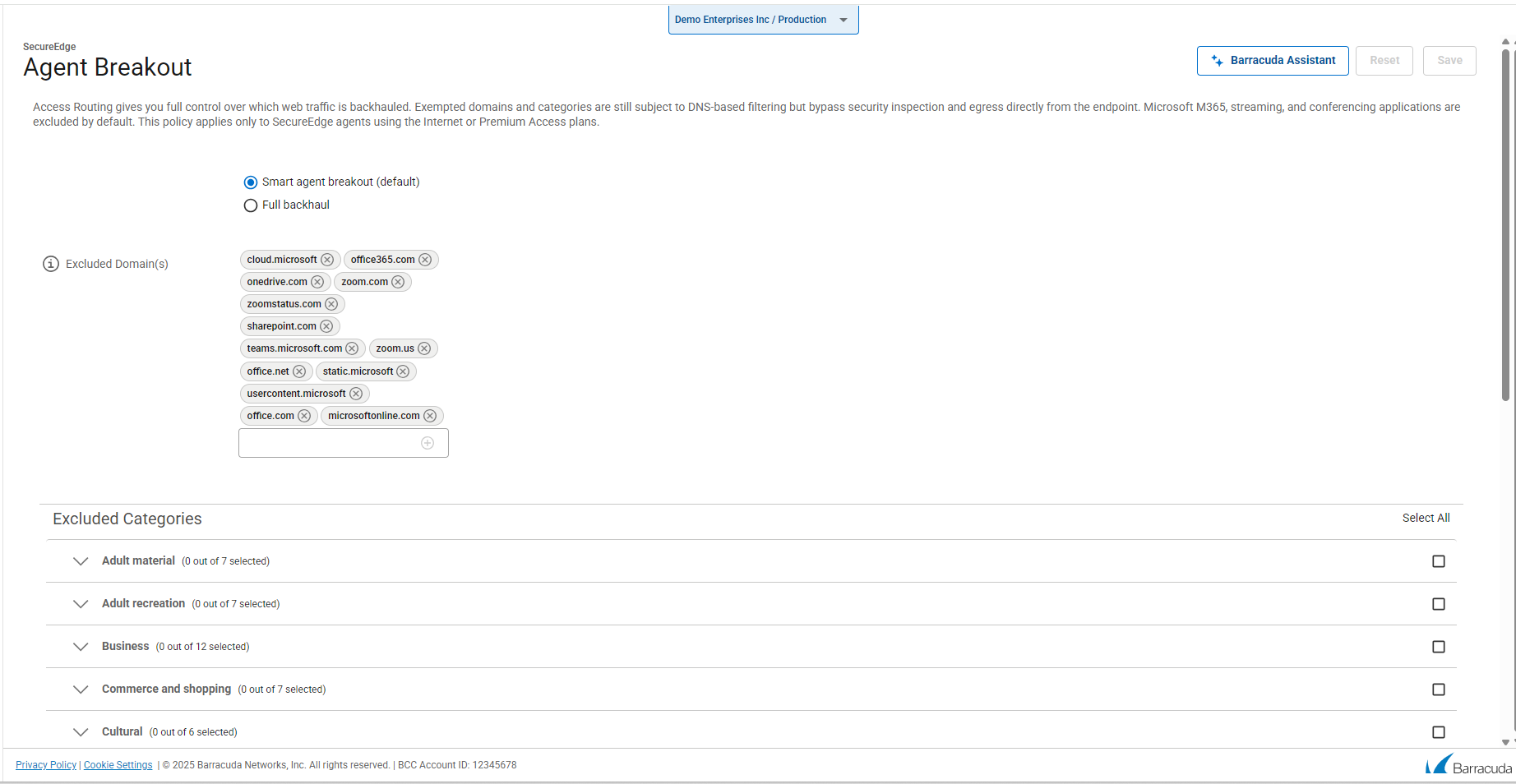
For more information, see How to Set Up Agent Breakout for Web Filter.
Safe Search
You enforce Safe Search via the SecureEdge Access Agent. Supported search engines now include Ecosia. For more information, see Enabling Safe Search in Barracuda SecureEdge.
Locations
A location represents a physical site on the Barracuda SecureEdge network. You can define location-based policies for these sites, and each location can be static or dynamic. Locations added in SecureEdge can be used when configuring Web Filter policies.
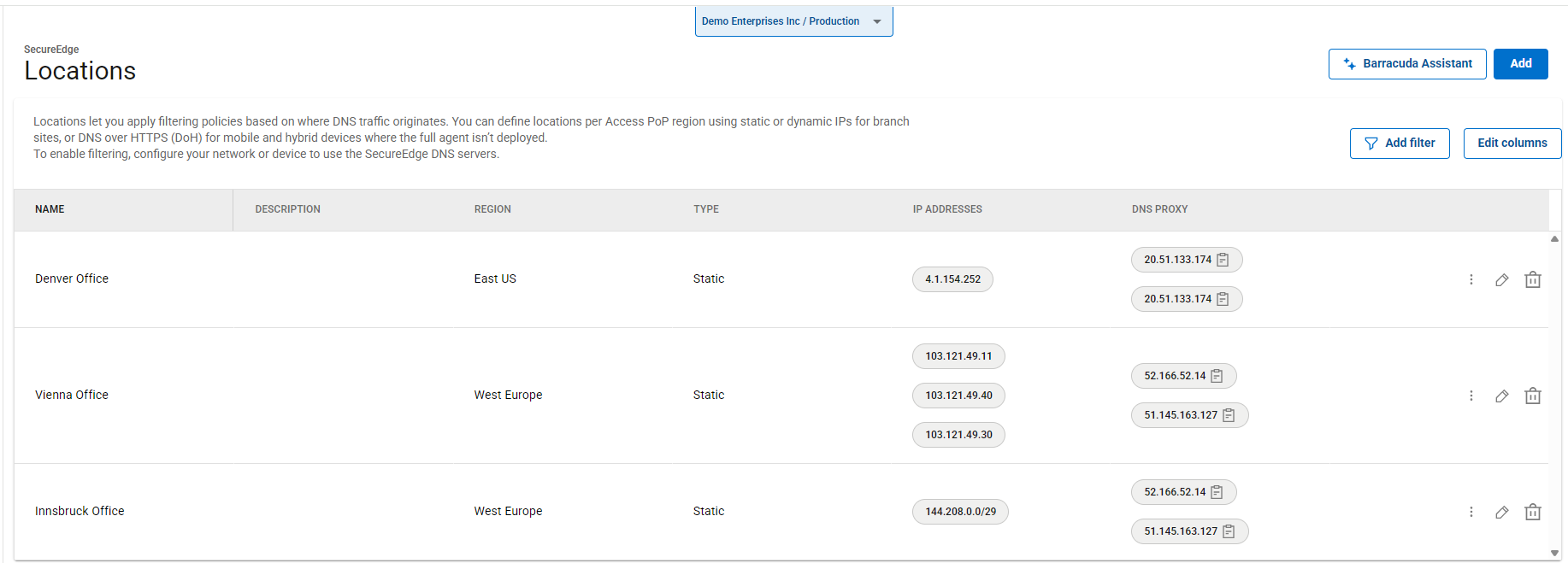
For more information, see How to Add a Location in SecureEdge.
Zero Trust Access Policies
As of the latest update, SecureEdge ZTNA policies now include the toggles Re-Authentication and All Users for easier and more comprehensive policy configuration.
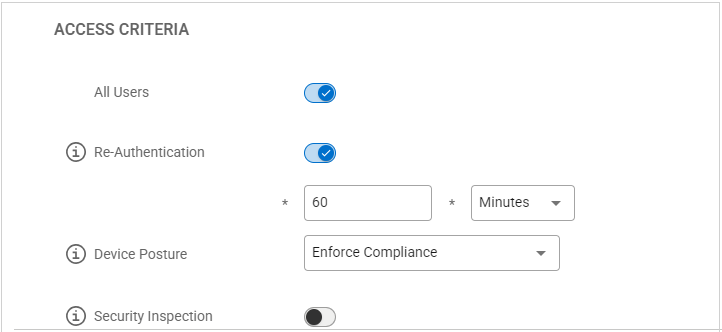
For more information, see Zero Trust Access Policies.
Connectors with SecureEdge Access PoP Configuration
The SecureEdge Connector currently connects to Sites and Edge Services. As of this release, you can also configure the Connection Point as an Access Point of Presence, in addition to Sites or Edge Services.
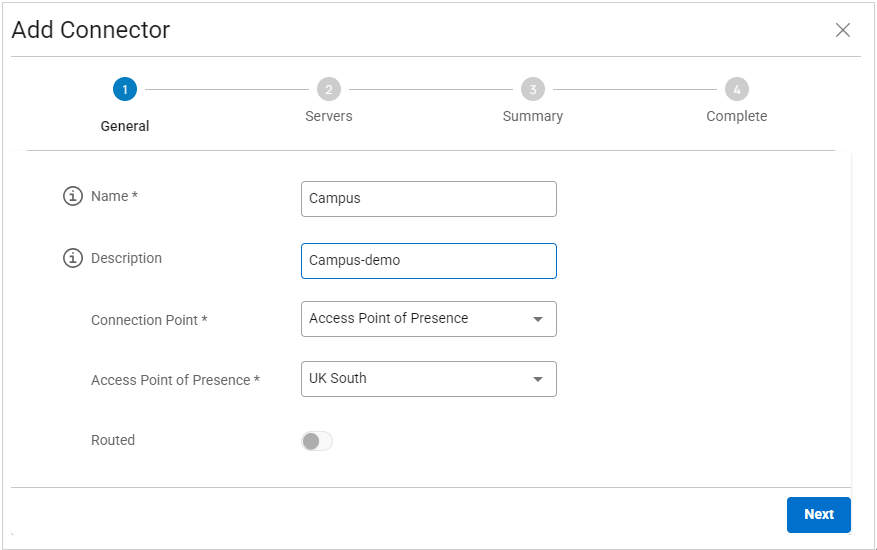
For more information, see How to Configure the SecureEdge Connector.
Known Issues
The Geolocation widget on the dashboard remains empty unless you filter for a specific Site.
The App Categories Blocked widget is no longer available.