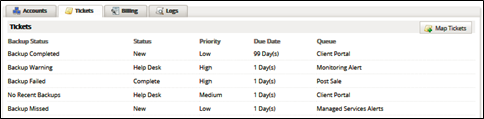
To map tickets to ConnectWise companies, perform the following steps.
- At the ConnectWise Integration page, click the Tickets tab.
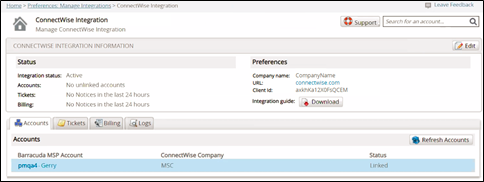
The Tickets page is displayed.
- Click the Map Tickets button.
The Map Tickets page is displayed.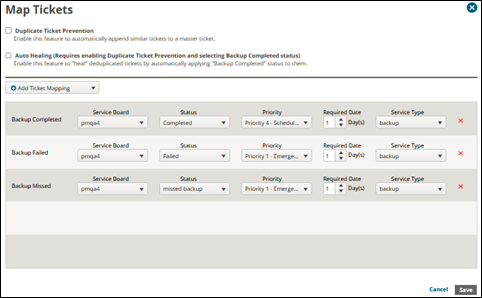
- Optionally select Duplicate Ticket Prevention and Auto Healing. See Duplicate Ticket Prevention and Auto Healing.
- Select the Add Ticket Mapping drop-down arrow.
The Mapping Status Menu options are displayed.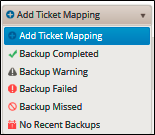
- Select the status options you want to map.
You can map the following backup statuses:
- Backup Complete (This option must be selected to use the Duplicate Ticket Prevention and Auto Healing features.)
- Backup Warning
- Backup Failed
- Backup Missed
- No Recent Backups
6. For each ticket that you would like to send to ConnectWise, select the appropriate option from the drop-down menus in each row.
The following example displays a completed ticket page with all status options added.
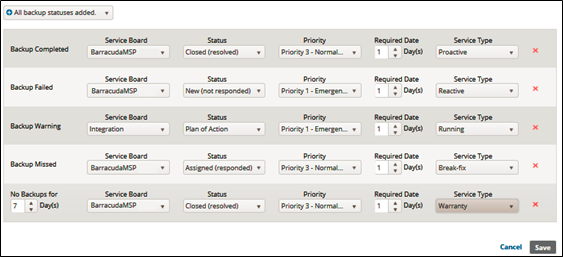
7. When you are done, click the Save button.
Your mapped tickets are displayed on the Tickets page.