




See also How to Reset the CloudGen Access Agent.
Error: Could not start the application.
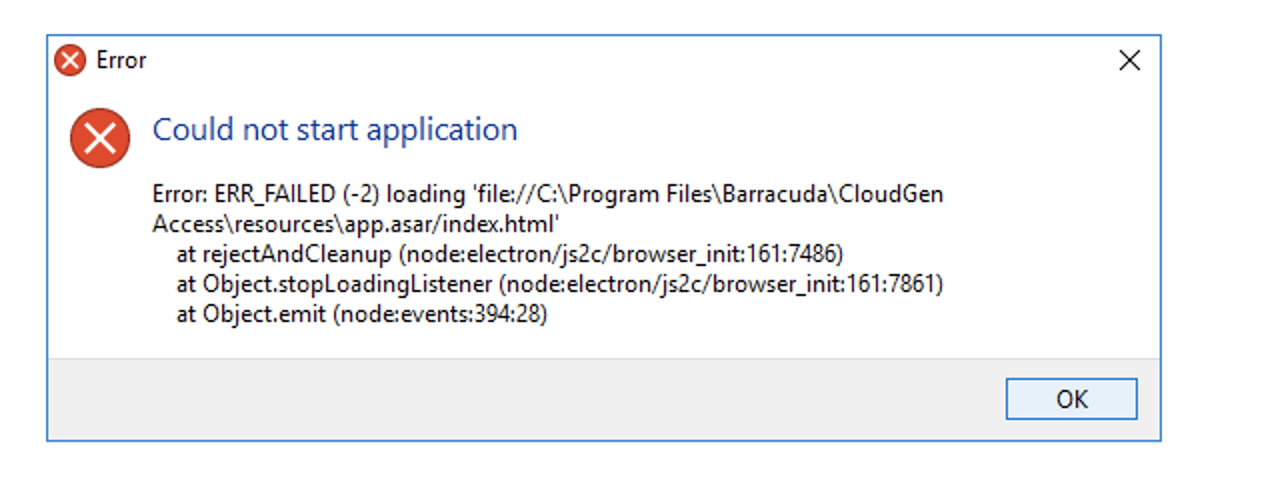
Resolution
If you see the above image, the host machine does not have enough CPU or memory to run the application. Make sure you have at least 1GB memory and enough CPU cycles available.
Error: Receive message “The computer must be trusted for delegation and the current user account must be configured to allow delegation.” when running the CGA Agent.
Resolution
- See the Microsoft website for How to enable the Enable computer and user accounts to be trusted for delegation feature, as well as further information: Trust computer and user accounts for delegation (Windows 10) - Windows security
- Follow the quick steps below to work around this error. Barracuda Networks recommends that you have your IT review this issue, i.e. why this is, or was, disabled.
Workaround:
Set Enable computer and user accounts to be trusted for delegation via the Windows registry editor:
- Open the Registry Editor.
- Go to HKEY_LOCAL_MACHINE\Software\Microsoft\Cryptography\Protect\Providers\df9d8cd0-1501-11d1-8c7a-00c04fc297eb
- Set the value of the ProtectionPolicy registry entry to 1.
Note: If ProtectionPolicy doesn't exist, add DWORD (32bit) value, name it ProtectionPolicy and then change the value to 1.
Apps That Conflict With CloudGen Access, preventing the CloudGen Access App From Working Correctly
Sophos
This software blocks the application from installing or starting. If you encounter any issues, please check Sophos for blocked alerts and configure an exclusion.