




To connect your routed client-to-site VPN to your network, you must add a forwarding access rule to direct traffic between the tunnel, the remote, and the home network.
Before You Begin
Before creating your forwarding access rules, gather the following information:
- The published VPN network(s)
- The VPN client network(s)
Step 1. Create Network Objects
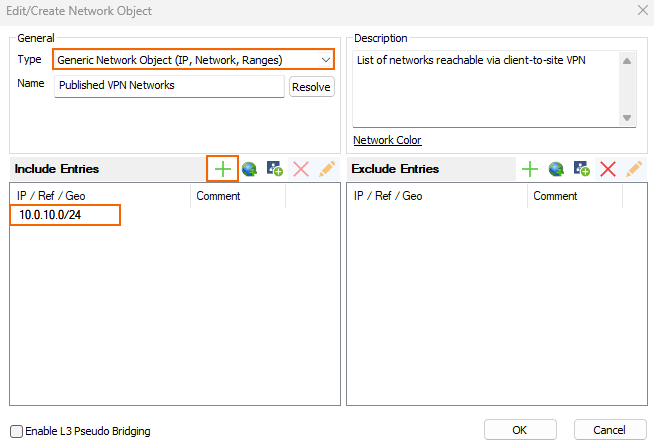
Create static network objects for the published VPN network(s) and the VPN client network(s).
- Type – Select Generic Network Object.
- Include Entries – For each network, click + to add it to the list.
For more information, see Network Objects.
Step 2. Create a Pass Access Rule
Add a Pass access rule that allows traffic from the VPN clients to the published networks.
- Action – Select Pass.
- Source – Select the network object containing the VPN client network(s) created in Step 1.
- Service – Select the allowed services, or Any to allow all services.
- Destination – Select the network object containing the published VPN network(s) created in Step 1.
- Connection Method – Select Dynamic NAT.

For more information, see How to Create a Pass Access Rule.