It seems like your browser didn't download the required fonts. Please revise your security settings and try again.
Barracuda MSP App

Barracuda Campus is getting an upgrade!

We are excited to announce that Barracuda Campus will migrate to a new platform around mid-January 2026. Please see the announcement on the Campus Dashboard to find out more.

Viewing the Excluded User Billing List

  • Last updated on

To view the Excluded User Billing List, perform the following steps.

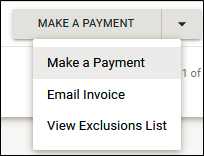
  1. At the Billing page, in the Action column, click the Make a Payment down-arrow.

    image2022-7-28 7:53:31.png

    The Action menu is displayed.

    image2022-7-28 7:54:39.png

  2. Click View Exclusion List.
    The View Exclusion List pop-up is displayed.
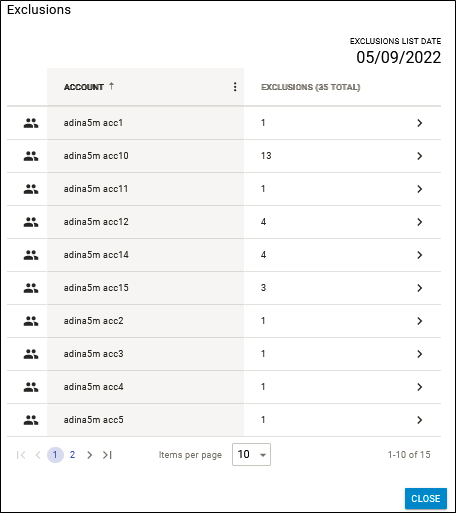
    image2022-7-28 7:55:54.png
    You can filter accounts that have exclusions or you can sort accounts by account name/exclusions.
  3. Review the exclusions, and then click Close.

    For more information regarding excluding users from billing, see Managing the User Billing List.