




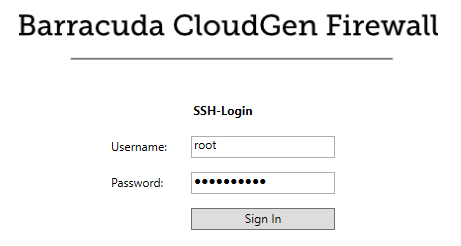
The SSH page provides access to the SSH console. All SSH connections from the SSH tab use UTF-8 encoding. To use the built-in SSH client in Firewall Admin, click the SSH tab.
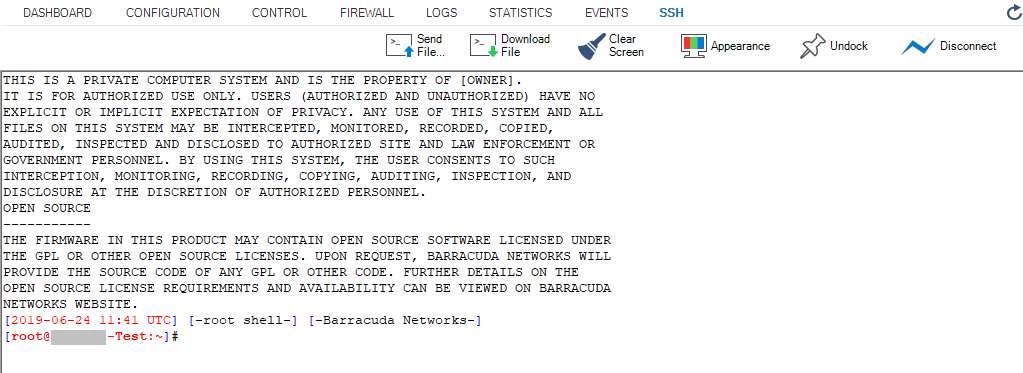
To manage the information displayed in the window, use the icons in the quick access bar at the top of the page. You can perform the following actions:
- Send File – Browse for a file and upload it to the SSH window.
- Download File – Download information as a file. To download a file, select Download File, enter the complete file name with extension, and hit Enter.
- Clear Screen – Delete all information shown in the SSH window.
- Appearance – Customize the appearance of the SSH window according to your requirements.
- Dock/Undock – Choose whether you want to run commands in the main tab or in a separate window.
For more information on SSH, see How to Configure SSH. For information about the command line interface, see Command-Line Interface.