
It seems like your browser didn't download the required fonts. Please revise your security settings and try again.
Barracuda Intronis Backup
formerly ECHOplatform

You are currently viewing the legacy Barracuda Campus portal

Due to ongoing compatibility requirements during the migration, some users are still being redirected here. All content is being transitioned to the new Campus Training Portal and Campus Documentation Portal, and this legacy portal will be fully retired once the migration is complete.

Please visit https://campus.barracuda.com for more information.

Task 2. Creating a User-defined Field

  • Last updated on

To create a user-defined field in Autotask, perform the following steps.

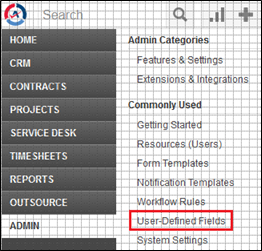
  1. Log into Autotask, hover over the Autotask icon campus task1.png, and then navigate to Admin, User-Defined Fields, as shown below.

    campus create user.png
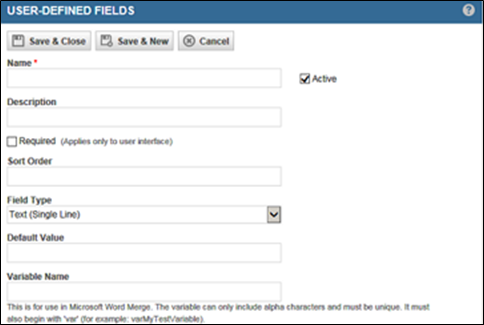
    The User-Defined Fields page is displayed.

    campus create user2.png
  2. Click the New button.
    The new fields are displayed.

    campus create user3.png
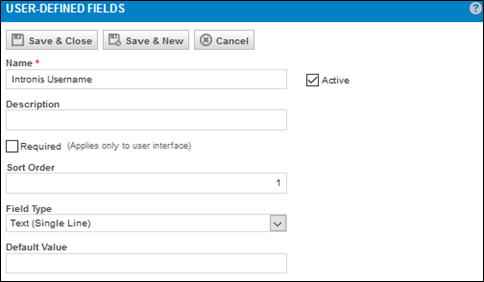
  3. Create a new user-defined field called Intronis Username (case sensitive), as shown below.

    campus create user4.png
  4. Ensure that the Field Type is set to Text (Single Line).
  5. Click Save & Close.


    campus create user4.png


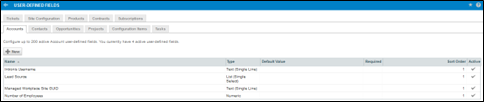
The new Username is displayed.