SD-WAN provides multi-path VPN tunnels across all providers, thereby offering redundant, reliable, and failsafe network connections. When the VPN tunnel is up, it can transmit traffic as long as at least one ISP link is operational. Admins can retain full control over how each link is used, or they can configure the advanced balancing and bandwidth management features to optimally use the available bandwidth. SD-WAN combines a multi-transport VPN tunnel with the following advanced VPN routing, balancing, and shaping features:
Dynamic Bandwidth and Round Trip Time (RTT) Detection
Performance-Based Transport Selection
Adaptive Bandwidth Protection
Last Mile Optimization (FEC)
Adaptive and Static Session Balancing
Failover Support
Multi-Provider Load Balancing
SD-WAN policies are applied to all sites simultaneously and define the behavior of the VPN and non-VPN traffic such as routing, failover, load balancing, and application prioritization. Fallback links are used only in case of failovers and only for the traffic that is allowed to use fallback links.
When enabling Last Mile Optimization on Barracuda SecureEdge, the SD-WAN policies known as Override Categories will have Forward Error Correction (FEC) enabled for all categories.
SD-WAN Policies
Barracuda SecureEdge provides a default configuration for SD-WAN Policies using a predefined application database to cover the most common use cases. For the default configuration, Barracuda Networks has defined an SLA for each application and protocol. The SLA decides how the application is routed according to its needs. You can create explicit policies to change the default behaviour, or you can create additional policies specifically matching your requirements. In addition, you can add applications to the database using custom applications, which allow you to extend the predefined application database used by both the SD-WAN policies and security policies.
The matching algorithm works as follows:
An application is detected. Custom application definitions take precedence over predefined applications. For more information, see How to Create Custom Applications.
If there is an explicit policy for that application, the explicit policy is used. For more information, see SD-WAN Policies.
Otherwise, the algorithm looks up the SD-WAN category and applies the Quality of Service / intelligent routing defined in the policy.
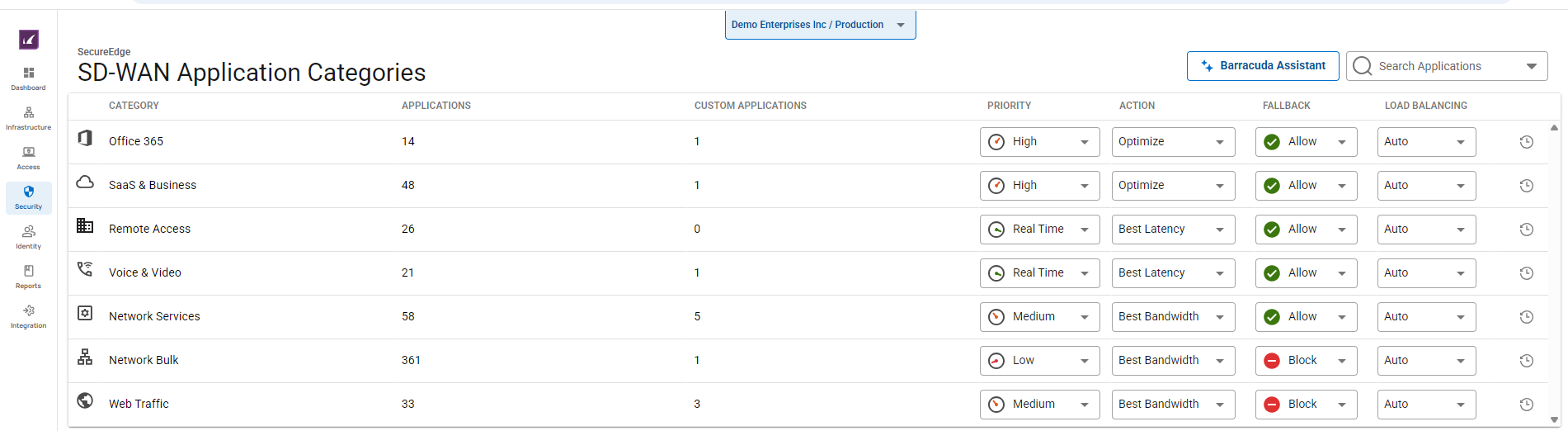
The following SD-WAN options are available:
Category – The name of the category.
Applications – Number of applications where the policy applies.
Custom Applications – Number of custom applications where the policy applies.
Priority – The following options are available:
Real Time – The highest possible priority for the traffic of this policy with no bandwidth restrictions in place. Use this option with caution: it can lead to excessive package drops if the traffic oversubscribes your ISP connection.
High – High priority for the traffic of this policy. This option will not oversubscribe your ISP connection.
Medium – Medium priority for the traffic of this policy. This option will not oversubscribe your ISP connection.
Low – Low priority for the traffic of this policy. This option will not oversubscribe your ISP connection.
Action – The following options are available:
Optimize – Based on the probing data, traffic will use the ISP connection with the best bandwidth / latency depending on what the application needs. When applications with different requirements are in the same category, it falls back to the SLA of the individual app.
Best Bandwidth – Traffic uses ISP connections with the best bandwidth.
Best Latency – Traffic uses ISP connections with the best latency.
Pin to Group 1 – Traffic will only use ISP connections assigned to this group and, if configured, the fallback link. There must be at least one WAN connection that is not a WWAN in the provider pinning of Group 1.
Pin to Group 2 – Traffic will only use ISP connections assigned to this group and, if configured, the fallback link.
Prefer Group 1 – Traffic uses ISP connections assigned to this group. If no link in the group is available, it will use the other group and then, if configured, the fallback link.
Prefer Group 2 – Traffic uses ISP connections assigned to this group. If no link in the group is available, it will use the other group and then, if configured, the fallback link.
Fallback – Fallback links are only used in case the assigned uplinks are down. The following options are available:
Load Balancing – The following options are available:
Auto – VPN traffic uses load balancing, and traffic assigned the option Optimize is excluded from load balancing. The load is balanced between two providers in the same provider pinning group.
No – Load balancing is disabled.
Forward Error Correction – FEC is a method of correcting certain data transmission errors that occur over noisy communication lines, thereby improving data reliability without requiring retransmission. The following options are available:
For more information, see SD-WAN Policies.



