




In certain cases you may have to reboot a Site appliance manually. You can do so easily through the Cloud UI as long as the Site appliance is connected to the Internet. In addition, you can also restart specific services instead of rebooting the whole appliance.
Reboot a Site Appliance through the Cloud UI
Go to https://se.barracudanetworks.com and log in with your existing Barracuda Cloud Control account.
The chosen Tenant/Workspace is displayed in the top menu bar.
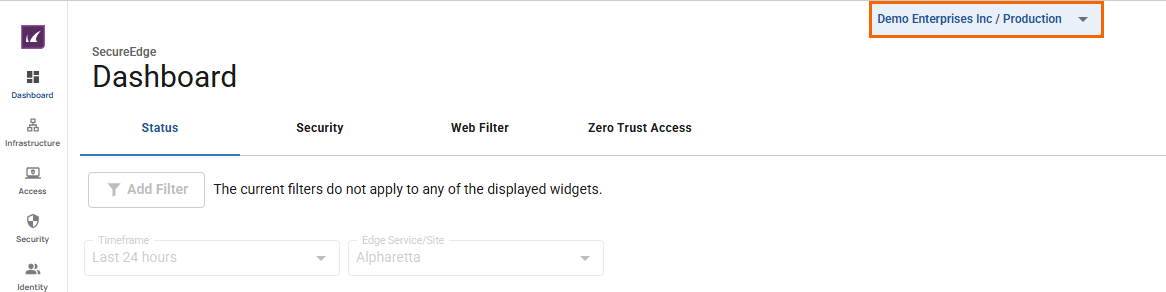
Click the expandable drop-down menu and select the workspace containing your Site.
Go to Infrastructure > Sites. The Sites page opens.
Click the arrow icon next to the Site you want to reboot.
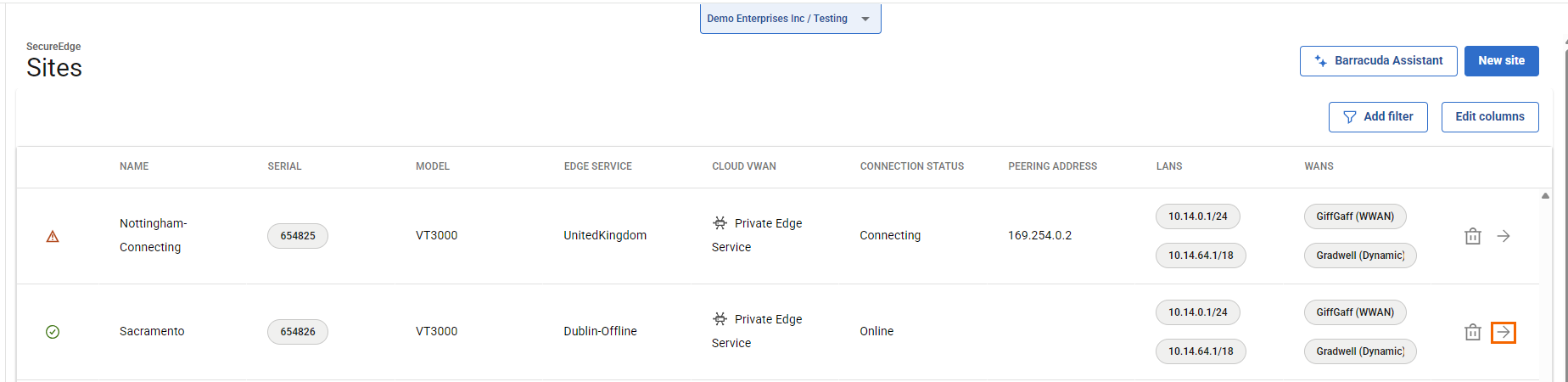
The Site menu opens. In the top-left corner, click Restart.
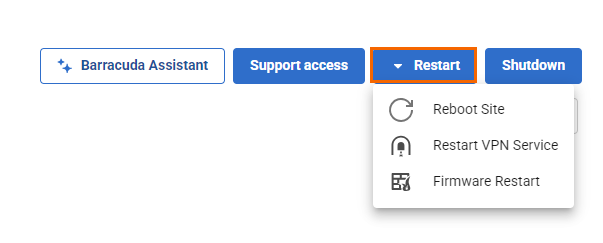
Select the restart option:
Reboot Site – The appliance will be rebooted after confirmation.
Restart VPN Service – Only the VPN service will be restarted after confirmation.
Firmware Restart – The firmware of the appliance will be restarted after confirmation.
Read the information dialogue and click Confirm to start. It can take up to 5 minutes until the desired action completes and the appliance is back online.
Shut Down a Site Appliance
Go to https://se.barracudanetworks.com and log in with your existing Barracuda Cloud Control account.
The chosen Tenant/Workspace is displayed in the top menu bar.
Click the expandable drop-down menu and select the workspace containing your site.
Go to Infrastructure > Sites. The Sites page opens.
Click the arrow icon next to the site you want to shut down.
The Site menu opens. In the top-left corner, click Shutdown.
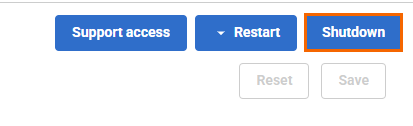
The Shutdown Site window opens.
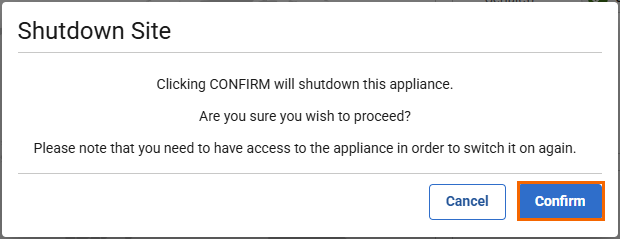
Click Confirm.