




The Barracuda SecureEdge Manager lets administrators set global default SecureEdge Access settings for each user’s devices per workspace. User Device Limit also offers overrides for enrolled users.
In the Device Settings section of an enrollment, you can add the following parameters:
User Device Limit – Refers to the number of devices the user is allowed to enroll.
Global Breakout Domain – Allows you to configure specific domains (internal or private) to be resolved by the DNS servers configured in the local network. You must provide a valid domain (a mix of hostnames, domains, and domain patterns) starting with a wildcard subdomain (e.g.,
*.trusted.partner.net). This feature is valid per workspace, which means all SecureEdge Access Agents in the same workspace will receive the same list of breakout domains.
Configure Device Settings
Go to https://se.barracudanetworks.com and log in with your existing Barracuda Cloud Control account.
The chosen Tenant/Workspace is displayed in the top menu bar.
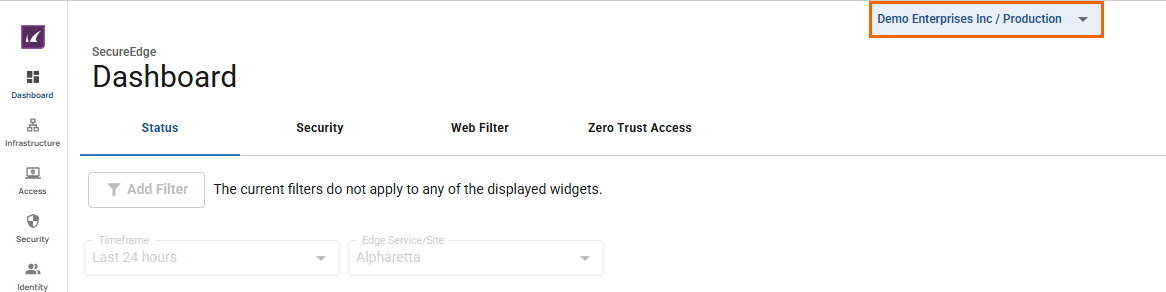
From the drop-down menu, select the workspace your SecureEdge Access should be configured for.
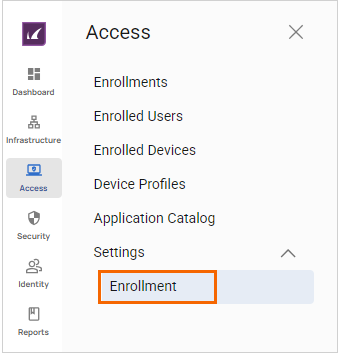
Go to Access > Settings.
Expand the Settings menu on the left and select Enrollment.
The Enrollment Settings page opens.
In the Device settings section, specify a value for the following:
User device limit – Select a user device limit from the drop-down menu. You can choose between 1 to 10 devices per user.
Global breakout domains – Enter a valid domain. To enter more domains, click +.
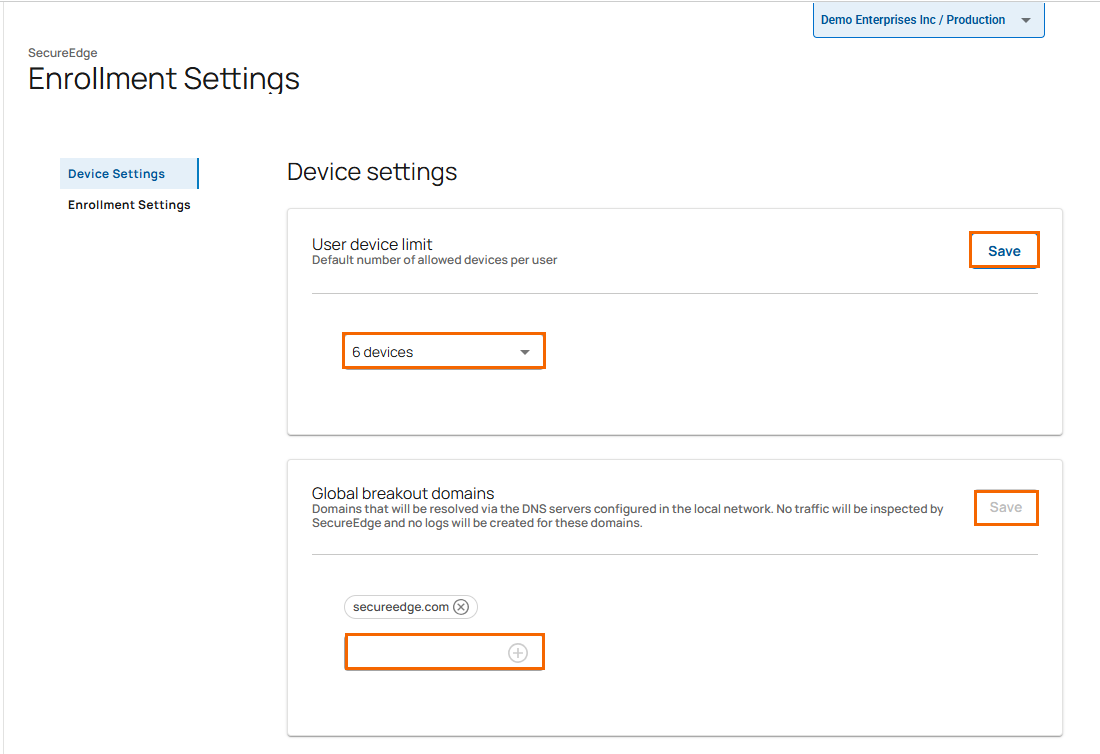
Click Save.
Further Information
For setup details of the Access Agent network, see How to Configure SecureEdge Access Agent Network.