




You can override the SecureEdge Access default settings of the ZTNA features and create settings on a user level. To do so, you must first enable User Override for a specific user before configuring individual settings for Tamperproof, Windows Pre-Logon, Web Filtering, and Trusted Platform Module (TPM) Enforcement.
The following ZTNA features have been added to the SecureEdge Access settings:
Tamperproof – Prevents users from uninstalling or disabling the SecureEdge Access Agent.
Windows Pre-Logon – Applies policies before a user logs into Windows. Note: This feature is available only for Windows.
Web Filtering – Filters web content by categories for a specific user. You can enforce Web Filtering policies for the web traffic that the clients connect to via the SecureEdge Agent in order to establish a secure connection to access internal and external company resources. For more information, see Web Filter Policies.
TPM Enforcement – Applies device compliance. TPM is used to improve the security of your device. TPM is a secure container that creates/stores cryptographic keys and can be used to improve the security of your device. Enforcing TPM helps to protect a user’s identity and authenticates their device. A new option for Zero Trust Access enrollment ensures that the SecureEdge Access Agent is using keys generated by and stored in a TPM. This feature is valid per workspace and offers overrides per enrolled user.
Create Access Settings for an Enrolled User
Follow these steps to override the access settings for a user and their devices:
Go to https://se.barracudanetworks.com and log in with your existing Barracuda Cloud Control account.
The chosen Tenant/Workspace is displayed in the top menu bar.
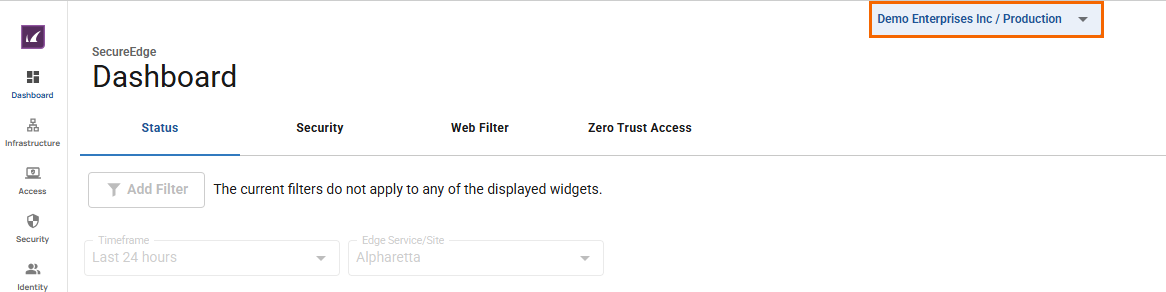
From the drop-down menu, select the workspace your user is enrolled in.
In the left menu, click the Access icon and select Enrolled Users.
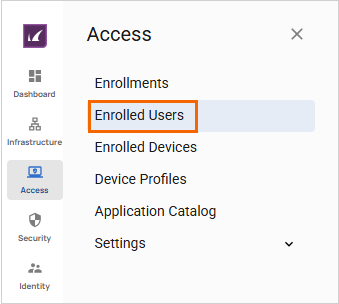
The Enrolled Users page opens. All enrolled users deployed in the selected workspace are displayed. Select the user you want to edit.
To override the Zero Trust Access settings for a specific user, click on the Settings icon next to the enrolled user.

The Settings dashboard of the selected < Name of Enrolled User > page opens.
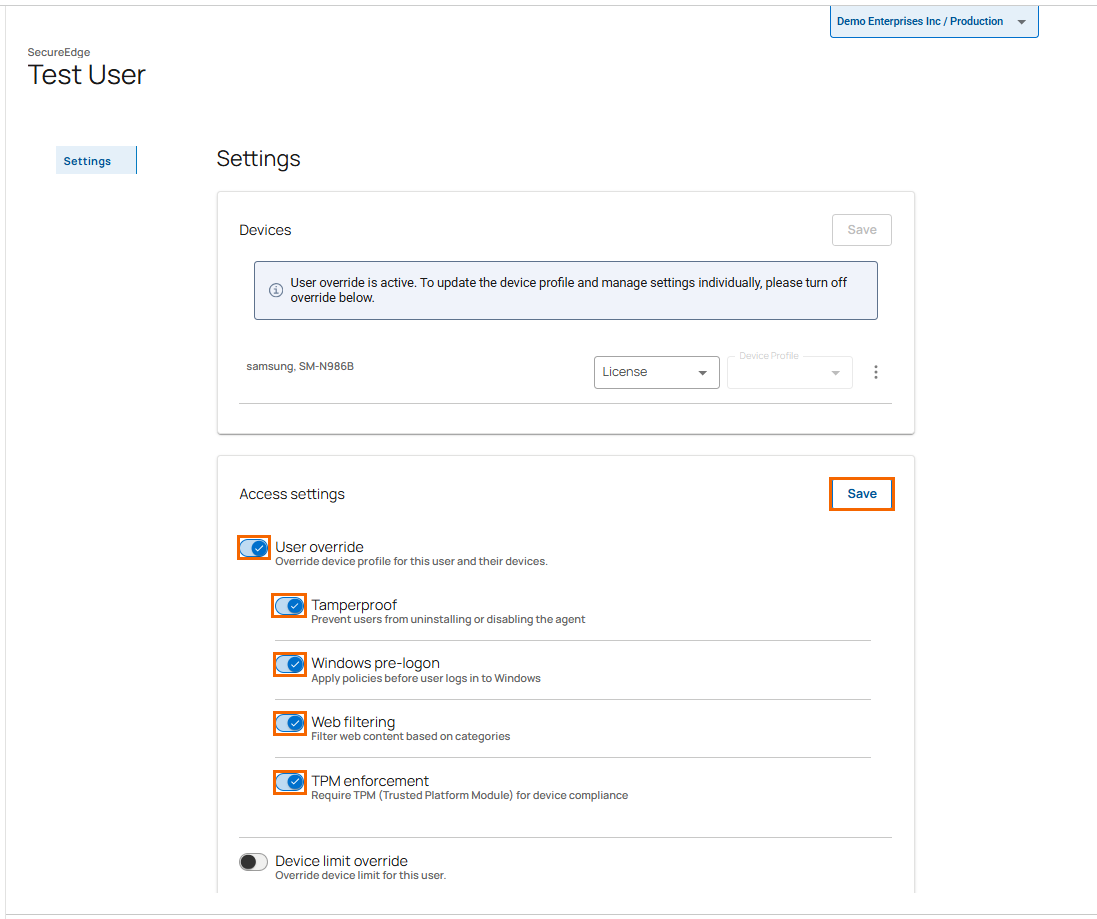
In the Access Settings section, specify values for the following:
User override – Click to enable/disable. By default, User override is disabled.
If User Override is enabled, specify the values for the following:
Tamperproof – Click to enable/disable.
If Tamperproof is enabled, the user will no longer be able to do the following:
Disable the SecureEdge Access Agent
Unenroll
The right-click Quit option for the SecureEdge Access Agent will not be available on the system tray.
If Tamperproof is disabled, all of the above-mentioned features are available to the user.
Windows pre-logon – Click to enable/disable.
If Windows pre-logon is enabled, administrators can manage user devices running Windows without the user being logged in.
Web filtering – Click to enable/disable.
If Web filtering is enabled, all web traffic will be checked against the defined Web filtering policies.
TPM Enforcement – Click to enable/disable. By default, TPM Enforcement is disabled.
If TPM Enforcement is enabled, it ensures that the SecureEdge Access Agent is using a TPM-generated key that is stored in a Trusted Platform Module (TPM). TPM is a non-exportable, secure device-authentication certificate using the TPM chip on your device. Note that by using TPM, it is not possible to access a private key directly.
If TPM Enforcement is disabled, you cannot establish secure operations to a device.
If User Override is disabled, you are not allowed to set any of the ZTNA features.
To override the device limit per user, specify a value for the following:
Device limit override – Click to enable/disable.
If Device limit override is enabled, specify the values for the following:
Device Limit – Select a user device limit from the drop-down menu. You can choose between 1 to 10 devices per user. User Device Limit refers to the number of devices the user is allowed to enroll.
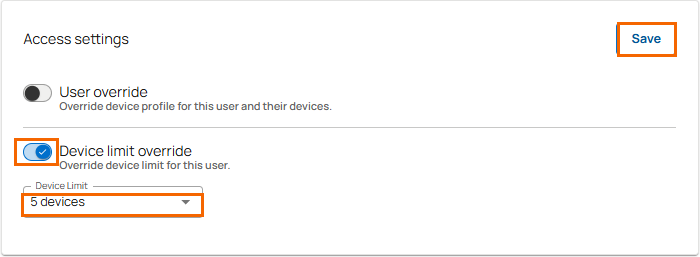
Click Save.
After configuration is complete, verify the user-level settings for a specific user on the SecureEdge Access Agent. The use of ZTNA features is as follows:
Enable or disable Tamperproof for a specific user if User Override is enabled.
Enable or disable Windows pre-logon for a specific user if User Override is enabled.
Enable or disable Web filtering based on categories for a specific user if User Override is enabled.
Enable or disable TPM for specific users in a selected workspace. You can verify that changes to TPM Enforcement in the Audit Log have been made.
You can adjust the user device limit per user. An enrollment error occurs when:
The user tries to enroll more devices than the limit allows, resulting in an error message.