It seems like your browser didn't download the required fonts. Please revise your security settings and try again.
Barracuda XDR

You are currently viewing the legacy Barracuda Campus portal

Due to ongoing compatibility requirements during the migration, some users are still being redirected here. All content is being transitioned to the new Campus Training Portal and Campus Documentation Portal, and this legacy portal will be fully retired once the migration is complete.

Please visit https://campus.barracuda.com for more information.

Integrating Barracuda Impersonation Protection

  • Last updated on
  1. Sign in to Barracuda Impersonation Protection.

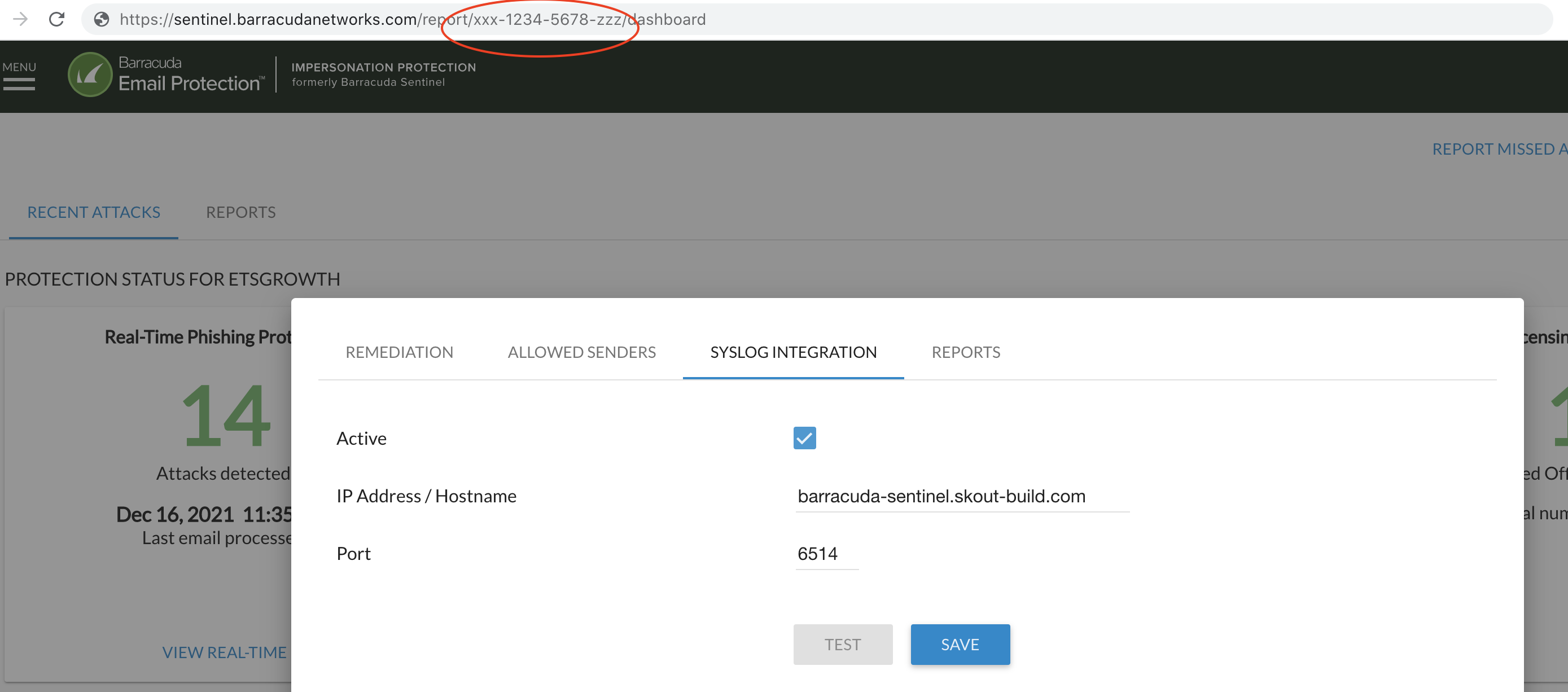
  2. Click the Settings gear icon in the top right, then click the Syslog Integration tab.

  3. Check the Enabled box.

  4. In IP Address/Hostname box, enter barracuda-sentinel.skout-build.com .

  5. Leave the default 6514 value for port.

  6. Click Save.

  7. While still in the Impersonation Protection app, copy the UUID Portion of the URL in your browser's location bar. For example:
    If the url is https://sentinel.barracudanetworks.com/report/xxxx-1234-5678-abcd-zzzz/dashboard, then the UUID is xxxx-1234-5678-abcd-zzzz .

    IntegratingBarracudaEmailProtection.png

To enable Barracuda Impersonation Protection

  1. In Barracuda XDR Dashboard, click Administration > Integrations.

  2. On the Barracuda Impersonation Protection card, click Setup.
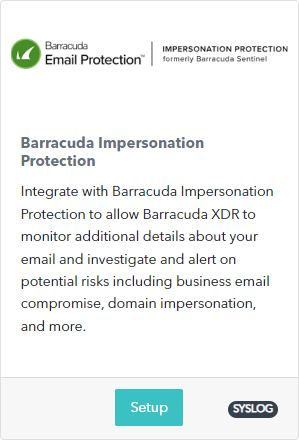
    BarracudaImpersonationProtectionCard.png

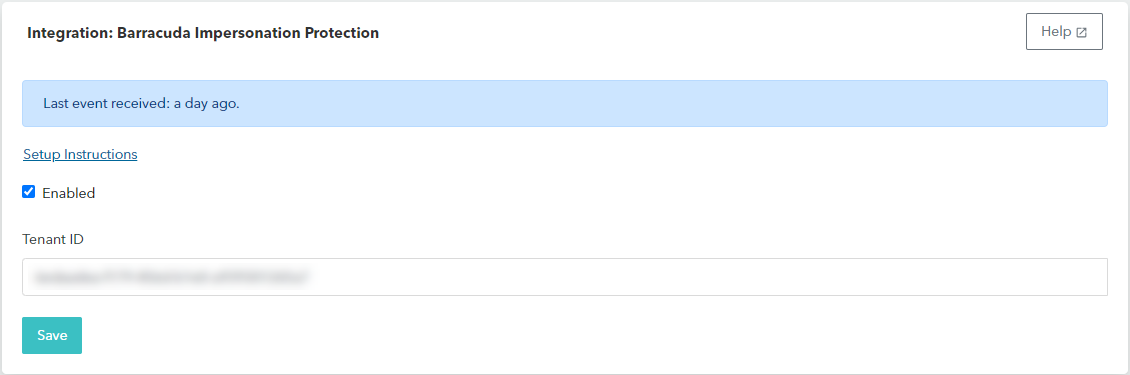
  3. Do the following:

    • In Tenant ID, enter the UUID that you copied in step 7 above. 

    • Check the Enabled box.

      BarracudaImpersonationProtectionEdit.png
  4. Click Save.