
It seems like your browser didn't download the required fonts. Please revise your security settings and try again.
Barracuda Intronis Backup
formerly ECHOplatform

You are currently viewing the legacy Barracuda Campus portal

Due to ongoing compatibility requirements during the migration, some users are still being redirected here. All content is being transitioned to the new Campus Training Portal and Campus Documentation Portal, and this legacy portal will be fully retired once the migration is complete.

Please visit https://campus.barracuda.com for more information.

Creating Alert, Notification and Preference Templates

  • Last updated on

Templates are predefined groups of preferences, alerts, and notifications settings that can be applied to a computer or to a group of computers at one time.

You can create the following templates:

Newly applied templates overwrite any existing preferences, notifications settings, or overage alerts.

The figure below provides a display of the Manage Templates page.
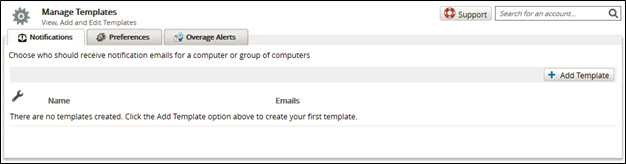
 

image2022-6-23 10:54:42.png

To access the Manage Templates page, perform the following steps.

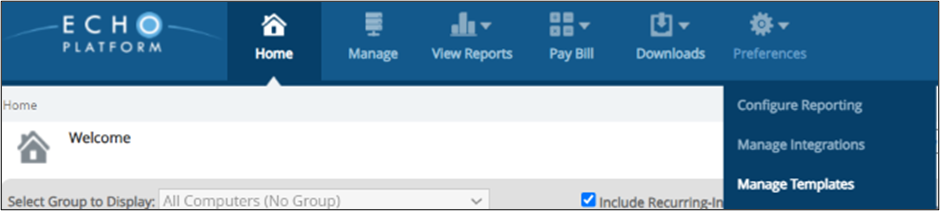
  1. Login to ECHOplatform, click on the Preferences tab, and then select Manage Templates.
    campus manage templates.png
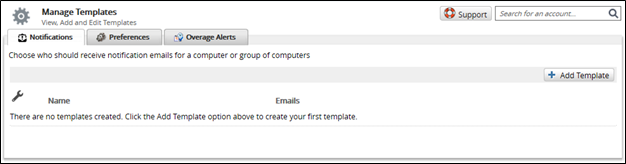
    The Manage Templates page is displayed.

    manage templates1.png
  2. To create a new template, choose the tab of the template type you want and then click Add Template button in the upper-right.
    • If you are making a preferences template continue here.
    • If you are making a notification template go here.
    • For overage alert templates see this section.
  3. When you are finished creating the template, click Save.

Now that you have created your template, you can apply it to one or multiple computer accounts.