




Use the following steps to fix authentication issues related to internal network resources:
- Add a resource named LocalDNS that is pointing to your DC/DNS server.
- Go to Devices > Settings > Agent DNS. Click the pencil icon on the right, and then click Add New DNS.
- Enter _msdcs.<internal.domain> for Domain suffix and select Resource for DNS Servers. Select the resource you just created LocalDNS.
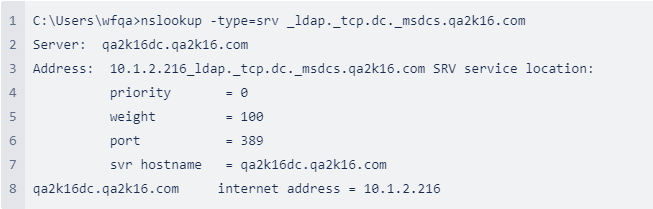
- Reload the CloudGen Access config on the app and run the nslookup command for SRV records using the following command:
_nslookup -type=srv _ldap._tcp.dc._msdcs.<internal.domain>.
Sample result below:
See also
How to Configure an Active Directory by Using DNS over Resource