




Account owners can manage admins from the Identity page. The Admins tab will only be available to the account owners.
To create a new local admin:
- Go to Identity and navigate to Admins. Click the + icon in the top right.
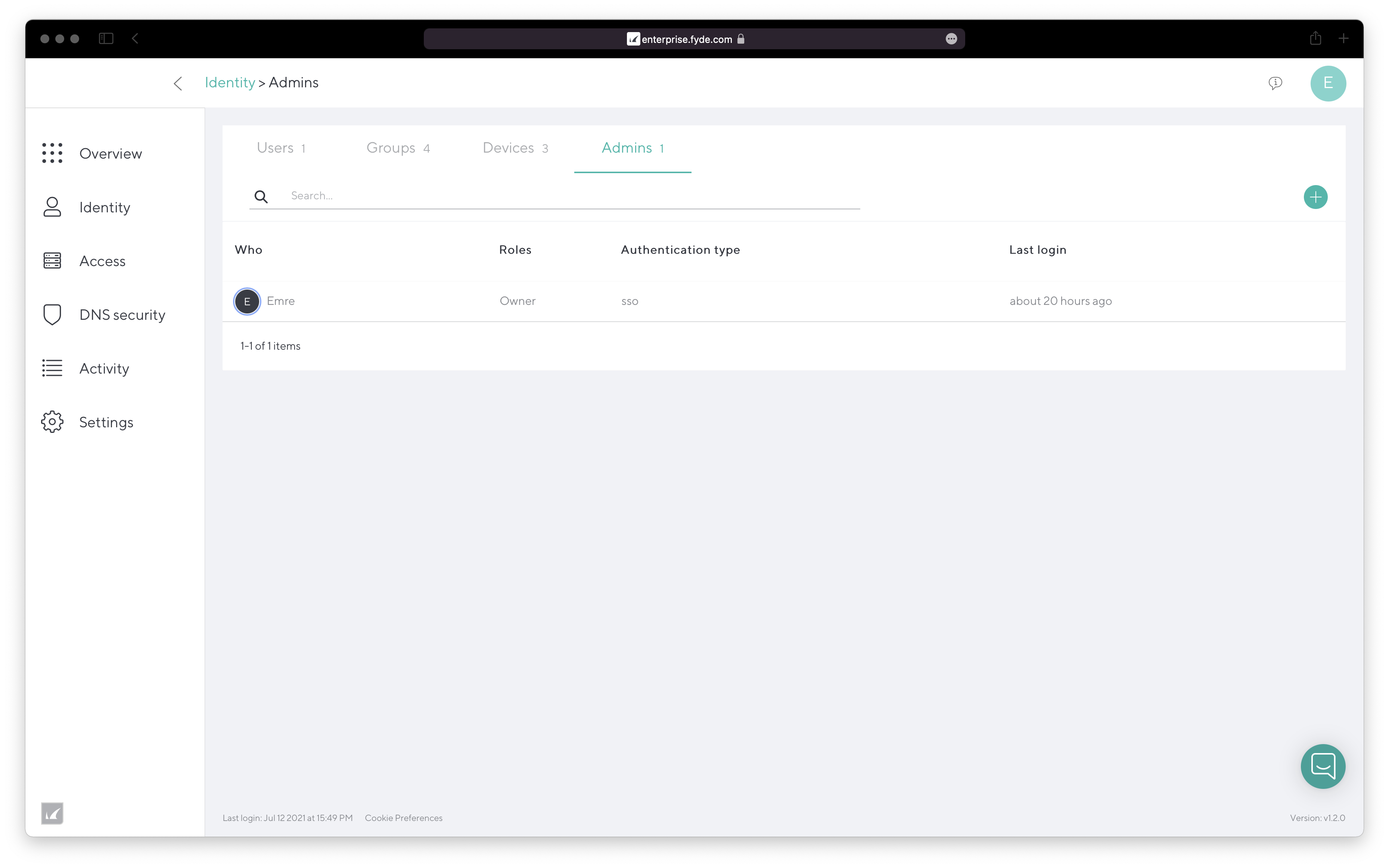
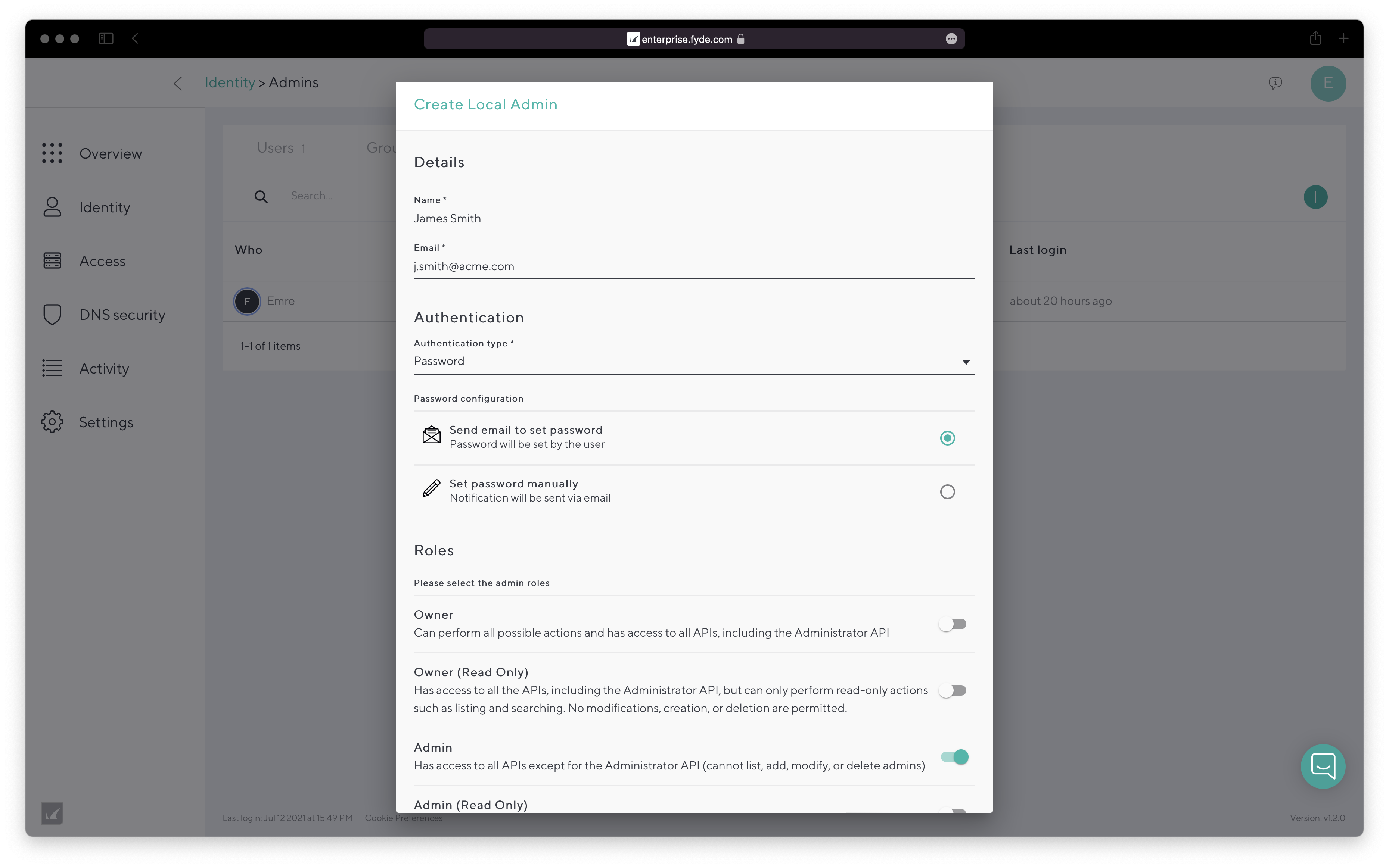
- Add the following:
- Name – Name to identify the admin.
- Email – Enter the email address of the admin.
- Select the Authentication type.
- If you select BCC or SSO, you must configure IdP first. (Make sure that you configured your IdP correctly; otherwise, you might lose access to your account.)
- If you cannot log into your account with BCC, please contact customer support.
- If you select Password:
- You can send an email to the new admin, and they can set their password, or
- You can manually set a password for the new admin.
- If you select BCC or SSO, you must configure IdP first. (Make sure that you configured your IdP correctly; otherwise, you might lose access to your account.)
- Select the required Roles for the admin. Role definitions are listed in the modal as shown below, and also in How to Use the Admin API.
- Click Create.