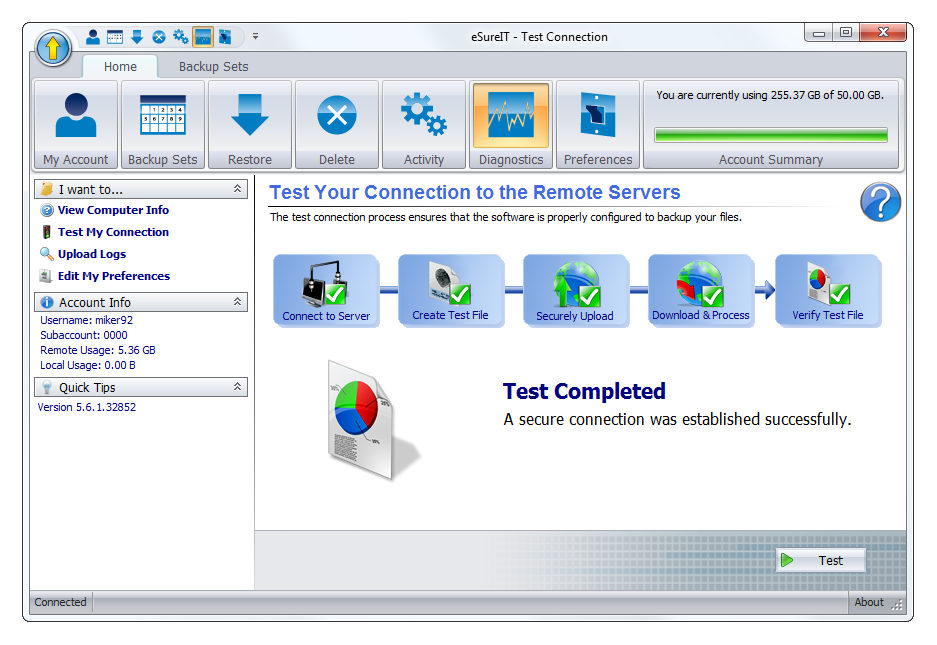
Running a test connection is a useful way to check the Backup Agent for a handful of issues. Those include but are not limited to:
- Authenticating with Intronis using the client account username and computer account password stored in the software
- Testing the validity of the default temporary folder location
- Verifying if a file can be packaged, uploaded to Intronis, downloaded from Intronis, and then unpackaged successfully
- Testing the ability to establish a connection with Intronis's servers
This article will show you how to perform a test connection.
Directions
Test connections can only be performed in the Backup Monitor, not the management portal. You will need to be logged into the computer you wish to run the test connection from.
- Open the Backup Monitor and go to the Diagnostics section.
- Click on the Test My Connection option in the upper-right section to bring up the test connection page.
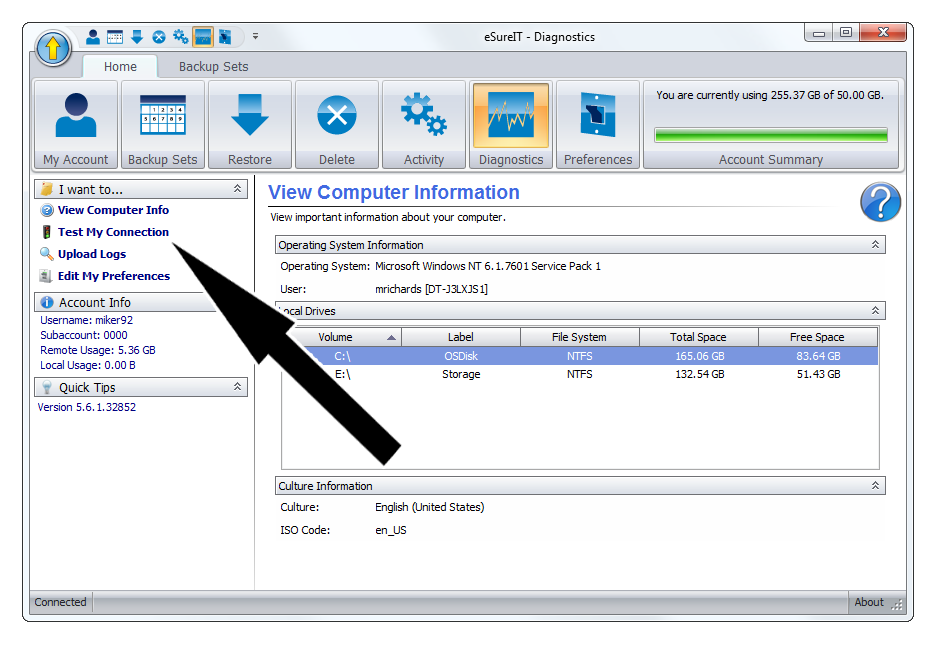
- Hit the Run button to start the test connection. If a problem is encountered the software will report as much. If there are no problems, the test connection will report as successful.