On the Site page, you can click the Active Mail Users link in the Exchange Mailbox Summary area to see a summary of Exchange Mailbox users.
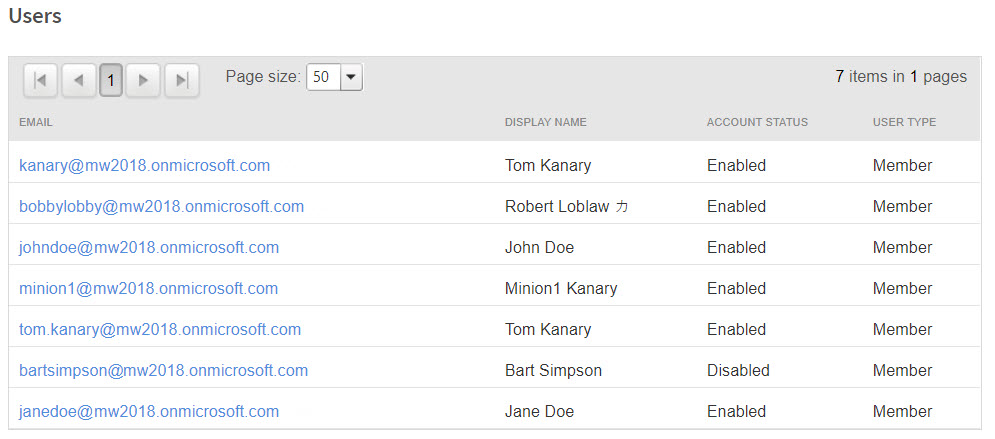
For each user, this page displays statistics such as:
Email address
User display name
Account status
User type
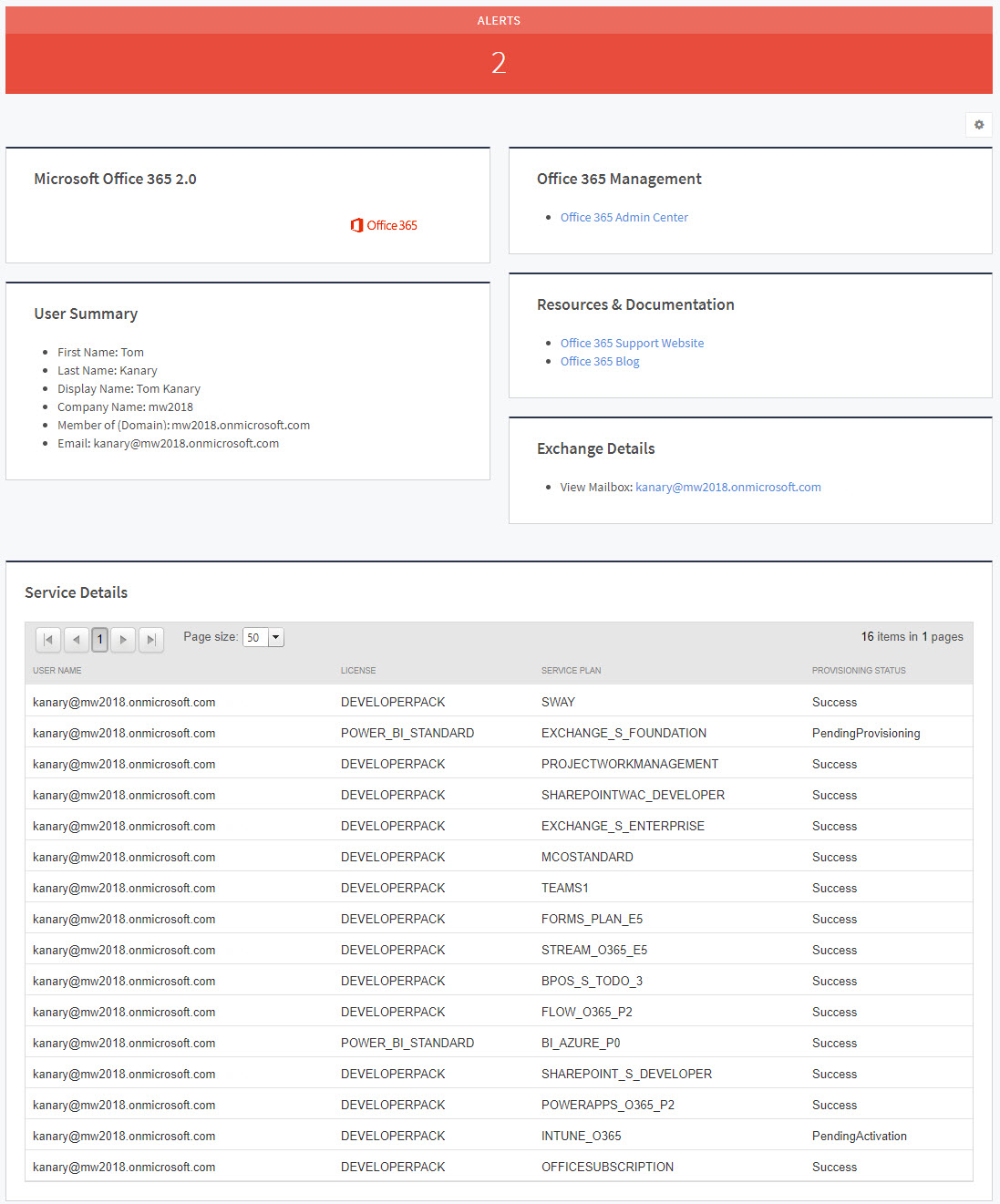
Click an email address link to see details for that user:
Number of alerts
User information summary
License
Service plans
Provisioning Status
To view a summary of mailbox users
In Service Center, click Status > Service Modules.
Do one of the following:
Click the Microsoft Office 365 2.0 link.
Under Management, on the right side, click Microsoft Office 365 2.0.
Click the link for a site.
In the Domains area, click a domain.
In the Exchange Mailbox Summary area, click the number next to Active Mail Users.
To view the details of a mailbox user
In Service Center, click Status > Service Modules.
Do one of the following:
Click the Microsoft Office 365 2.0 link.
Under Management, on the right side, click Microsoft Office 365 2.0.
Click the link for a site.
In the Domains area, click a domain.
In the Exchange Mailbox Summary area, click the number next to Active Mail Users.
In the Users area, click a user link.