




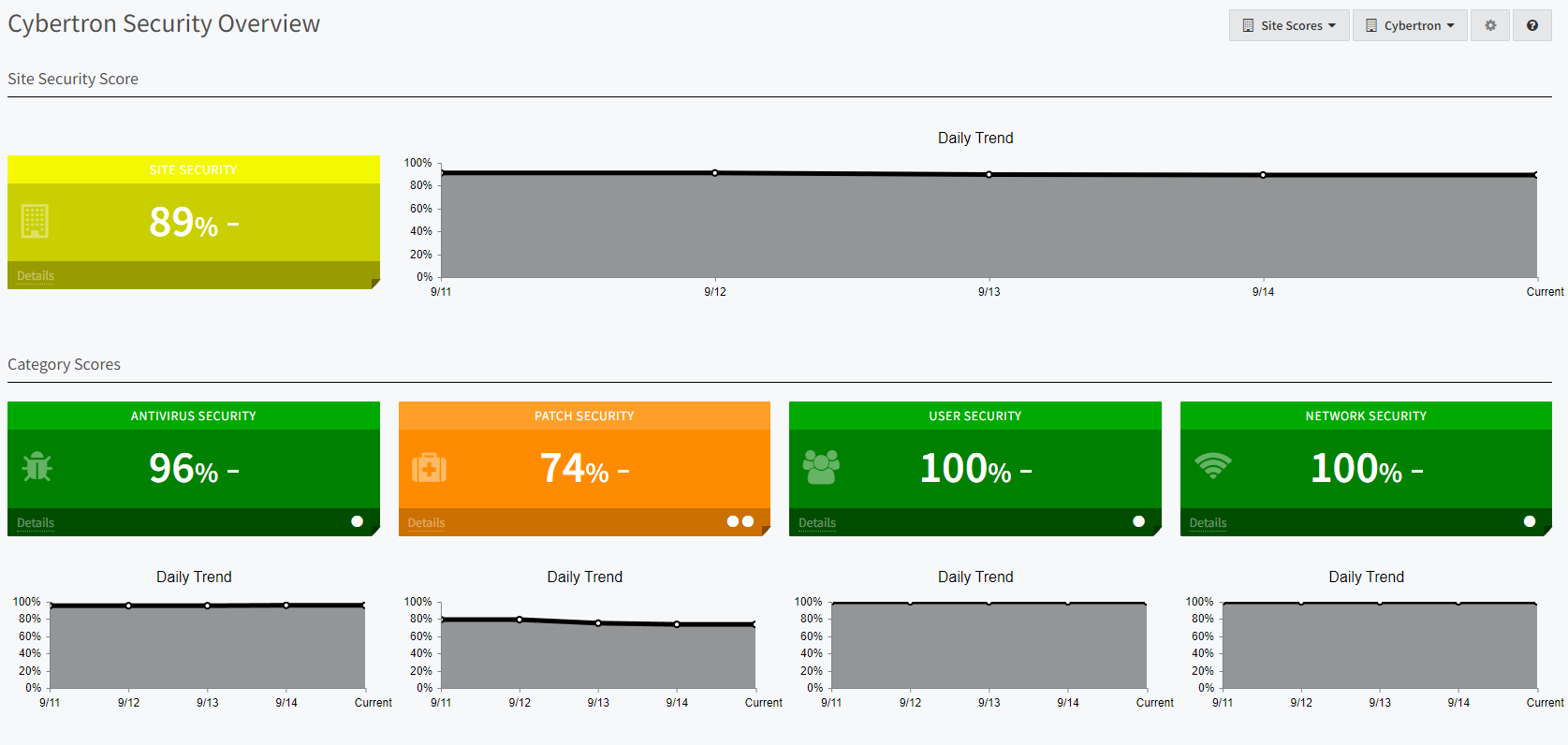
In Barracuda RMM, you can access the Site Security Dashboard to get an overview of Antivirus Security, Patching Security, User Security and Network Security. Please see the image below of an environment from one of our support team staff members.
To access your Site Security Dashboard
Click on Dashboards
Select Site Security Dashboard
The following is an overview of all sites with a Site Security Schema applied

Click the hotlink of a Site Name to open up an expanded view
About Site Security Schemas
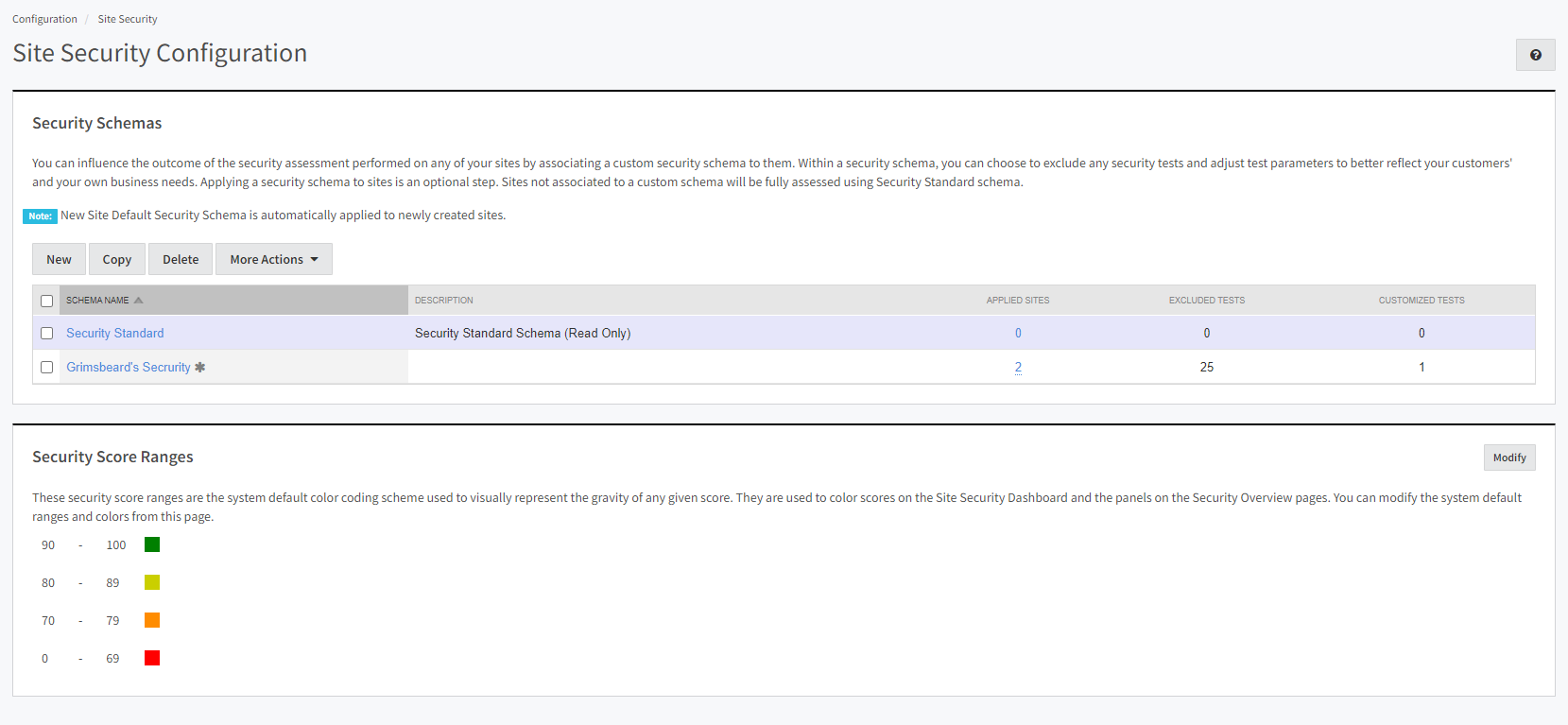
The data collected here comes from a Site Security Schema and will provide a breakdown of issues on a given site to which the schema is applied. The Site Security Schema can give an overall view of issues, but it needs to be fine-tuned for your site and needs. However, out of the box, you will have a default Security Standard you can apply to sites for demonstration purposes. It is worth noting that this default schema has all options turned off and will include all tests, which is not ideal for sites and environments in the long term. You will want to create your schema. As Barracuda RMM collects data about devices scanned into the dashboard overall, the schema will help you determine what issues might be associated with Antivirus, Patching Security (both Windows and Third Party), User Security and Network Security. This will be displayed on the Site Security Dashboard, which provides an aggregated overview of your sites so you can use Barracuda RMM to mitigate and address any issues.
Accessing Site Security Schemas
Click on Configuration
Select Site Security
You will have this page (or similar to this page)
Creating a New Custom Site Security Schema
From the above steps, click on New
Give the Schema a Name and description
Each drop-down for Antivirus Security, Patch Security, User Security, and Network Security contains options to toggle
Select which options you want to turn off, as all are on by default
It is worth noting that on the right-hand side, you can ungroup the test names to view all tests in one single pane
Add a Site to the Schema (you may have more than one site per schema, but to tailor the needs, it is recommended to set up their schemas as needed)
Hit Save
About Patching Security Score
A frequent request to the Barracuda RMM Support team is to understand the Patching Security Score within the Site Security Dashboard. The critical factor to consider is that the Patching Security Score is not based on patches missing from a device according to Patch Management, but rather on what the device reports is missing according to its inventory. Patch management is thus designed to update those devices so that the Site Security Dashboard can adequately reflect. However, one of the main issues is that the Site Security Dashboard does not indicate which patches are missing on which devices; it only shows that devices report they are missing patches. We are working with our development team to implement a change to list missing patches.
Another quick note on missing patches: often, we will see both Updates Rollups (which contain language packs), Office patches and patches not offered by WSUS factoring into patch security scores. The Barracuda RMM team recommends disabling update rollups in the Site Security Schema as a best practice, since each language pack counts toward the score, not just what your device uses. Equally, for Office patches, as there is no WSUS offering for those, we have an article on Patching Stand-alone MS Office and Office 365 that links to Microsoft's write-up. Finally, if you come across a patch that is not found in Patch Management, it is likely unavailable via WSUS. If a patch is not in WSUS, it is not automatically paginated in Patch Management. By searching the Microsoft Support site, you can determine whether a patch is available for WSUS. You need either the patch's KB number or its name.
How do I find out what patches are missing from devices?
In the past, partners would need to contact the Barracuda RMM Support Team to export a list of missing patches across all devices. However, we have incorporated the ability for partners to export this list on their own by doing the following:
Expand Dashboards
Select Site Security Dashboard
Then click on the Site Name
Select the Details of the Patch Security Score
Click on More Details
On the top right, just under the trend graph, select Export Patch Details, and it will download an Excel file of missing patches
To apply said patches, you can use the above steps in About Patching Security Score
A Final Note on the Site Security Dashboard
Now that you have the Site Security Schema set up, the Site Security Dashboard will accumulate data over several days and update throughout the week. It is important to note that this dashboard is not a real-time tool but a weekly snapshot of many data points compiled in one location. It is also crucial to note that if you see lower scores than you would like, you should use Barracuda RMM (or other tools) to make adjustments and deploy fixes. The Site Security Dashboard looks at your environment, sites, and devices without factoring in how you have them configured in Barracuda RMM. Also, as a final note, please bear in mind the Windows Operating System version and what is and is not supported by both Microsoft and Barracuda RMM. For example, as of November 2025, Barracuda RMM supports Windows 11 Pro and Enterprise editions (as long as the builds are kept up to date), as well as Windows Server 2022 (until October 2026) and Windows Server 2025. The only exception to this is if you are running a legacy product with a purchased Extended Security Updates license from Microsoft. Those devices will still count toward Patch Management in Barracuda RMM and will display correctly in the Site Security Dashboard, assuming they have been patched.