




The Alerts & Alarms page gives you a wide variety of tools to analyze alarms, alerts, and tickets.
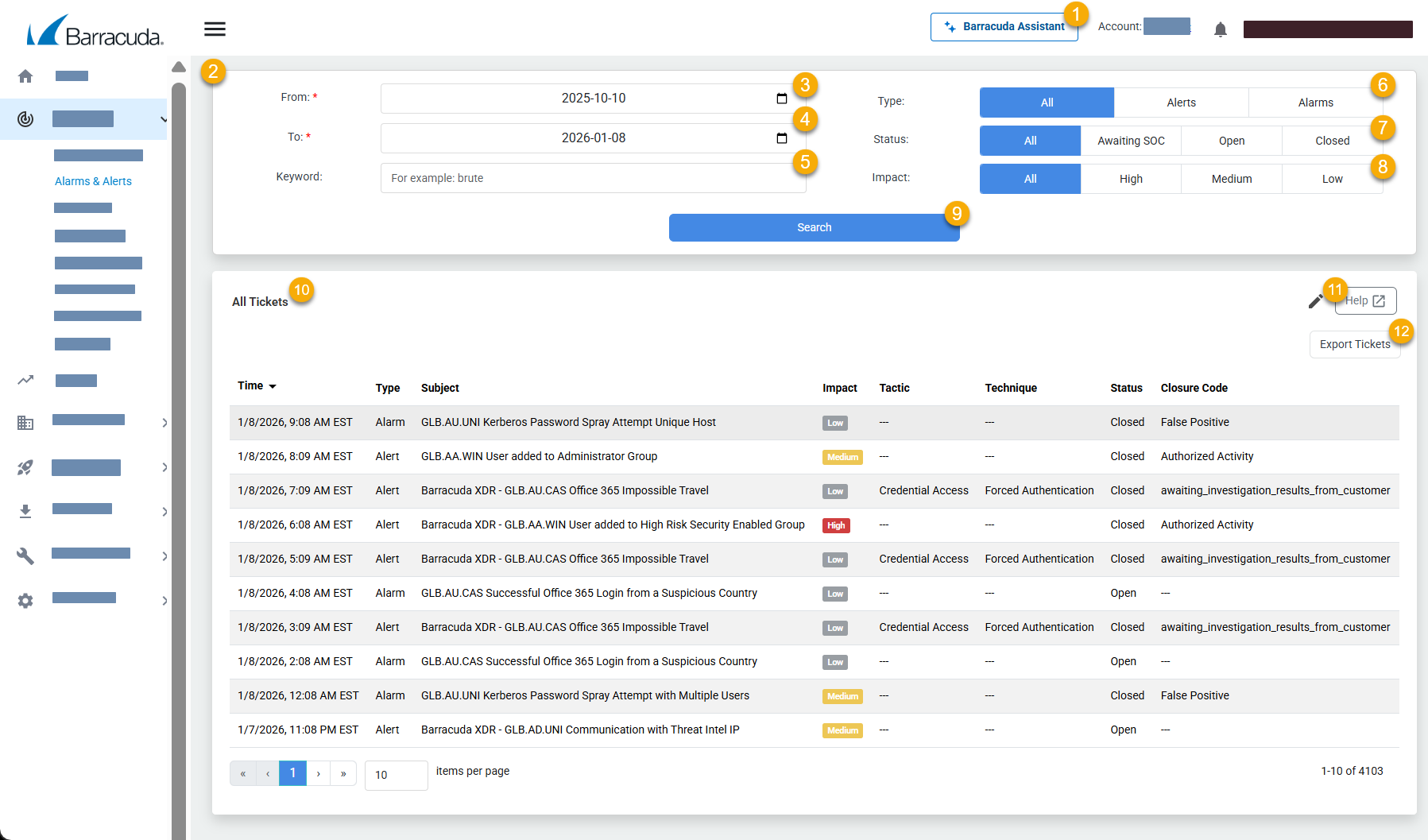
Click to open Barracuda Assistant. For more information, see Barracuda Assistant.
The Filter area gives you tools to filter the All Tickets table. See Filtering the Alarms & Alerts Page.
Select the start date for the filter.
Select the end date for the filter
Type one or more keywords, separated by commas.
Select a search type: All, Alerts, or Alarms.
Select a status: All, Awaiting SOC, Open, or Closed.
Select an impact: All, High, Medium, or Low.
Click to initiate the search.
The All Tickets table displays the tickets created from alerts and alarms. See Viewing Tickets on the Alerts & Alarms Page.
Click to edit the columns displayed on the All Tickets table. See Editing the Columns Displayed in the All Tickets Table on the Alarms & Alerts Page.
Click to export the contents of the table as a CSV file. See Exporting the All Tickets table on the Alarms & Alerts page.