




To integrate Zscaler Internet Access, do the following
Enable Zscaler Internet Access
Install the XDR Collector
Configure Zscaler Internet Access
Open the ports on the XDR Collector Host (If required)
To enable Zscaler Internet Access
In Barracuda XDR Dashboard, navigate to Administration > Integrations.
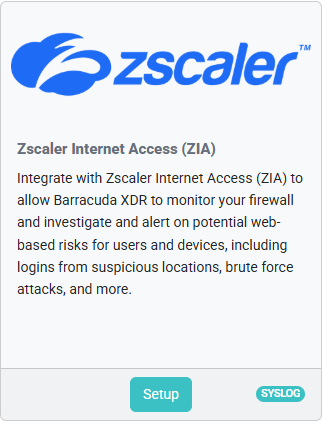
On the Zscaler Internet Access (ZIA) card, click Setup.
Select the Enabled check box.
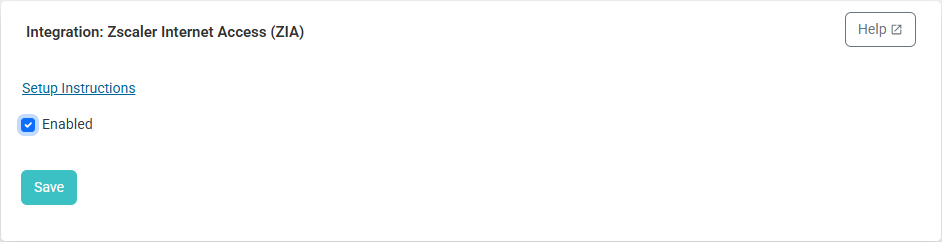
Click Save.
Install the XDR Collector
If you haven't already set up the XDR Collector, do one of the following:
Configure Zscaler Internet Access
Barracuda XDR can monitor syslog-formatted messages from Zscaler® Internet Access (ZIA) devices if the Nanolog Streaming Service (NSS) is configured to forward these messages to the appropriate XDR Agents.
You can configure the integration to forward different types of event logs. Do any of the following:
To forward Firewall logs, follow the To configure Zscaler NSS to send Firewall logs to the agent procedure.
To forward Alert logs, follow the To configure Zscaler NSS to send Alerts logs to the agent procedure.
To forward Audit logs, follow the To configure Zscaler NSS to send Audit logs to the agent procedure.
To forward Endpoint DLP logs, follow the To configure Zscaler NSS to send Endpoint DLP logs to the agent procedure.
To forward Web logs, follow the To configure Zscaler NSS to send Web logs to the agent procedure.
To forward Tunnel logs, follow the To configure Zscaler NSS to send Tunnel logs to the agent procedure.
To forward DNS logs, follow the To configure Zscaler NSS to send DNS logs to the agent procedure.
To configure Zscaler NSS to send Firewall logs to the agent
Copy the following firewall log output format:
Sign in to the Zscaler Cloud Portal with administrator permissions.On the Administration tab, in the Cloud Configuration section, click Nanolog Streaming Service.
Click the NSS Feeds tab.
Click Add NSS Feed.
In the Edit NSS Feed dialog, configure these settings:
Feed Name — Type a descriptive title for the feed, e.g. Barracuda XDR – ZIA Firewall.
NSS Type — Select NSS for Firewall.
NSS Server — Select the appropriate server.
NOTE If only one server is available, it is selected by default.Status — Click Enabled.
SIEM IP Address — Type the management IP address of the Agent.
SIEM TCP Port — Type
9264.Log Type — Click Firewall Logs.
Firewall Log Type — Click Both Session and Aggregate Logs.
Feed Output Type — Select Custom.
Feed Output Format — Paste the feed output format string that you copied in step 1.
Duplicate Logs — Select Disabled.
Click Save.
If you don’t have a firewall, the integration is complete. If you have a firewall, proceed to the To open the ports on the XDR Collector Host procedure.
To configure Zscaler NSS to send Alerts logs to the agent
Copy the following firewall log output format:
<%d{syslogid}>%s{Monthname} %2d{Dayofmonth} %02d{Hour}:%02d{Minutes}:%02d{Seconds} [%s{Deviceip}] ZscalerNSS: %s{Eventinfo}\nSign in to the Zscaler Cloud Portal with administrator permissions.
On the Administration tab, in the Cloud Configuration section, click Nanolog Streaming Service.
Click the NSS Feeds tab.
Click Add NSS Feed.
In the Edit NSS Feed dialog, configure these settings:
Feed Name — Type a descriptive title for the feed, e.g. Barracuda XDR – ZIA Alerts
NSS Type — Select NSS for Alert.
NSS Server — Select the appropriate server.
NOTE If only one server is available, it is selected by default.Status — Click Enabled.
SIEM IP Address — Type the management IP address of the Agent.
SIEM TCP Port — Type
9260.Log Type — Click Alert Logs.
Feed Output Type — Select Custom.
Feed Output Format — Paste the feed output format string that you copied in step 1.
Duplicate Logs — Select Disabled.
Click Save.
If you don’t have a firewall, the integration is complete. If you have a firewall, proceed to the To open the ports on the XDR Collector Host procedure.
To configure Zscaler NSS to send Audit logs to the agent
Copy the following feed output format:
\{"version":"v1","sourcetype":"zscalernss-audit","event":\{"time":"%s{time}","recordid":"%d{recordid}","action":"%s{action}","category":"%s{category}","subcategory":"%s{subcategory}","resource":"%s{resource}","interface":"%s{interface}","adminid":"%s{adminid}","clientip":"%s{clientip}","result":"%s{result}","errorcode":"%s{errorcode}","auditlogtype":"%s{auditlogtype}","preaction":%s{preaction},"postaction":%s{postaction}\}\}Sign in to the Zscaler Cloud Portal with administrator permissions.
On the Administration tab, in the Cloud Configuration section, click Nanolog Streaming Service.
Click the NSS Feeds tab.
Click Add NSS Feed.
In the Edit NSS Feed dialog, configure these settings:
Feed Name — Type a descriptive title for the feed, e.g. Barracuda XDR – ZIA Audit.
NSS Type — Select NSS for Audit.
NSS Server — Select the appropriate server.
NOTE If only one server is available, it is selected by default.Status — Click Enabled.
SIEM IP Address — Type the management IP address of the Agent.
SIEM TCP Port — Type
9261.Log Type — Click Audit Logs.
Feed Output Type — Select Custom.
Feed Output Format — Paste the feed output format string that you copied in step 1.
Duplicate Logs — Select Disabled.
Click Save.
If you don’t have a firewall, the integration is complete. If you have a firewall, proceed to the To open the ports on the XDR Collector Host procedure.
To configure Zscaler NSS to send Endpoint DLP logs to the agent
Copy the following feed output format:
\{"version":"v1","sourcetype":"zscalernss-edlp","event":\{"actiontaken":"%s{actiontaken}","activitytype":"%s{activitytype}","additionalinfo":"%s{addinfo}","channel":"%s{channel}","confirmaction":"%s{confirmaction}","confirmjustification":"%s{confirmjust}","datacenter":"%s{datacenter}","datacentercity":"%s{datacentercity}","datacentercountry":"%s{datacentercountry}","day":"%s{day}","dd":"%02d{dd}","department":"%s{department}","deviceappversion":"%s{deviceappversion}","devicehostname":"%s{devicehostname}","devicemodel":"%s{devicemodel}","devicename":"%s{devicename}","deviceostype":"%s{deviceostype}","deviceosversion":"%s{deviceosversion}","deviceowner":"%s{deviceowner}","deviceplatform":"%s{deviceplatform}","devicetype":"%s{devicetype}","dlpdictcount":"%s{dlpcounts}","dlpdictnames":"%s{dlpdictnames}","dlpenginenames":"%s{dlpengnames}","dlpidentifier":"%llu{dlpidentifier}","dsttype":"%s{dsttype}","eventtime":"%s{eventtime}","expectedaction":"%s{expectedaction}","filedoctype":"%s{filedoctype}","filedstpath":"%s{filedstpath}","filemd5":"%s{filemd5}","filesha":"%s{filesha}","filesrcpath":"%s{filesrcpath}","filetypecategory":"%s{filetypecategory}","filetypename":"%s{filetypename}","hh":"%02d{hh}","itemdstname":"%s{itemdstname}","itemname":"%s{itemname}","itemsrcname":"%s{itemsrcname}","itemtype":"%s{itemtype}","logtype":"%s{logtype}","mm":"%02d{mm}","mon":"%s{mon}","mth":"%02d{mth}","numdlpdictids":"%u{numdlpdictids}","numdlpengineids":"%u{numdlpengids}","odepartment":"%s{odepartment}","odevicehostname":"%s{odevicehostname}","odevicename":"%s{odevicename}","odeviceowner":"%s{odeviceowner}","odlpdictnames":"%s{odlpdictnames}","odlpenginenames":"%s{odlpengnames}","ofiledstpath":"%s{ofiledstpath}","ofilesrcpath":"%s{ofilesrcpath}","oitemdstname":"%s{oitemdstname}","oitemname":"%s{oitemname}","oitemsrcname":"%s{oitemsrcname}","ootherrulelabels":"%s{ootherrulelabels}","otherrulelabels":"%s{otherrulelabels}","orulename":"%s{otriggeredrulelabel}","ouser":"%s{ouser}","recordid":"%llu{recordid}","feedtime":"%s{rtime}","scannedbytes":"%llu{scanned_bytes}","scantime":"%llu{scantime}","severity":"%s{severity}","srctype":"%s{srctype}","ss":"%02d{ss}","datetime":"%s{time}","rulename":"%s{triggeredrulelabel}","timezone":"%s{tz}","user":"%s{user}","yyyy":"%04d{yyyy}","zdpmode":"%s{zdpmode}"\}\}Sign in to the Zscaler Cloud Portal with administrator permissions.
On the Administration tab, in the Cloud Configuration section, click Nanolog Streaming Service.
Click the NSS Feeds tab.
Click Add NSS Feed.
In the Edit NSS Feed dialog, configure these settings:
Feed Name — Type a descriptive title for the feed, e.g. Barracuda XDR – ZIA Endpoint DLP.
NSS Type — Select NSS for Endpoint DLP.
NSS Server — Select the appropriate server.
NOTE if only one server is available, it is selected by default.Status — Click Enabled.
SIEM IP Address — Type the management IP address of the Agent.
SIEM TCP Port — Type
9263.Log Type — Click Endpoint DLP Logs.
Feed Output Type — Select Custom.
Feed Output Format — Paste the feed output format string that you copied in step 1.
Duplicate Logs — Select Disabled.
Click Save.
If you don’t have a firewall, the integration is complete. If you have a firewall, proceed to the To open the ports on the XDR Collector Host procedure.
To configure Zscaler NSS to send Web logs to the agent
Copy the following feed output format:
\{"version":"v10","sourcetype":"zscalernss-web","event":\{"time":"%s{time}","cloudname":"%s{cloudname}","host":"%s{ehost}","serverip":"%s{sip}","external_devid":"%s{external_devid}","devicemodel":"%s{devicemodel}","action":"%s{action}","recordid":"%d{recordid}","reason":"%s{reason}","threatseverity":"%s{threatseverity}","tz":"%s{tz}","filesubtype":"%s{filesubtype}","upload_filesubtype":"%s{upload_filesubtype}","sha256":"%s{sha256}","bamd5":"%s{bamd5}","filename":"%s{efilename}","upload_filename":"%s{eupload_filename}","filetype":"%s{filetype}","devicename":"%s{edevicename}","devicehostname":"%s{devicehostname}","deviceostype":"%s{deviceostype}","deviceosversion":"%s{deviceosversion}","devicetype":"%s{devicetype}","reqsize":"%d{reqsize}","reqmethod":"%s{reqmethod}","b64referer":"%s{b64referer}","respsize":"%d{respsize}","respcode":"%s{respcode}","reqversion":"%s{reqversion}","respversion":"%s{respversion}","proto":"%s{proto}","company":"%s{company}","dlpmd5":"%s{dlpmd5}","apprulelabel":"%s{eapprulelabel}","dlprulename":"%s{dlprulename}","rulelabel":"%s{erulelabel}","urlfilterrulelabel":"%s{eurlfilterrulelabel}","cltip":"%s{cip}","cltintip":"%s{cintip}","cltsourceport":"%d{clt_sport}","threatname":"%s{threatname}","cltsslcipher":"%s{clientsslcipher}","clttlsversion":"%s{clienttlsversion}","b64url":"%s{b64url}","useragent":"%s{eua}","login":"%s{elogin}","applayerprotocol":"%s{alpnprotocol}","appclass":"%s{appclass}","appname":"%s{appname}","appriskscore":"%s{app_risk_score}","bandwidthclassname":"%s{bwclassname}","bandwidthrulename":"%s{bwrulename}","bwthrottle":"%s{bwthrottle}","bypassedtime":"%s{bypassed_etime}","bypassedtraffic":"%d{bypassed_traffic}","cltsslsessreuse":"%s{clientsslsessreuse}","cltpubip":"%s{cpubip}","cltsslfailcount":"%d{cltsslfailcount}","cltsslfailreason":"%s{cltsslfailreason}","contenttype":"%s{contenttype}","datacentercity":"%s{datacentercity}","datacentercountry":"%s{datacentercountry}","datacenter":"%s{datacenter}","day":"%s{day}","day_of_month":"%02d{dd}","dept":"%s{dept}","deviceappversion":"%s{deviceappversion}","deviceowner":"%s{deviceowner}","df_hosthead":"%s{df_hosthead}","df_hostname":"%s{df_hostname}","dlpdicthitcount":"%s{dlpdicthitcount}","dlpdict":"%s{dlpdict}","dlpeng":"%s{dlpeng}","dlpidentifier":"%d{dlpidentifier}","eedone":"%s{eedone}","epochtime":"%d{epochtime}","fileclass":"%s{fileclass}","flow_type":"%s{flow_type}","forward_gateway_ip":"%s{fwd_gw_ip}","forward_gateway_name":"%s{fwd_gw_name}","forward_type":"%s{fwd_type}","hour":"%02d{hh}","is_sslexpiredca":"%s{is_sslexpiredca}","is_sslselfsigned":"%s{is_sslselfsigned}","is_ssluntrustedca":"%s{is_ssluntrustedca}","is_src_cntry_risky":"%s{is_src_cntry_risky}","is_dst_cntry_risky":"%s{is_dst_cntry_risky}","keyprotectiontype":"%s{keyprotectiontype}","location":"%s{elocation}","malwarecategory":"%s{malwarecat}","malwareclass":"%s{malwareclass}","minute":"%02d{mm}","mobappcategory":"%s{mobappcat}","mobappname":"%s{emobappname}","mobdevtype":"%s{mobdevtype}","module":"%s{module}","month":"%s{mon}","month_of_year":"%02d{mth}","nssserviceip":"%s{nsssvcip}","oapprulelabel":"%s{oapprulelabel}","obwclassname":"%s{obwclassname}","ocip":"%d{ocip}","ocpubip":"%d{ocpubip}","odevicehostname":"%s{odevicehostname}","odevicename":"%s{odevicename}","odeviceowner":"%s{odeviceowner}","odlpdict":"%s{odlpdict}","odlpeng":"%s{odlpeng}","odlprulename":"%s{odlprulename}","ofwd_gw_name":"%s{ofwd_gw_name}","ologin":"%s{ologin}","ordr_rulename":"%s{ordr_rulename}","ourlcat":"%s{ourlcat}","ourlfilterrulelabel":"%s{ourlfilterrulelabel}","ozpa_app_seg_name":"%s{ozpa_app_seg_name}","externalsslpolicyreason":"%s{externalspr}","productversion":"%s{productversion}","prompt_req":"%s{prompt_req}","rdr_rulename":"%s{rdr_rulename}","refererhost":"%s{erefererhost}","reqheadersize":"%d{reqhdrsize}","reqdatasize":"%d{reqdatasize}","respheadersize":"%d{resphdrsize}","respdatasize":"%d{respdatasize}","riskscore":"%d{riskscore}","ruletype":"%s{ruletype}","second":"%02d{ss}","srvcertchainvalpass":"%s{srvcertchainvalpass}","srvcertvalidationtype":"%s{srvcertvalidationtype}","srvcertvalidityperiod":"%s{srvcertvalidityperiod}","srvsslcipher":"%s{srvsslcipher}","serversslsessreuse":"%s{serversslsessreuse}","srvocspresult":"%s{srvocspresult}","srvtlsversion":"%s{srvtlsversion}","srvwildcardcert":"%s{srvwildcardcert}","ssldecrypted":"%s{ssldecrypted}","throttlereqsize":"%d{throttlereqsize}","throttlerespsize":"%d{throttlerespsize}","totalsize":"%d{totalsize}","trafficredirectmethod":"%s{trafficredirectmethod}","unscannabletype":"%s{unscannabletype}","upload_doctypename":"%s{upload_doctypename}","upload_fileclass":"%s{upload_fileclass}","upload_filetype":"%s{upload_filetype}","urlcatmethod":"%s{urlcatmethod}","urlsubcat":"%s{urlcat}","urlsupercat":"%s{urlsupercat}","urlclass":"%s{urlclass}","useragentclass":"%s{uaclass}","useragenttoken":"%s{ua_token}","userlocationname":"%s{euserlocationname}","year":"%04d{yyyy}","ztunnelversion":"%s{ztunnelversion}","zpa_app_seg_name":"%s{zpa_app_seg_name}"\}\}Sign in to the Zscaler Cloud Portal with administrator permissions.
On the Administration tab, in the Cloud Configuration section, click Nanolog Streaming Service.
Click the NSS Feeds tab.
Click Add NSS Feed.
In the Edit NSS Feed dialog, configure these settings:
Feed Name — Type a descriptive title for the feed, e.g. Barracuda XDR – ZIA Web.
NSS Type — Select NSS for Web.
NSS Server — Select the appropriate server.
NOTE If only one server is available, it is selected by default.Status — Click Enabled.
SIEM IP Address — Type the management IP address of the Agent.
SIEM TCP Port — Type
9266.Log Type — Click Web Logs.
Feed Output Type — Select Custom.
Feed Escape Character — Type
\".
NOTE Add the characters"and\in feed escape characters while configuring the Web Log.Feed Output Format — Paste the feed output format string that you copied in step 1.
Duplicate Logs — Select Disabled.
Click Save.
If you don’t have a firewall, the integration is complete. If you have a firewall, proceed to the To open the ports on the XDR Collector Host procedure.
To configure Zscaler NSS to send Tunnel logs to the agent
Copy the following feed output format:
\{"version":"v2","sourcetype":"zscalernss-tunnel","event":\{"datetime":"%s{datetime}","day":"%s{day}","dd":"%02d{dd}","destinationip":"%s{destvip}","event":"%s{event}","eventreason":"%s{eventreason}","hh":"%02d{hh}","locationname":"%s{locationname}","mm":"%02d{mm}","mon":"%s{mon}","mth":"%02d{mth}","olocationname":"%s{olocationname}","ovpncredentialname":"%s{ovpncredentialname}","recordid":"%d{recordid}","sourceip":"%s{sourceip}","sourceport":"%d{srcport}","ss":"%02d{ss}","Recordtype":"%s{tunnelactionname}","tunneltype":"%s{tunneltype}","timezone":"%s{tz}","user":"%s{vpncredentialname}","yyyy":"%04d{yyyy}"\}\}Sign in to the Zscaler Cloud Portal with administrator permissions.
On the Administration tab, in the Cloud Configuration section, click Nanolog Streaming Service.
Click the NSS Feeds tab.
Click Add NSS Feed.
In the Edit NSS Feed dialog, configure these settings:
Feed Name — Type a descriptive title for the feed, e.g. Barracuda XDR – ZIA Tunnel.
NSS Server — Select the appropriate server.
NOTE If only one server is available, it is selected by default.Status — Click Enabled.
SIEM IP Address — Type the management IP address of the Agent.
SIEM TCP Port — Type
9265.Log Type — Click Tunnel Logs.
Feed Output Type — Select Custom.
Feed Output Format — Paste the feed output format string that you copied in step 1.
Duplicate Logs — Select Disabled.
Click Save.
If you don’t have a firewall, the integration is complete. If you have a firewall, proceed to the To open the ports on the XDR Collector Host procedure.
To configure Zscaler NSS to send DNS logs to the agent
Copy the following feed output format:
\{"version":"v2","sourcetype":"zscalernss-dns","event":\{"user":"%s{elogin}","department":"%s{edepartment}","location":"%s{elocation}","clt_sip":"%s{cip}","cloudname":"%s{cloudname}","company":"%s{company}","datacenter":"%s{datacenter}","datacentercity":"%s{datacentercity}","datacentercountry":"%s{datacentercountry}","day_of_month":"%02d{dd}","dept":"%s{dept}","deviceappversion":"%s{deviceappversion}","devicehostname":"%s{devicehostname}","devicemodel":"%s{devicemodel}","devicename":"%s{devicename}","deviceostype":"%s{deviceostype}","deviceosversion":"%s{deviceosversion}","deviceowner":"%s{deviceowner}","devicetype":"%s{devicetype}","dnsapp":"%s{dnsapp}","dnsappcat":"%s{dnsappcat}","dns_gateway_status":"%s{dnsgw_flags}","dns_gateway_rule":"%s{dnsgw_slot}","dns_gateway_server_protocol":"%s{dnsgw_srv_proto}","category":"%s{domcat}","durationms":"%d{durationms}","ecs_prefix":"%s{ecs_prefix}","ecs_slot":"%s{ecs_slot}","epochtime":"%d{epochtime}","error":"%s{error}","hour":"%02d{hh}","http_code":"%s{http_code}","istcp":"%d{istcp}","loc":"%s{location}","login":"%s{login}","minutes":"%02d{mm}","month":"%s{mon}","month_of_year":"%02d{mth}","odevicehostname":"%s{odevicehostname}","odevicename":"%s{odevicename}","odeviceowner":"%s{odeviceowner}","odomcat":"%s{odomcat}","protocol":"%s{protocol}","recordid":"%d{recordid}","dns_req":"%s{req}","reqaction":"%s{reqaction}","reqrulelabel":"%s{reqrulelabel}","dns_reqtype":"%s{reqtype}","dns_resp":"%s{res}","resaction":"%s{resaction}","respipcategory":"%s{respipcat}","resrulelabel":"%s{resrulelabel}","restype":"%s{restype}","srv_dip":"%s{sip}","srv_dport":"%d{sport}","second":"%02d{ss}","datetime":"%s{time}","tz":"%s{tz}","year":"%04d{yyyy}"\}\}Sign in to the Zscaler Cloud Portal with administrator permissions.
On the Administration tab, in the Cloud Configuration section, click Nanolog Streaming Service.
Click the NSS Feeds tab.
Click Add NSS Feed.
In the Edit NSS Feed dialog, configure these settings:
Feed Name — Type a descriptive title for the feed, e.g. Barracuda XDR – ZIA DNS.
NSS Type — Select NSS for Firewall.
NSS Server — Select the appropriate server.
NOTE If only one server is available, it is selected by default.Status — Click Enabled.
SIEM IP Address — Type the management IP address of the Agent.
SIEM TCP Port — Type
9262.Log Type — Click DNS Logs.
Feed Output Type — Select Custom.
Feed Output Format — Paste the feed output format string that you copied in step 1.
Duplicate Logs — Select Disabled.
Click Save.
If you don’t have a firewall, the integration is complete. If you have a firewall, proceed to the To open the ports on the XDR Collector Host procedure.
To open the ports on the XDR Collector Host
If you have a firewall protecting your collector, ensure that it allows incoming traffic on the TCP port. Do this for all ports of the feeds configured for Zscaler (firewall, alerts, etc.).
Here are some examples for commonly used firewalls:
Linux ufw
sudo ufw allow <XXXX>/tcp , where <XXXX> is the port number
Linux Iptables
sudo iptables -A INPUT -p tcp --dport <XXXX> -j ACCEPT, where <XXXX> is the port number
Linux firewalld
sudo firewall-cmd --permanent --add-port=<XXXX>/tcp, where <XXXX> is the port number
Windows
netsh advfirewall firewall add rule name="Zscaler Firewall" dir=in action=allow protocol=TCP localport=<XXXX>, where <XXXX> is the port number
Feed Output Format: